Automations and buttons
Make a list react by itself when a card changes — set a status, assign someone, notify people — and add buttons that run the same actions in one click.
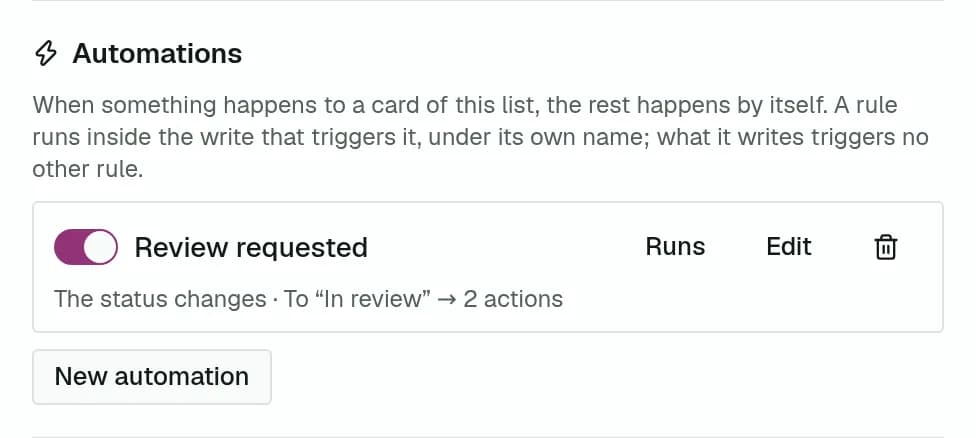
- 1
A rule
Its name, then a summary: what triggers it and how many actions it runs. - 2
On or off
Turn a rule off without losing it. A rule that is off does nothing. - 3
Runs
What the rule did lately: on which card, after whose change, and whether it worked. - 4
Edit
Reopens the rule to change its trigger, its conditions or its actions. - 5
New automation
Starts a new rule for this list.
An automation is a rule that belongs to a list: when something happens to a card, then the list does the rest by itself. A button runs the same kind of actions, but only when someone clicks it.
Create a rule
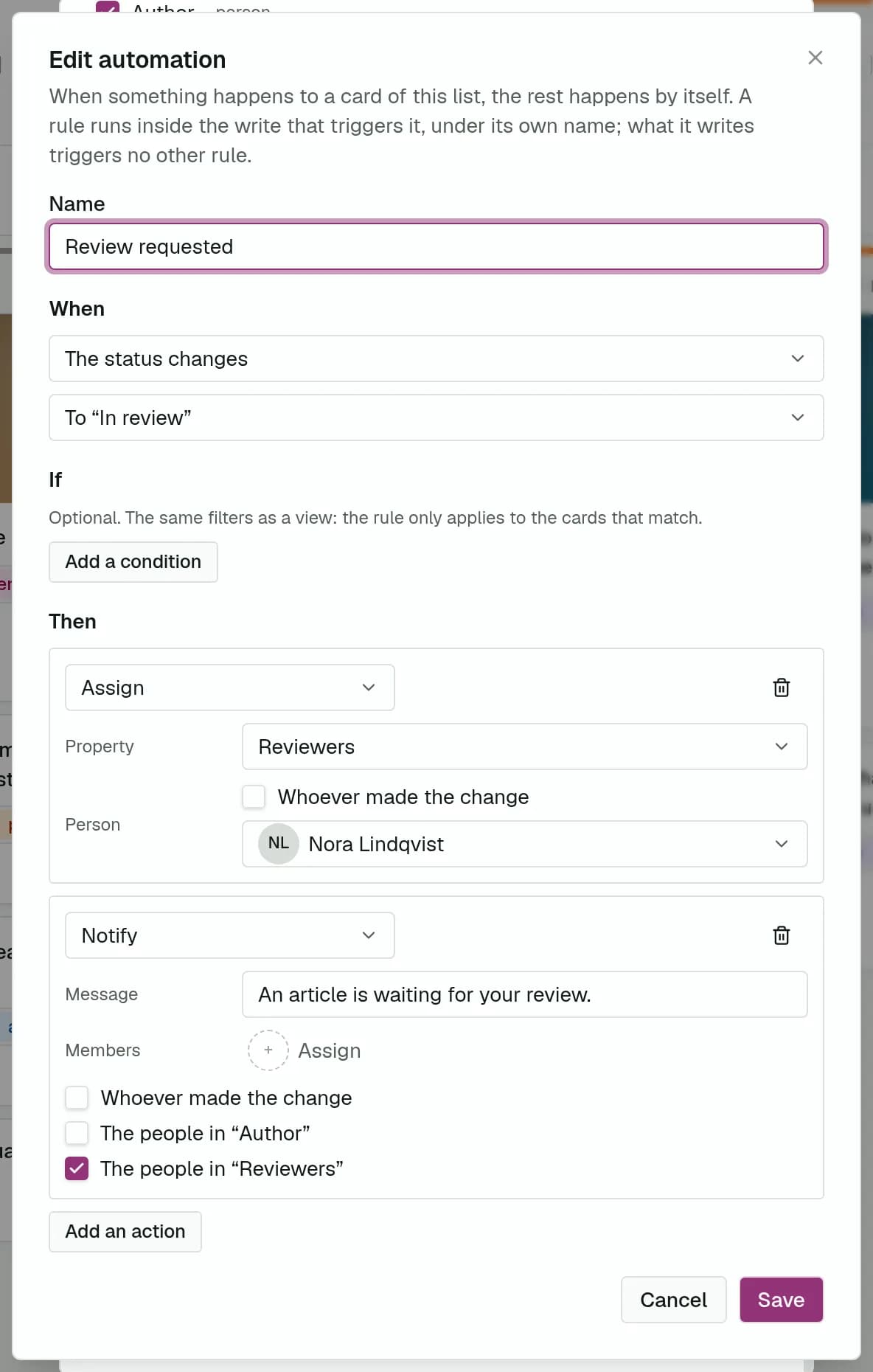
- 1
Name
This is the name that signs everything the rule does on a card. - 2
When
The trigger. Here, the status changes to In review. - 3
If
Optional conditions. The rule only runs on cards that match. - 4
Then
The actions, run from top to bottom.
Open the settings of the list
Open the list, click List settings, then scroll down to Automations and click New automation.
Name the rule and choose its trigger
Fill in Name, then pick under When what starts the rule.
Narrow it down, if you need to
Under If, click Add a condition to keep only some cards: by status, by title, or by the value of a property.
Choose what the rule does, then save
Under Then, pick an action and fill it in. Add an action adds another one, up to ten. Then click Save — it stays off as long as the name is empty or An action is not finished.
Pick a trigger and actions
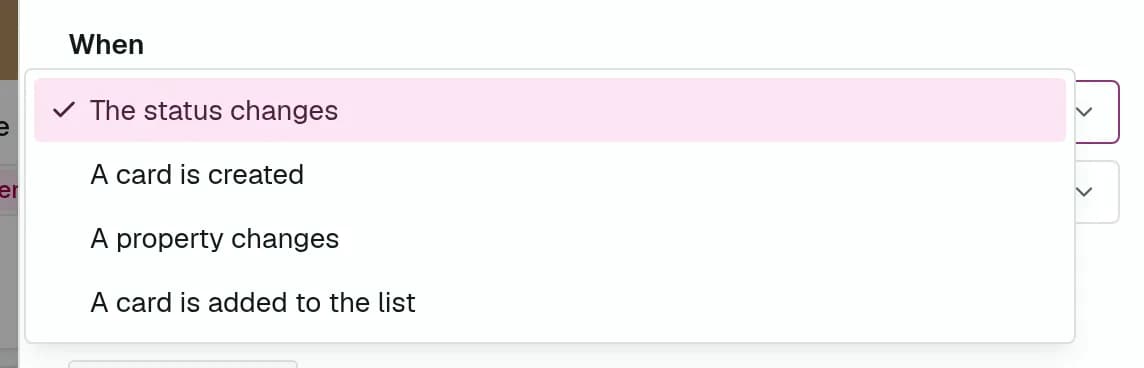
A rule starts on one of four triggers:
- The status changes — to any status, to any status of a category (To do, In progress, Done), or to one status in particular.
- A card is created — in this list.
- A property changes — whatever the new value, or only when it becomes the value you give.
- A card is added to the list — a card that lives in another list and gets attached to this one.
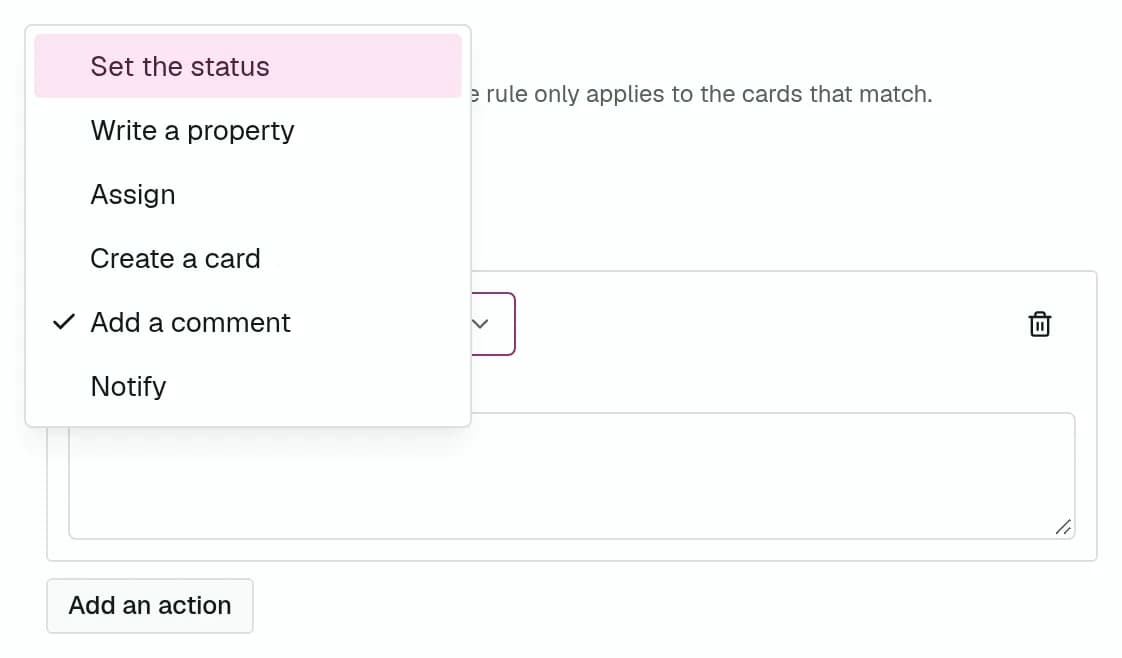
And it runs one or several of six actions:
- Set the status — to one of the statuses of the list.
- Write a property — a fixed value. A date can take the day of the change, a person whoever made the change.
- Assign — put someone in a person property, a named member or whoever made the change.
- Create a card — empty or from a template, in the list or as a subtask of the card.
- Add a comment — signed by the rule.
- Notify — send your message to members, to the people in a person property, or to whoever made the change.
Turn a rule off, or see what it did
Use the switch in front of a rule to turn it off and back on. Runs lists its last 50 runs: the card, who made the change that triggered it, and the result — a number of actions, Error or Skipped. An error never undoes what the person did: only the rule's own actions are cancelled.
A rule also turns itself off when something it names disappears: a deleted status, property or template, a member who left. The rule then shows Turned off: followed by the reason. Edit it, fix what is missing, and switch it back on.
Careful
The trash icon on a rule deletes it right away, without asking for confirmation.
Add a button to your cards
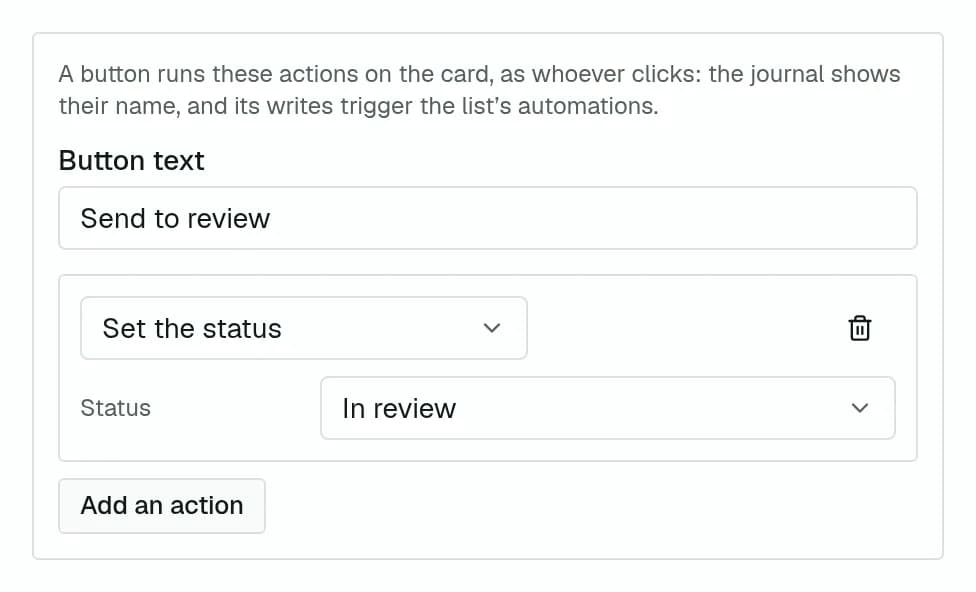
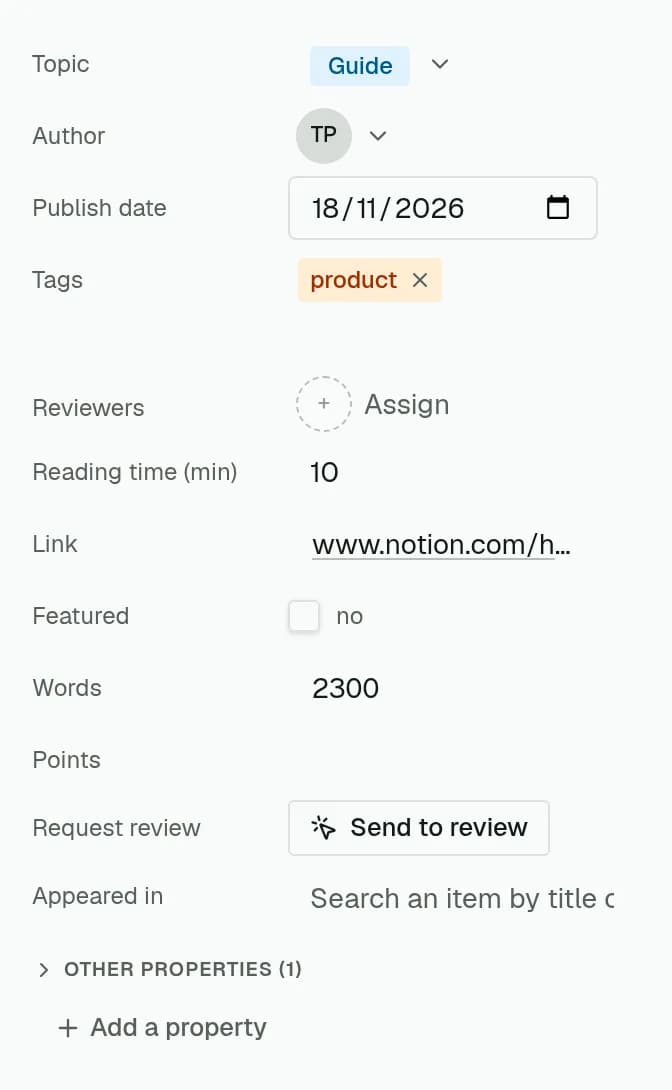
A button is a property. You create it once for the workspace, and it shows on a card like any other property.
Create the property
Open Workspace settings, then Properties, and click New property. Choose the type Button (actions).
Write its text and its actions
Button text is what people read on the button. Below, add the actions it runs — the same six as a rule.
Show it in a list
In List settings, tick the property under Displayed columns. The button now appears on the cards of that list, and in a table once you show its column.
A click runs the actions in your name: the card's history shows you, not the button. And unlike a rule, a button is all or nothing — if one action is refused, nothing is done and a message tells you why.
FAQ
Keep going
Inbox and mentions
Read what is waiting for you in a workspace, mark it as read, and mention a teammate with @ so that they are notified.
Sprints
Give a list a first and a last day, fill it with cards from your other lists, follow the burndown, then move what isn't done to the next sprint in one click.