Sprints
Give a list a first and a last day, fill it with cards from your other lists, follow the burndown, then move what isn't done to the next sprint in one click.
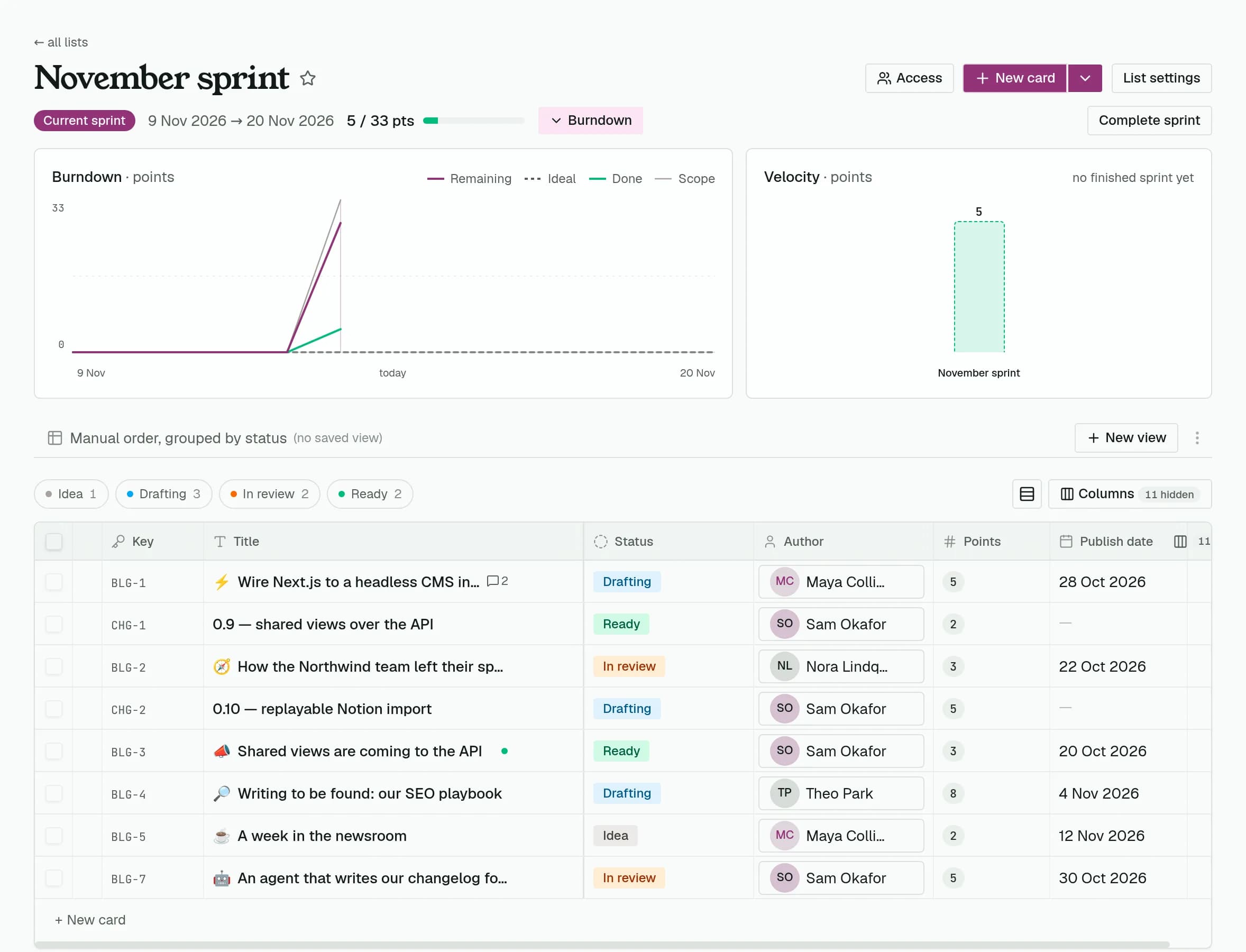
- 1
Where the sprint stands
Upcoming sprint, Current sprint or Sprint ended, with its first and last day. - 2
Progress
What is done out of everything in the sprint — here 5 points out of 33. - 3
Burndown
Day by day, what is left to do against an ideal straight line. Burndown, in the bar, shows or hides both charts. - 4
Velocity
What each of the last sprints delivered, and the average of the finished ones. - 5
Complete sprint
Closes the sprint and sends what isn't done to the next one.
A sprint is a list with a first and a last day. Its cards usually come from elsewhere: they stay in their own list and are also shown in the sprint, so nothing leaves your backlog.
Turn a list into a sprint
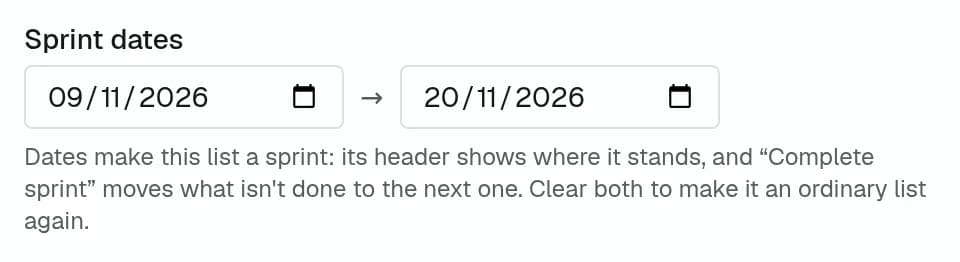
Open the settings of the list
Create a list, or open one you already have, then click List settings.
Fill in both dates
Under Sprint dates, give the first day and the last day. It takes both: one date alone is refused.
Save
Click Save. The sprint bar appears under the title of the list.
Good to know
Clear both dates to make the sprint an ordinary list again. Its cards don't move.
Add cards to the sprint
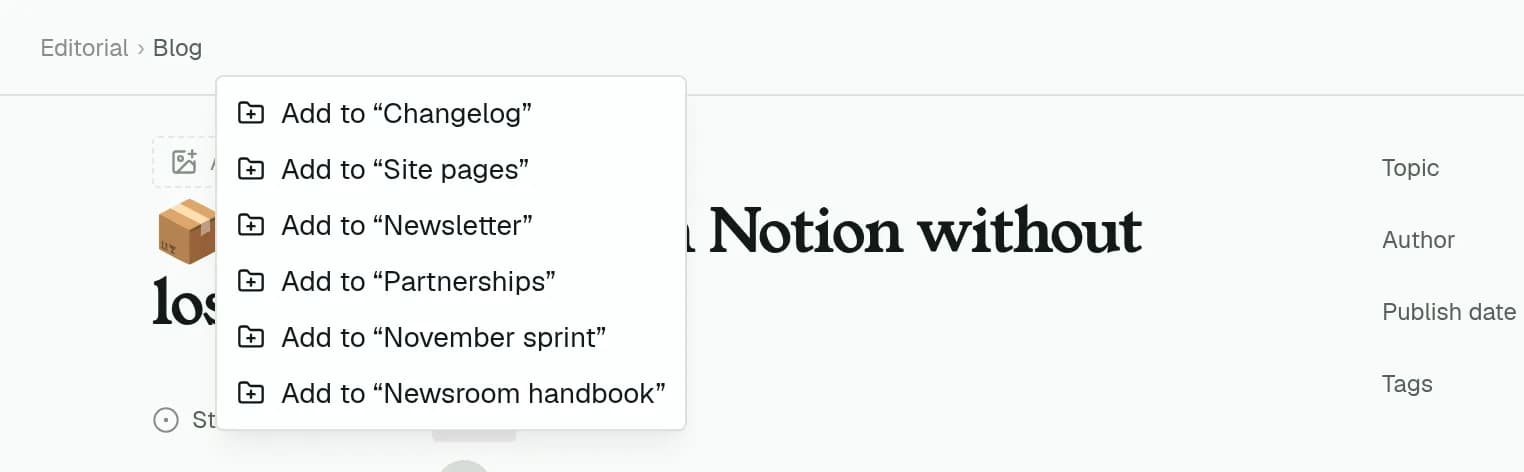
Open a card of your backlog
Open it from its own list — the blog, the changelog, wherever it lives.
Add it to the sprint
At the top of the card, point at the breadcrumb and click Add to a list, then Add to “November sprint”. If the card already sits in other lists, the same menu opens from the +1 counter.
The card keeps its key, its status and its properties: it is the same card, seen from two lists. To take it out, use Remove from “November sprint” in the same menu. You can also create a card directly in the sprint; it then belongs to the sprint and takes its key.
Count in points
Out of the box, a sprint counts cards: each one weighs 1. To count effort instead, open Workspace settings, then General, and under Effort points choose a number property as Points property. Pick None — count cards to go back.
There is one points property for the whole workspace, so a card weighs the same in every sprint. Its points show as a badge on the card, the columns of a board show their total, and the sprint bar says how many cards are not estimated yet.
Read the burndown and the velocity
Click Burndown in the sprint bar to show the two charts.
- Remaining goes down as cards reach a status of the Done category. Ideal is the straight line from what the sprint held at the end of its first day down to zero on the last day.
- Scope is everything in the sprint. It moves the day you add a card, remove one or change an estimate.
- Done is what has been delivered so far. The curves stop at today.
- Velocity compares the last six sprints of the same group in the sidebar. The average only counts sprints that have ended.
Complete a sprint
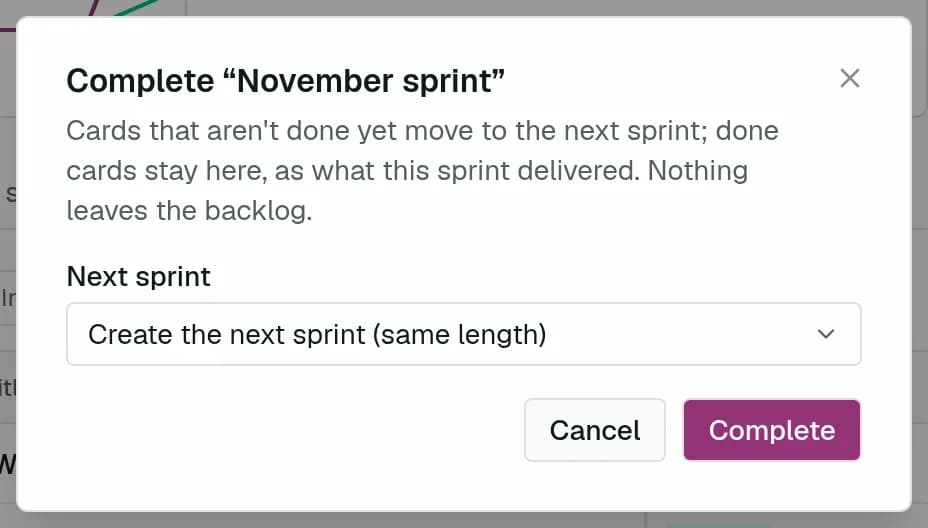
Click Complete sprint
The button is at the right of the sprint bar.
Choose where the rest goes
Next sprint suggests the sprint that starts after this one. If there is none, keep Create the next sprint (same length): it starts the day after, with the same columns, in the same group. You can also pick any other list.
Click Complete
Cards that are done stay in the sprint: this is what it delivered. The others move to the next sprint, and the app takes you there.
FAQ
Keep going
Automations and buttons
Make a list react by itself when a card changes — set a status, assign someone, notify people — and add buttons that run the same actions in one click.
Marketplace
Browse the apps that plug your workspace into Slack, Google Drive and GitHub, install one, and take its access back when you no longer need it.