Comments
Discuss a card under its body, comment on a passage, reply, mention a teammate and resolve a discussion.
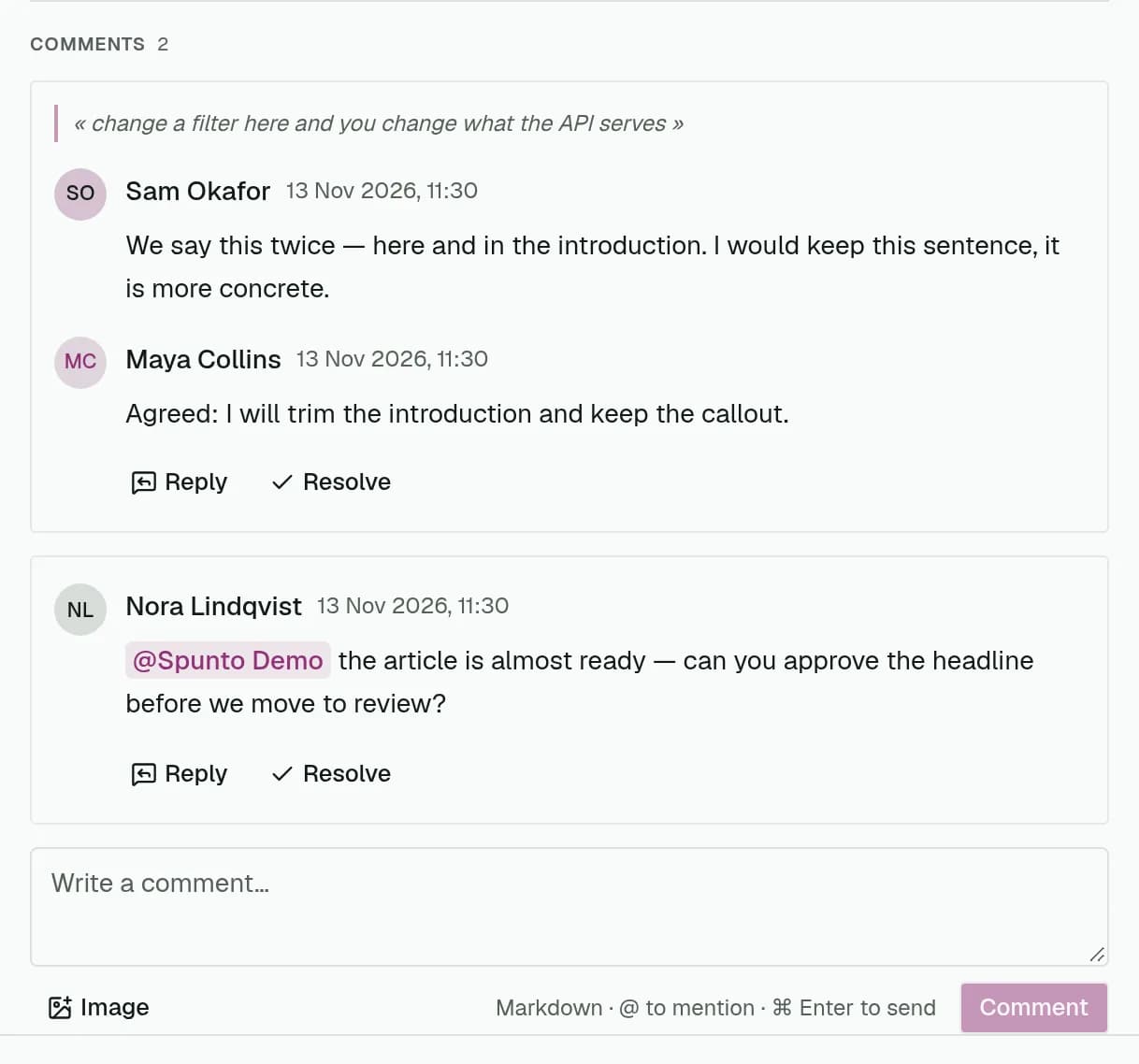
- 1
Quoted passage
The discussion is about this sentence of the body. Click the quote to see it in the text.
- 2
Reply
Replies sit under the first comment. A discussion has one level.
- 3
Reply and Resolve
Answer in the discussion, or close it once the point is settled.
- 4
Mention
A person named with
@. They find the comment in their inbox. - 5
New comment
Starts a new discussion on the card.
Comments live at the bottom of a card, under the body and the subtasks. You talk about the card there without touching what it says.
Write a comment
Open the card and go to Comments
The section is at the bottom of the card. The number next to its title counts the open discussions.
Type in Write a comment…
The text is Markdown: **bold**, lists and links work. Click Image to attach a picture, or paste a screenshot.
Click Comment
Or press Ctrl↵. Your comment opens a new discussion.
Comment on a passage
Tie a discussion to the exact words it is about.
- Select a few words in the body of the card.
- In the bar that appears above the selection, click Comment.
- The field reads Comment on this passage…, with your selection quoted above it. Write, then click Comment. Cancel drops the quote.
The passage stays highlighted in the body while the discussion is open. Click the highlight to reach the discussion, or click the quote to see the passage.
Good to know
If someone rewrites the quoted words, the discussion stays and reads Passage changed since: it is no longer in the text.
Reply and resolve
- Reply adds your answer under the discussion. You reply to the discussion, not to another reply.
- Resolve closes the discussion. It folds away under a line such as 1 resolved discussion, and its passage is no longer highlighted.
- Reopen brings a resolved discussion back. A reply alone does not reopen it.
Mention someone
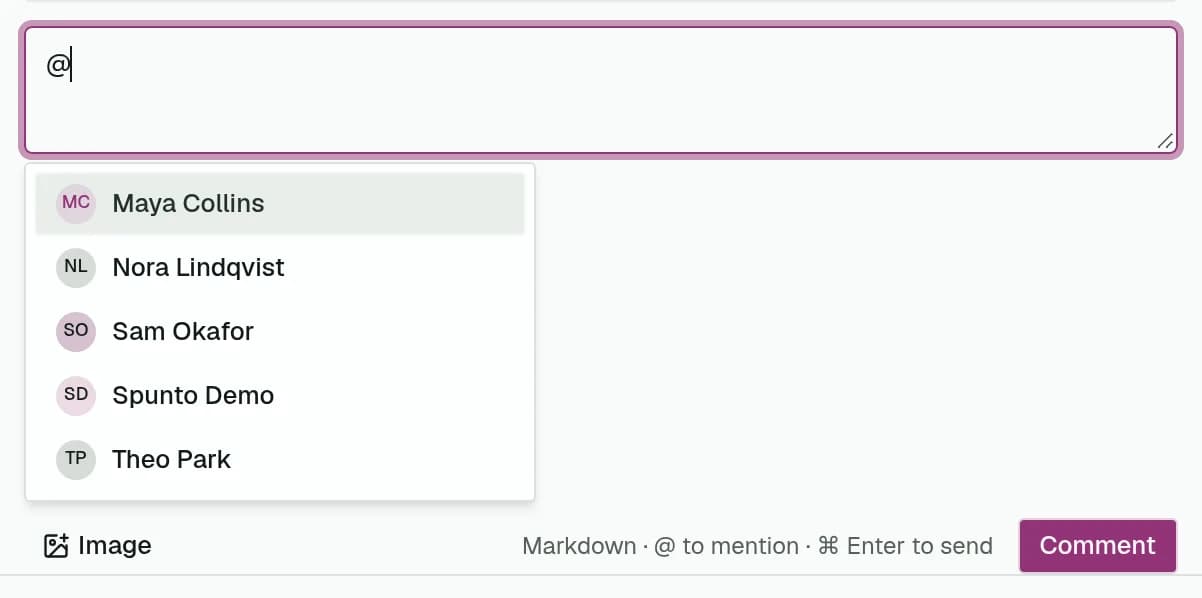
Type @ in a comment, then keep typing a name. Press Enter to pick the person, Esc to close the list.
The person gets a notification in their inbox. Without any mention, a comment still reaches the author of the card and the people named in its person properties. A reply reaches everyone who wrote in the discussion.
React, edit or delete
Hover a comment to find two buttons at its right.
- React adds an emoji under the comment. Click the emoji again to take it back.
- The
⋯menu holds Edit and Delete. Only the author edits a comment, and it then shows (edited). The author or an admin deletes it.
Careful
On the first comment of a discussion, the menu reads Delete the discussion. It removes the replies too, including those written by others.
See which cards are under discussion

In a table, on a board and in a list view, a card shows a bubble with the number of its open discussions. A card with nothing open shows nothing.