Wiki pages
Present a list as pages — a tree in the sidebar, sub-pages, and live views embedded in a body — for a handbook, guides or team notes.
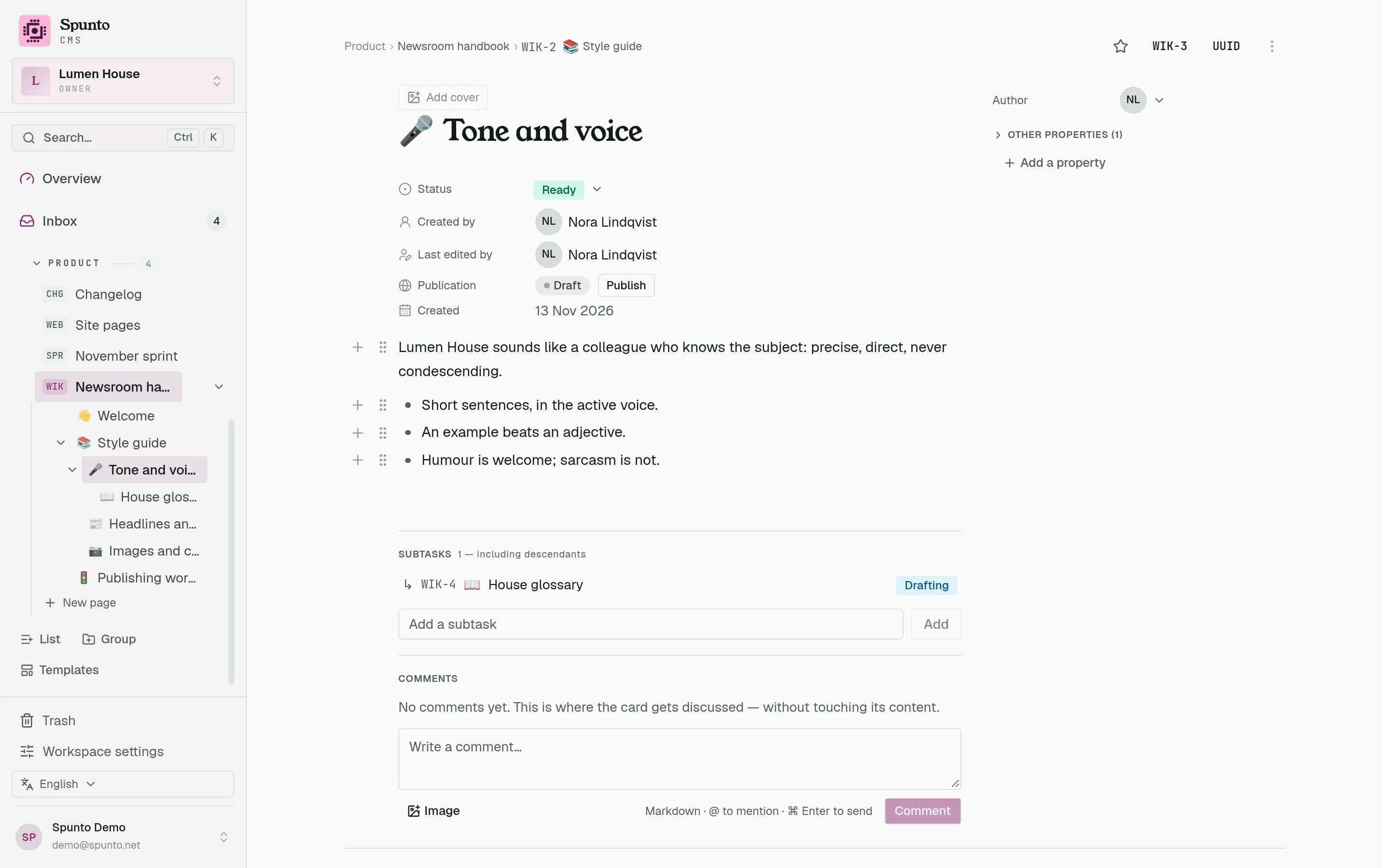
- 1
The list
A list presented as pages opens on its first page. The arrow on its right shows or hides its pages. - 2
The tree of pages
One line per page. The arrow on the left of a page expands its sub-pages. - 3
New page
Adds a page at the top level of the list. - 4
The page
A title, an icon, a body. Its key, hereWIK-3, sits at the top right. - 5
A page is a card
Status, author, publication: a page has everything a card has.
A wiki is a list presented as pages. Nothing else changes: each page is a card, with its key, its status, its properties and its comments. You just browse it as a tree instead of a table.
Create a page or a sub-page
Click New page
The button sits under the pages of the list, in the sidebar. To create a sub-page instead, hover a page and click the + on its line (Add a sub-page).
Rename it
The page is created right away, named New page, and opens in full page. Click its title and type the real one.
Good to know
A sub-page is a subtask of its parent: it also shows under Subtasks, at the bottom of the parent page.
Move a page
Hover a page in the sidebar and drag it by the handle on its left. Drop it on the top of another page to put it before, on the bottom to put it after, and on the middle to make it a sub-page — the label then reads Under “Style guide”. Esc cancels.
Which pages are expanded is remembered by your browser, not shared with your teammates.
Turn a list into pages
Open List settings
The button is at the top right of the list.
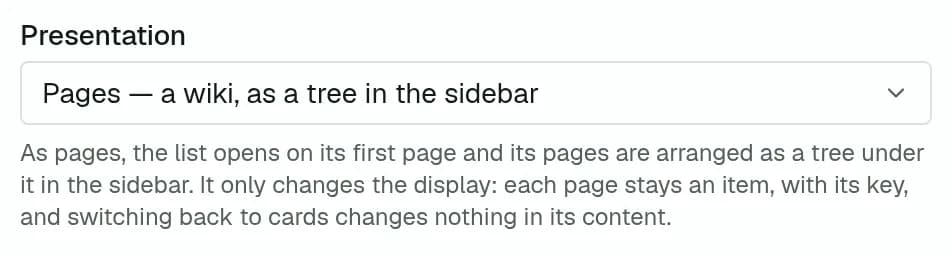
Set Presentation to Pages
The field offers Cards — table, board, views and Pages — a wiki, as a tree in the sidebar.
Click Save
The cards of the list become its pages, and their subtasks become sub-pages. Switching back to cards changes nothing in their content.
Starting from scratch? The Wiki template, under Templates in the sidebar, creates a list that is already presented as pages.
See all the pages, or get the table back
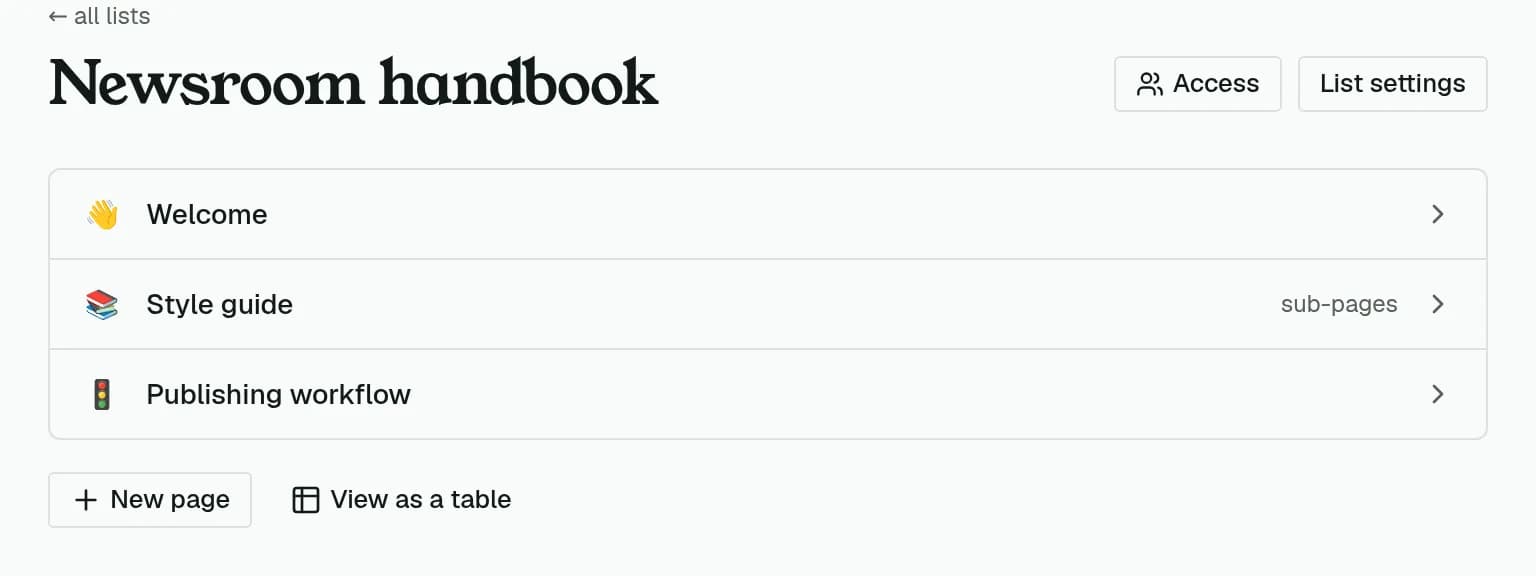
Clicking a wiki in the sidebar opens its first page, not the list. To reach the list itself, hover it in the sidebar and click the icon that appears (All pages, and the list settings).
From there, List settings and Access work as for any list, and View as a table shows the pages as cards again, with the views of the list.
Embed a view in a page
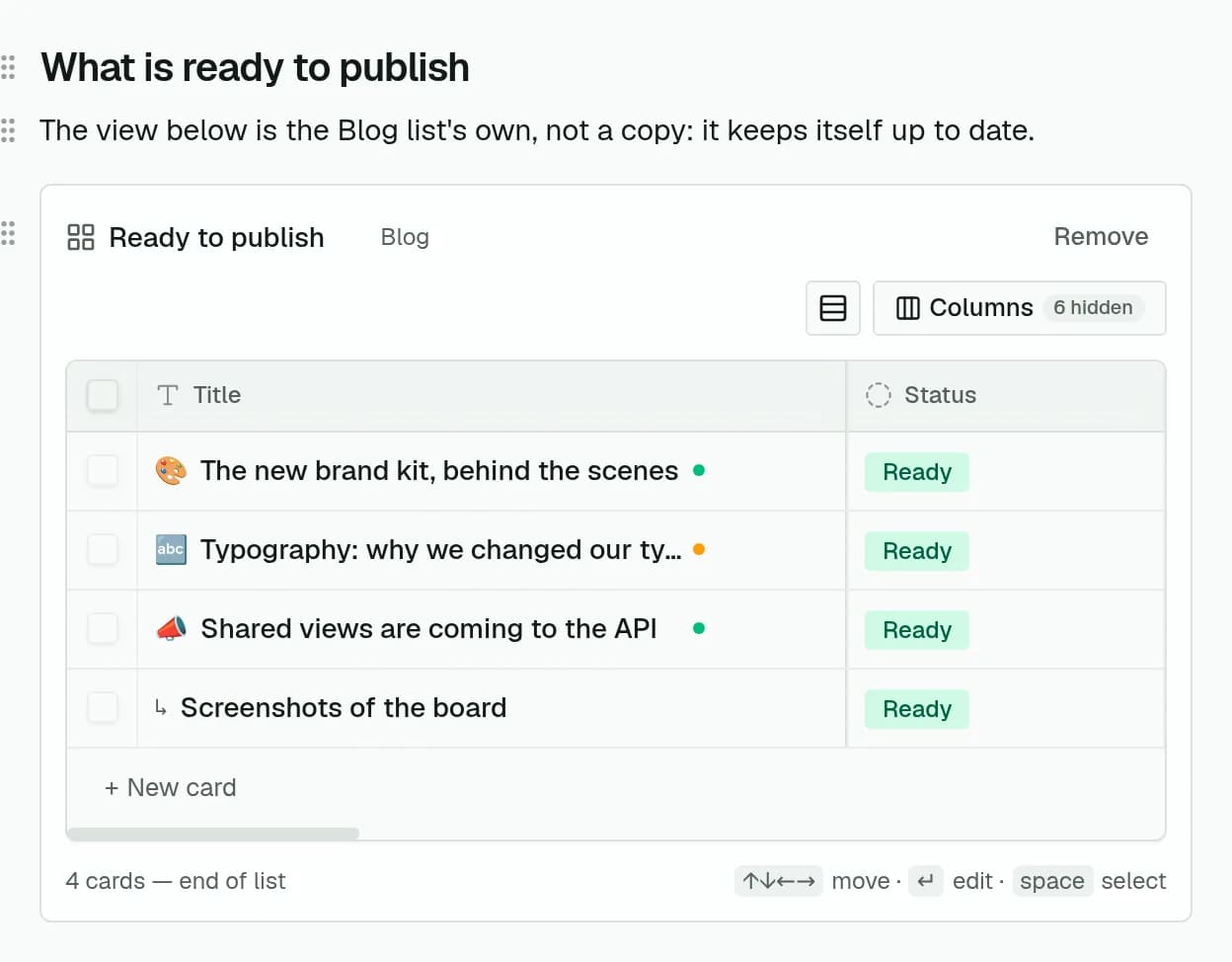
A body can hold a saved view of any list: a reading list, the articles ready to ship, the open bugs.
Type /view in the body
Pick View of a list.
Choose the list, then the view
Which list? shows the lists of the workspace, then the saved views of the one you pick.
The block is the view itself, not a copy: it stays up to date, and a card you click opens in the panel. The name of the view opens it in its list; Remove takes the block away and leaves the view where it is.