Publish
Freeze what a card says for the sites that read it, keep editing the draft, publish your changes and unpublish.
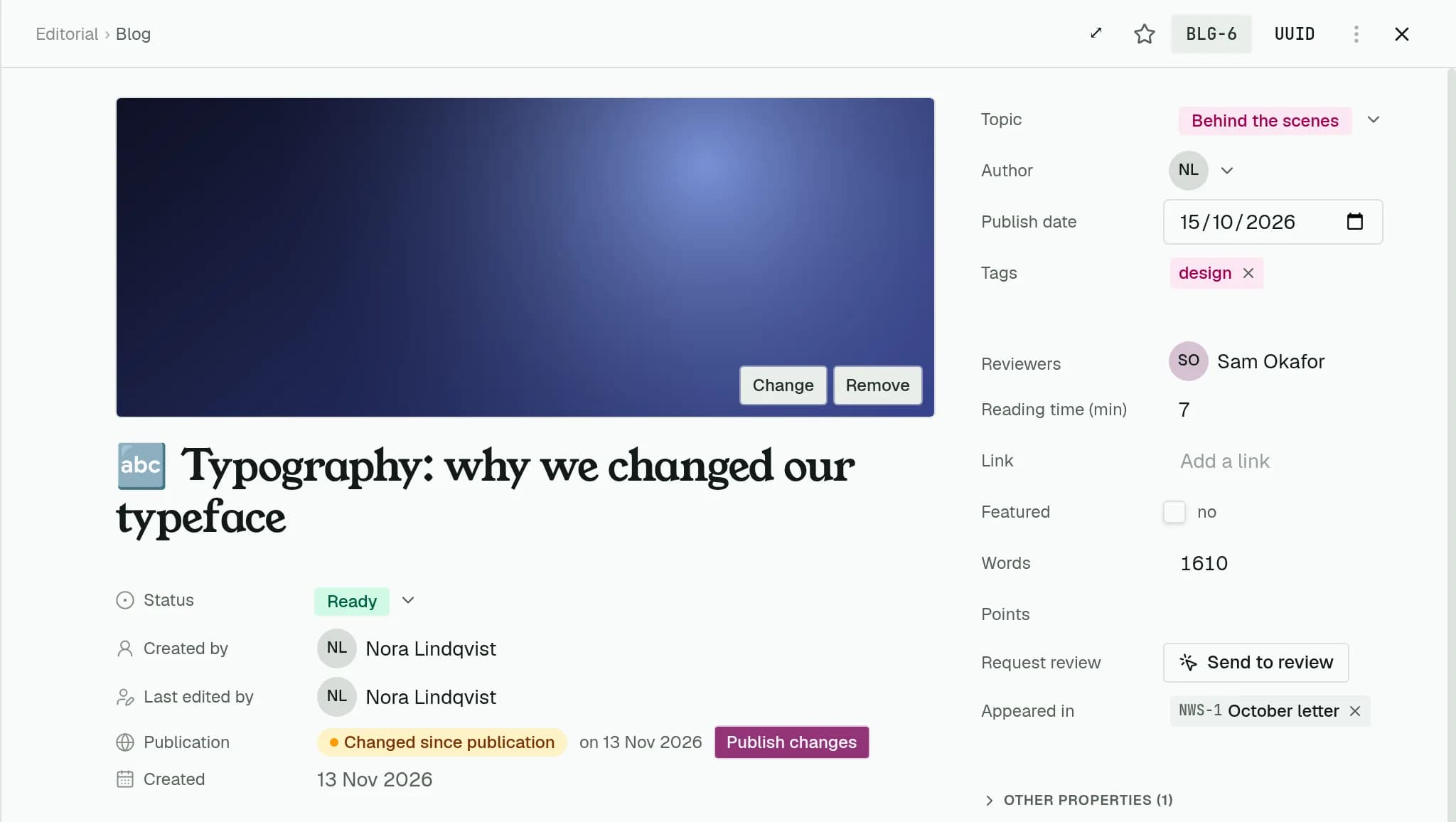
- 1
State
Draft, Published or Changed since publication.
- 2
Date
When the card was last published.
- 3
Publish changes
Sends what the card says now to the published version.
A card is a draft you can edit at any time. Publishing freezes a copy of it for the sites and apps that read your workspace. You keep working on the draft, and readers see nothing new until you publish again.
Know what publishing freezes
Publishing copies what the card says: its title, icon, cover, properties and body.
It does not copy where the card is filed: its list, its parent, its place in the manual order, its status. Those are read live.
- Move a published card to another list: you have nothing to republish.
- Change its status: the card does not become Changed since publication.
- Archive it: it leaves what sites read, without being unpublished.
Publish a card
Open the card
Find the Publication row under the title, below the status. A card that was never published reads Draft.
Click Publish
The row now reads Published, with the date. The button goes away: there is nothing left to publish.
You need the member role to publish. A viewer sees the state, without the button.
Good to know
An archived card can't be published.
Keep editing, then publish your changes
Edit the title, the body or a property of a published card. It saves on its own, as a draft: the published version does not move.
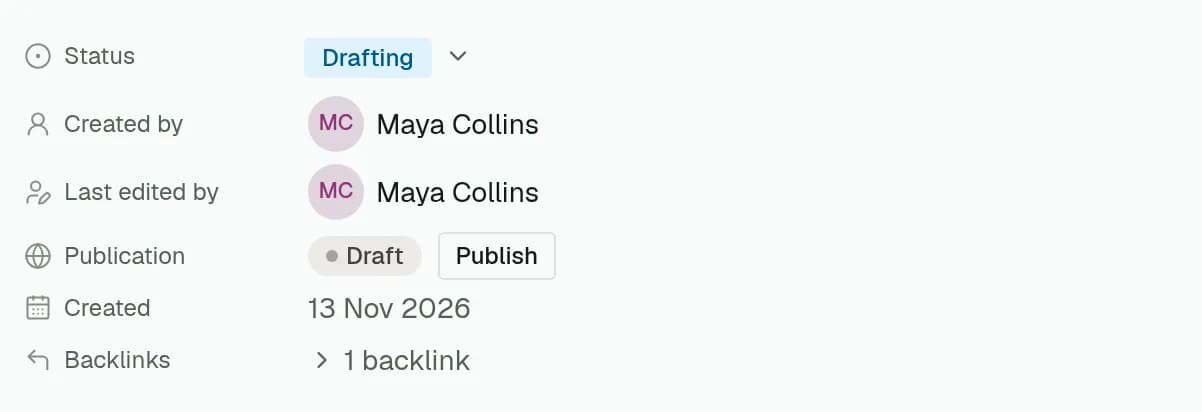
Never published. Sites that read published content do not see this card.
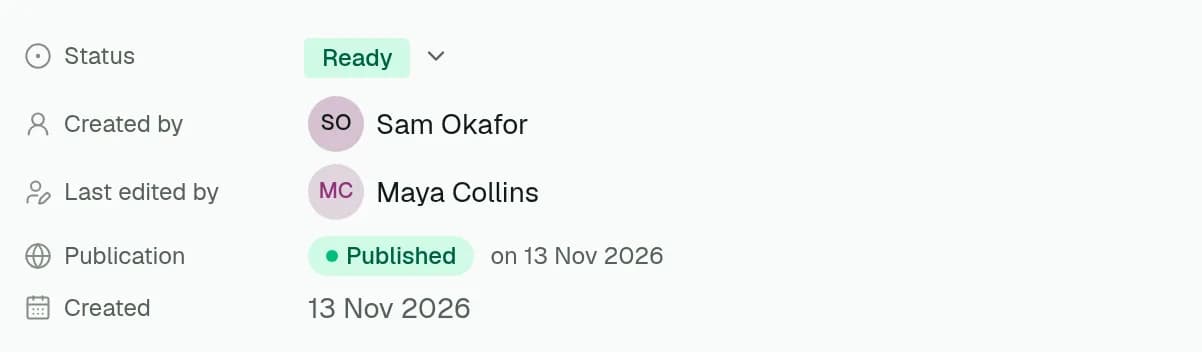
The published version says exactly what the card says.
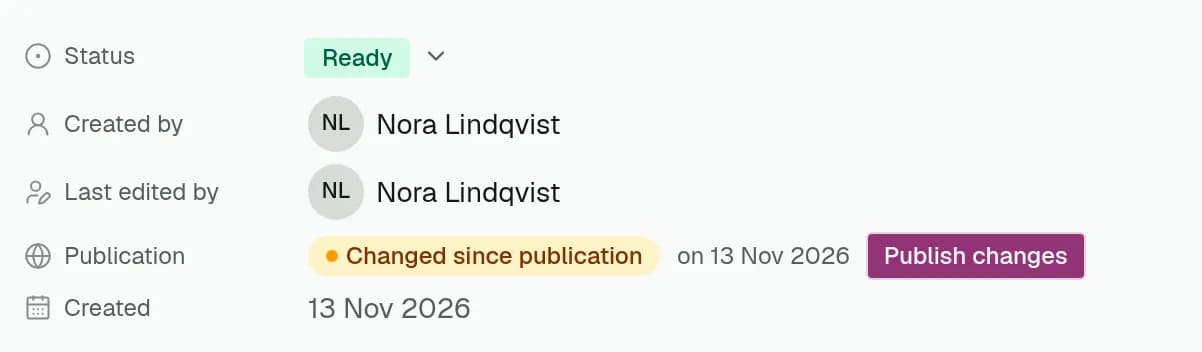
The draft has moved on. Readers still get the version of the date shown.
When the draft is ready, click Publish changes. The new version replaces the old one: a card has one published version at a time.
Tip
Set a title or a property back to what was published and the card returns to Published on its own. The state compares what the two versions say, not when they were saved.
Unpublish a card
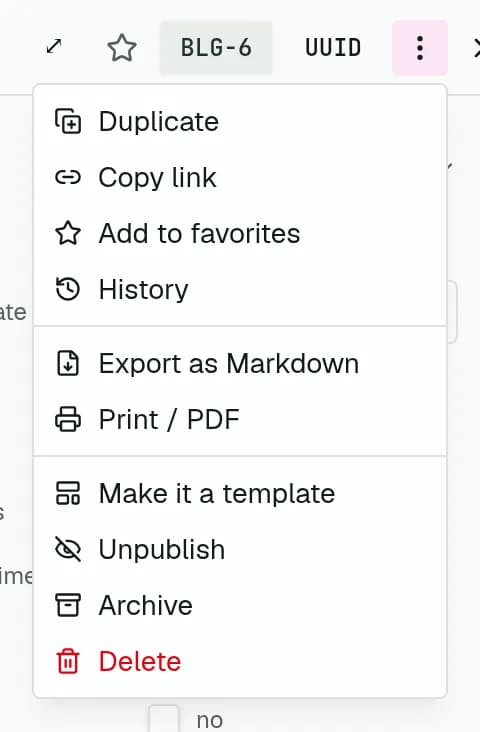
- Open the card and click
⋯at the top right. - Choose Unpublish.
The card is a draft again, with its content intact. Sites stop getting it. Publish it again whenever you want.
See the state in your views
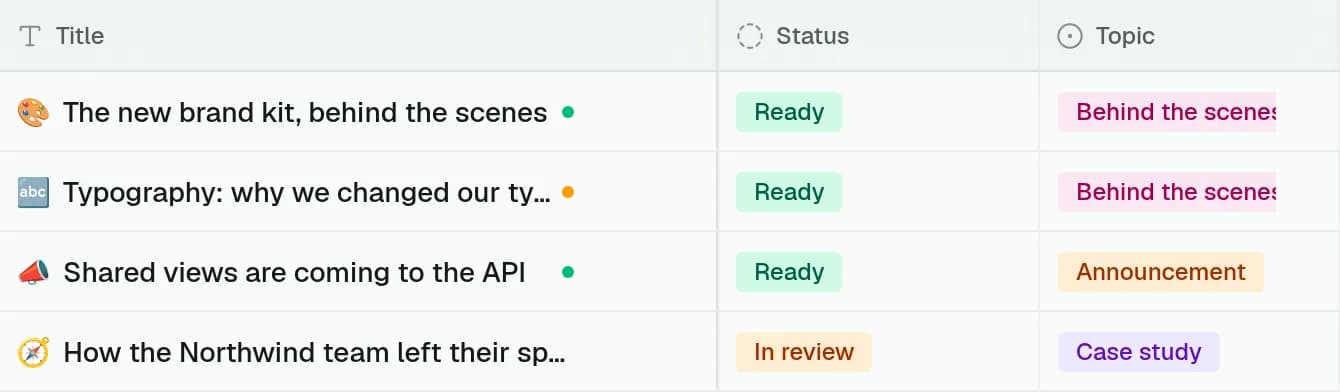
- 1
Amber dot
Published, with changes that are not published yet.
- 2
Green dot
Published and up to date.
- 3
No dot
A draft. Nothing is drawn, so a list that never publishes stays clean.
The dot follows the title in tables, boards and lists. To gather the cards that wait for a publication, filter or group a view by Publication. See Filter, sort and group.
What your site reads
A site or an app connected through the API chooses what it reads: the published version, or the drafts. Developers find the details in Drafts and publishing.