Restricted lists and guests
Keep a list to a few people, name who can edit it or only read it, and invite a guest who sees nothing else in the workspace.

- 1
A padlock in the sidebar
This list is restricted. People who are not named on it don't see the row at all.
A list is either open to the whole workspace, or restricted to the people named on it. Owners and admins always see every list.
See who has access to a list
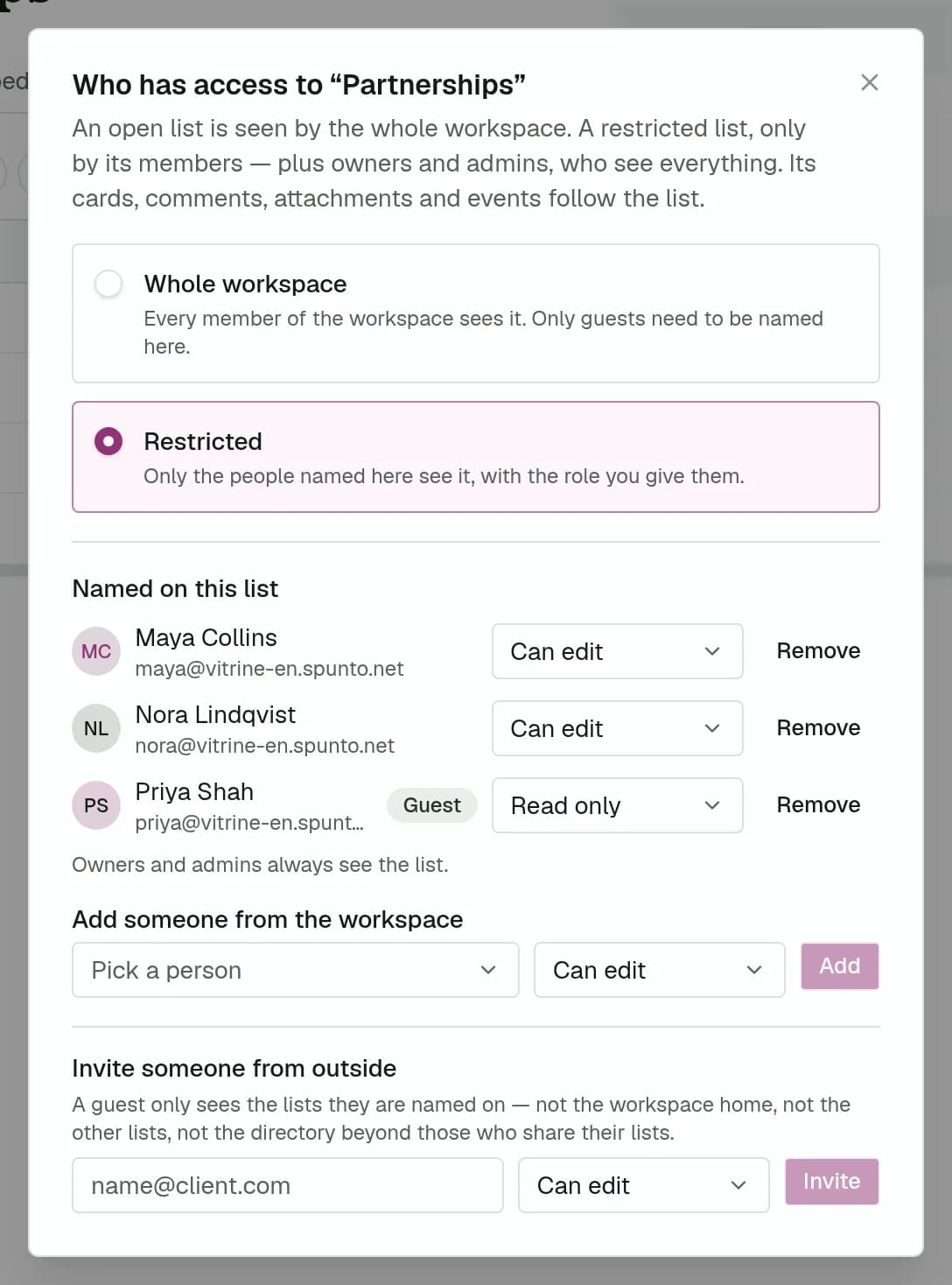
Open the list, then click Restricted access — or Access on an open list.
- 1
Open or restricted
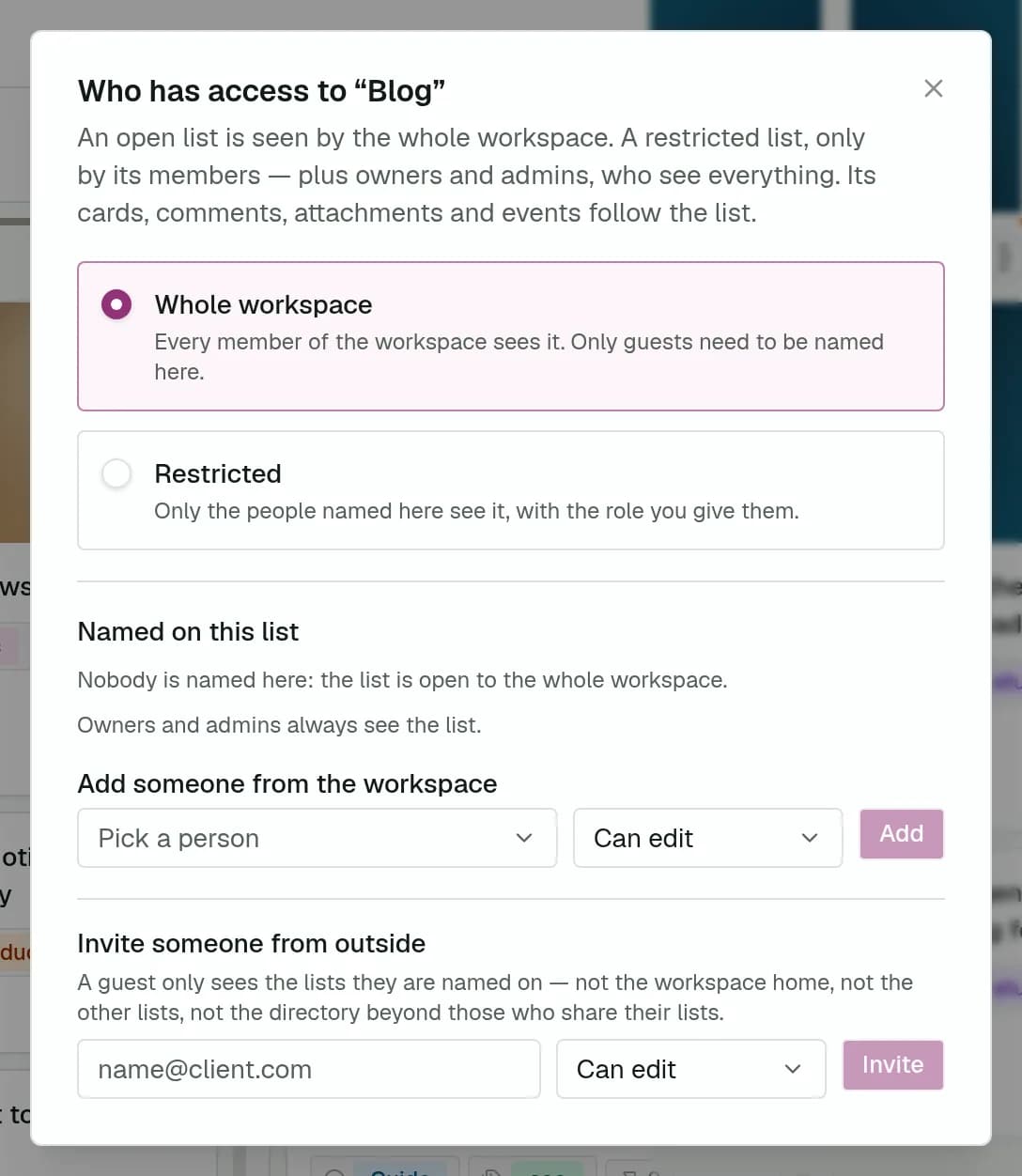
Whole workspace: every member sees the list. Restricted: only the people named below. - 2
Named on this list
Each person with Can edit or Read only. A Guest badge marks someone from outside. - 3
Add someone from the workspace
Pick a member and give them a role on this list. - 4
Invite someone from outside
Type an address to bring in a guest.
If you are not an owner or an admin, the dialog shows the same names but nothing in it can be changed.
Restrict a list
Only an owner or an admin can do this.
Open the list's access
Click Access at the top of the list.
Choose Restricted
The change applies as soon as you click: there is no button to confirm. From that moment, the list disappears for every member who is not named on it.
Name the people who keep it
Under Add someone from the workspace, pick a person, choose Can edit or Read only, then click Add.
To change someone's role, use the list next to their name. Remove takes their access away. To open the list again, choose Whole workspace.
Careful
Restricting a list hides everything it holds: its cards, their comments, their attachments and their history. Tell the people who were working in it before you click.
Invite someone from outside
A guest is someone from outside — a client, a freelancer — who only sees the lists they are named on. They don't see the workspace home, the other lists, or the members beyond those who share their lists.
Open the list's access
A guest can be named on a restricted list or on an open one.
Type their address
Under Invite someone from outside, type the address, choose Can edit or Read only, then click Invite.
Pass the link on
If the address has no account yet, an Invitation link appears. Copy it and send it yourself: Spunto CMS sends no email. The link works once and opens a guest account in this list.
What someone without access sees
Nothing. For them the list doesn't exist: it is not in the sidebar, its cards don't come up in search, and a link to one of its cards answers as if the card had never existed.
Where a page they can read mentions a card of the hidden list, a padlock replaces the card's title. Notifications follow the same rule: nobody is notified about a card they can't see.