Filter, sort and group
Choose which cards a view shows, in what order and under which headings. Filter by status, property, person, date or linked card, sort, group, and include cards attached from other lists.
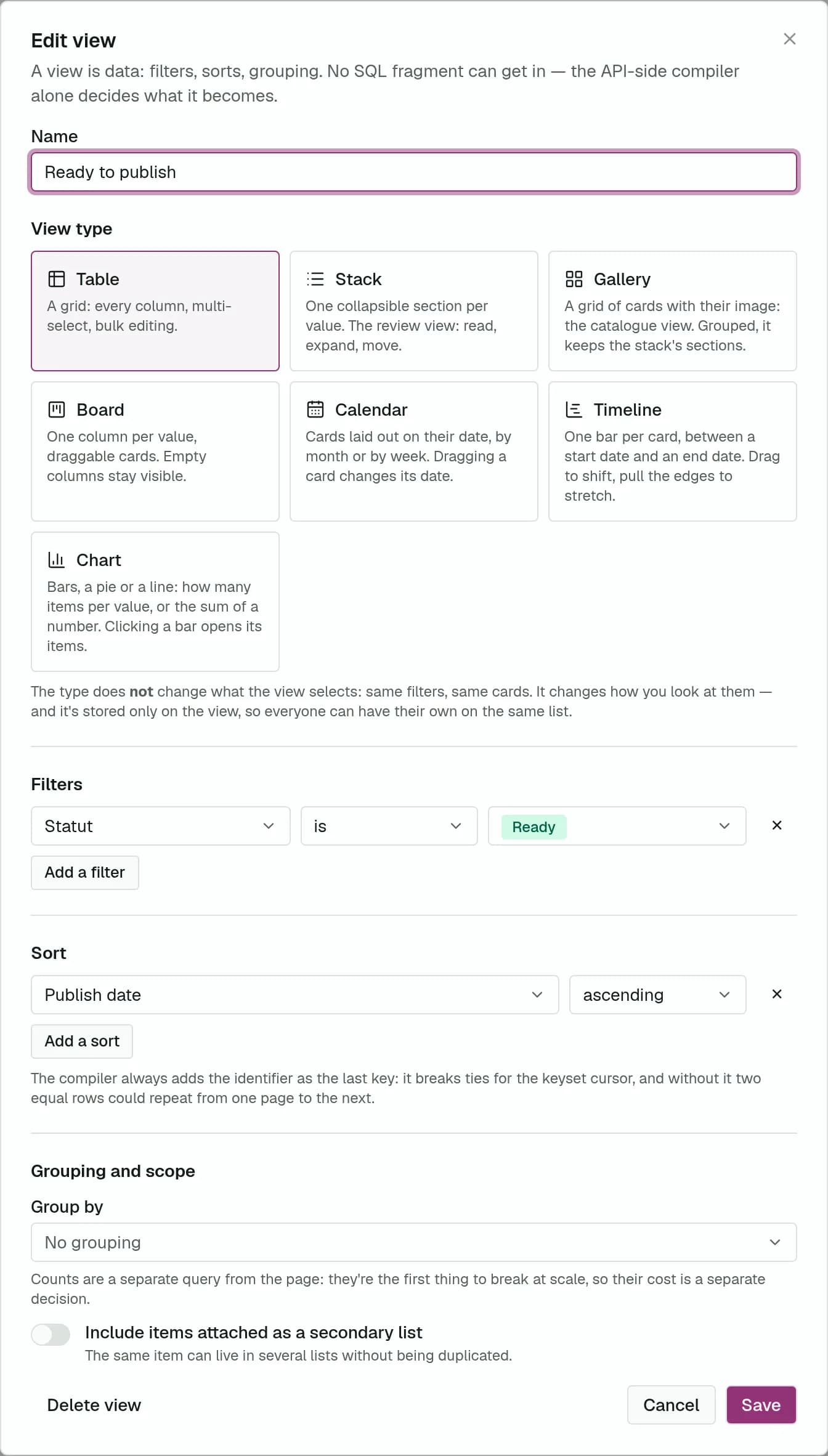
- 1
Filters
One row per condition: a field, an operator, a value. Here, only the cards whose status is Ready. - 2
Sort
The order of the cards. Here, by publish date, earliest first. - 3
Group by
The field that turns into columns, sections or headings. - 4
Other lists
Also shows the cards attached to this list from another one.
These settings live in one place: open a view and click Edit view. Nothing changes for your team until you click Save.
Filter a view
Click Edit view, then Add a filter
A new row appears under Filters.
Pick a field, an operator and a value
The operators are is, is not, contains, starts with, the comparisons, is empty and is not empty.
Add more rows if you need them
With two rows or more, Combine with decides whether a card must match all of them (AND) or any of them (OR).
What you type or pick as a value depends on the field:
- Status: pick one of the list's statuses.
- A person: pick a member of the workspace.
- A select or a multi-select: pick one of its options. A property that holds several values is filtered with contains and does not contain.
- A date: type it as year-month-day, for example
2026-11-20. Use the comparisons for "before" and "after". - A relation: search for the linked card and pick it.
- Text and numbers: type the value.
Good to know
A filter on a day covers the whole day, even when the property also stores a time.
Sort a view
Under Sort, click Add a sort, pick a field, then ascending or descending. Add a second sort to order the cards that tie on the first one. A view with no sort follows the manual order of the list.
To try a sort without touching the view, use a table: click a column header, then Sort ascending or Sort descending.

The pill Temporary sort shows that only you see this order. Click Save to view to keep it for everyone, or Cancel to go back to the view's own sort.
Group a view
Under Grouping and scope, pick a field in Group by: the status, a select, a person, a date. A board and a stack need one. Pick No grouping to remove it from a table.
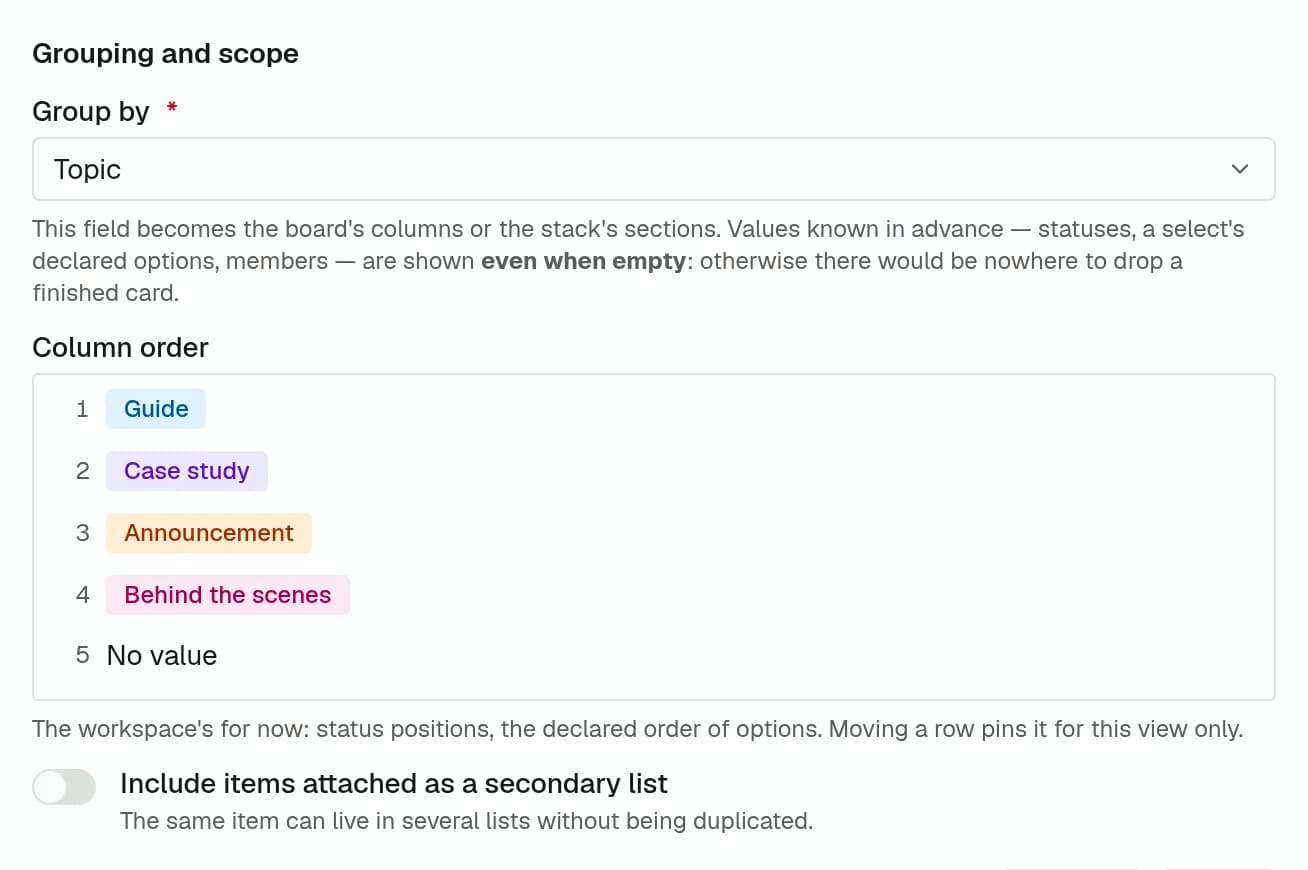
The groups come in the workspace's order: the position of the statuses, the declared order of a select's options. Drag a row under Column order (Group order on a table) to change it for this view only. Options known in advance show even when empty, and cards without a value land in No value.
On a grouped table, the chips above the columns show each group and its count. Click one to keep only that group, and All to see everything again. This doesn't change the view.

Include cards from other lists
A card can be attached to several lists. Turn on Include items attached as a secondary list and the view also shows the cards attached to this list from elsewhere. Turn it off and it only shows the list's own cards.
Manual order
The manual order is the one you set by hand, by dragging rows in a table or cards on a board. It is what a view follows when it has no sort.
Careful
There is one manual order per list, not one per column or per view. Dropping a card at the top of a board column also moves it up in every table that follows the manual order.
FAQ
Keep going
Views
A view is a saved way of looking at a list's cards. Create one, change its layout, rename it, add it to your favorites, and know what a list shows when it has none.
Table
The table view shows one row per card and one column per property. Choose its columns, edit values in the cell, add and reorder cards, and change several cards at once.