The editor
Write the body of a card in blocks — headings, lists, tables, images, mentions — with the “/” menu, a few shortcuts, and nothing to save.
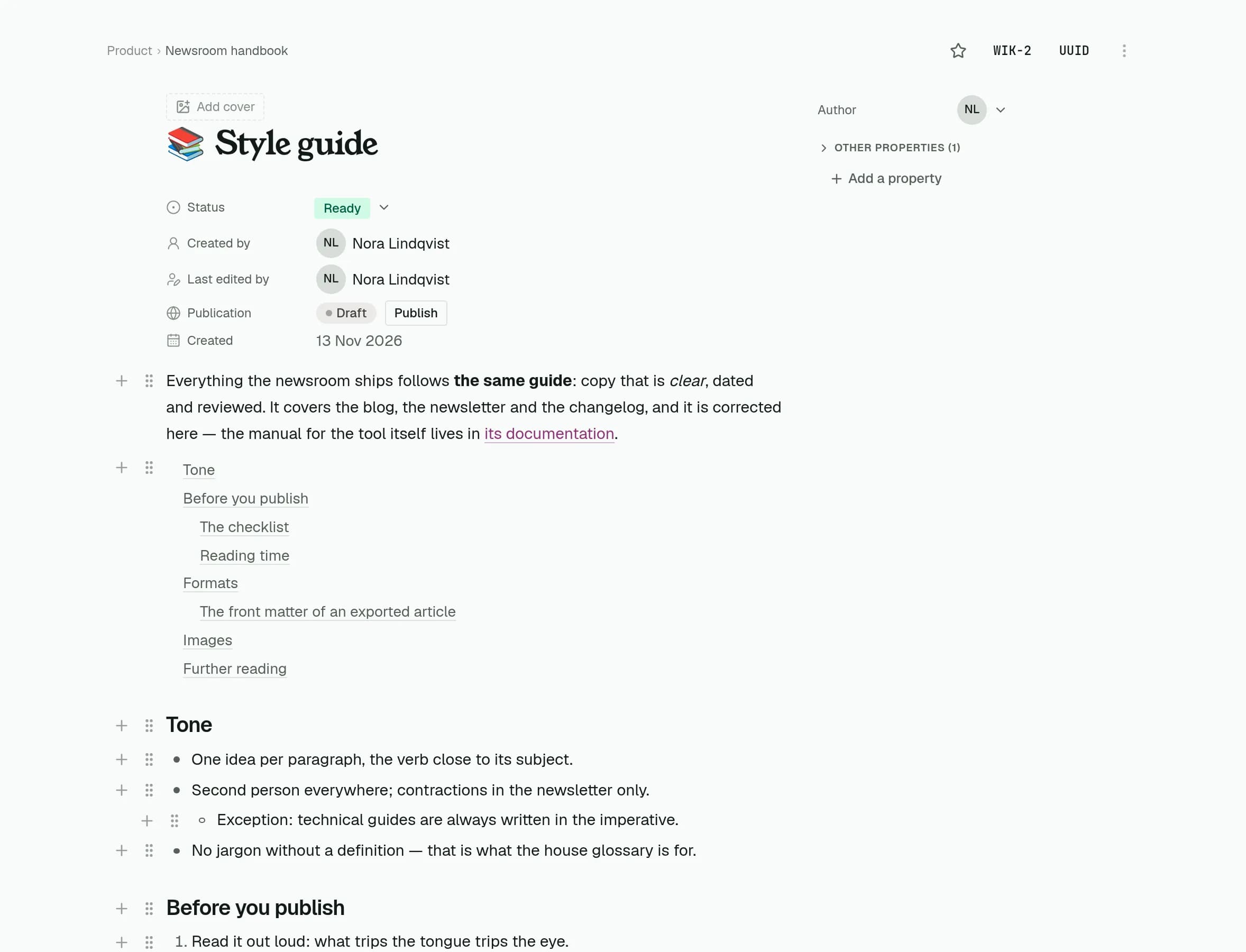
- 1
The gutter
Every block has a + and a handle on its left. The + adds a block below, the handle moves the block or changes its type. - 2
A text block
Bold, italic, code and links live inside the text. Click anywhere and type. - 3
A table of contents
Built from the headings of the body. It follows them as you write. - 4
A heading
Three levels. Each one becomes an entry of the table of contents.
The body of a card is a document made of blocks: one block per paragraph, heading, list item, image or table. Click under the title and start writing.
Add a block
Type / in a block
The list of block types opens under the block. It also opens in the middle of a line, after a space.
Narrow it down
Keep typing: /head leaves the headings, /table the table. Move with ↑ and ↓.
Press Enter
The block takes the type you picked and you go on writing. Esc closes the list and leaves your text alone.
The list has twenty types. Most also have a shortcut: type it at the start of a block, and the block converts as you type.
| Block | Shortcut | Block | Shortcut |
|---|---|---|---|
| Text | — | Divider | --- |
| Heading 1, 2, 3 | # , ## , ### | Toggle | >> |
| Bulleted list | - or * | Equation | $$ |
| Numbered list | 1. | Image, File | — |
| To-do | [] | Table | — |
| Quote | > | Embed, Bookmark | — |
| Callout | ! | Table of contents | — |
| Code | three backticks | View of a list | — |
Enter starts a new block of the same kind; on an empty list item, it leaves the list. Tab and Maj⇥ indent and outdent.
Format text
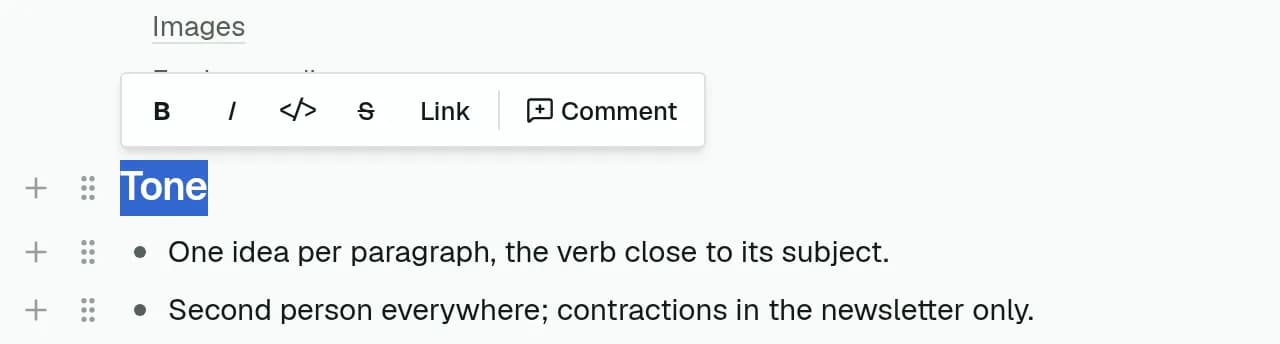
Select some text: a bar appears above it.
- CtrlB bold, CtrlI italic, CtrlE code, CtrlMajX strikethrough.
- Link asks for an address; confirm with Enter. Select the link again to Edit or Remove it.
- Comment starts a discussion on the passage — see Comments.
Clicking a link opens it in a new tab. Hovering it shows a small card where you can change its text or its address, or copy it.
Move, convert or delete a block
- Move: drag the block by its handle, or press Alt↑ and Alt↓.
- Convert: click the handle and pick another type. The text stays.
- Delete: empty the block, then press Backspace. At the start of a block, Backspace first outdents it, then turns it back into text, then merges it with the block above — never a whole block in one keystroke.
Mention a card or a person
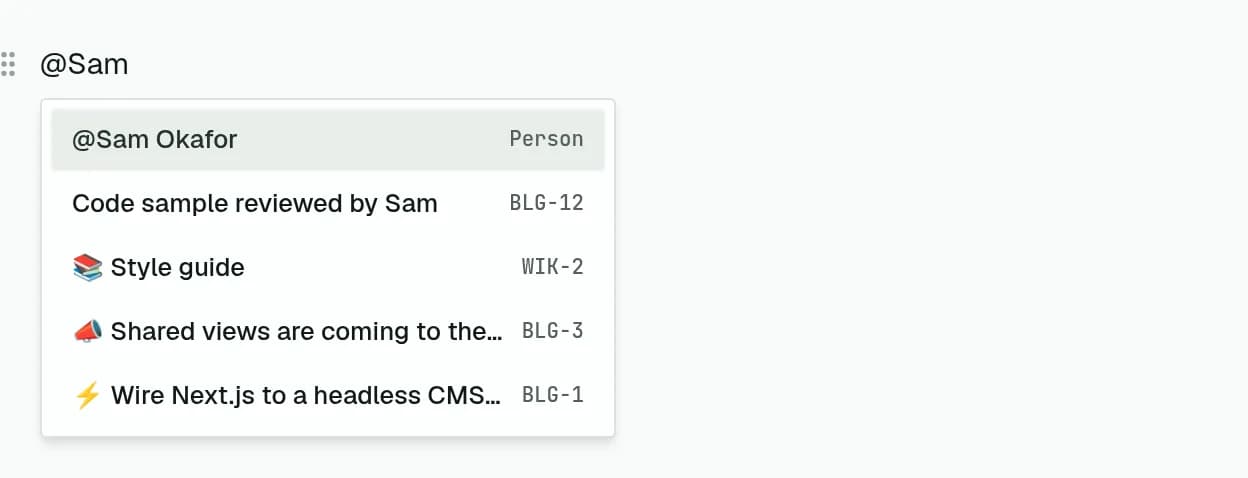
Type @, then a name, a card title or a card key such as BLG-12. Pick with Enter. [[ opens the same list.
A person you mention gets a notification. A card you mention becomes a link, and that card shows yours under Backlinks.
Add an image, a table or a table of contents
- Image: type
/imageand choose a file, or paste a screenshot straight into the body. Under the image, a field holds its alt text; Replace swaps the file, Remove takes the block away. - Table: type
/table. The bar under the table acts on the cell you are in: Row, Column, Delete row, Delete column, Header row, Delete table. - Table of contents: type
/contents. It lists the headings of the body and updates by itself.
Paste text
Pasted text arrives as plain text: the formatting of the page you copied from is not imported. Three things are recognised:
- a file or a screenshot becomes an image block, or a file block;
- a Markdown table becomes a table;
- a web address pasted alone in an empty block becomes a link. For YouTube, Vimeo, Loom, Figma, Google Docs, Sheets and Slides, CodeSandbox and CodePen, it turns into an embed; for any other page, the editor offers Create a bookmark or Keep the link.
Saving
There is no save button. The card saves itself about a second after you stop typing, and the bottom of the card says where it stands: Unsaved changes, Saving…, then Saved. CtrlS saves right away, and closing the card never loses what you typed.