Navigation
Find a card with the search, keep favorites, tidy the sidebar into groups, and share the address of a card.
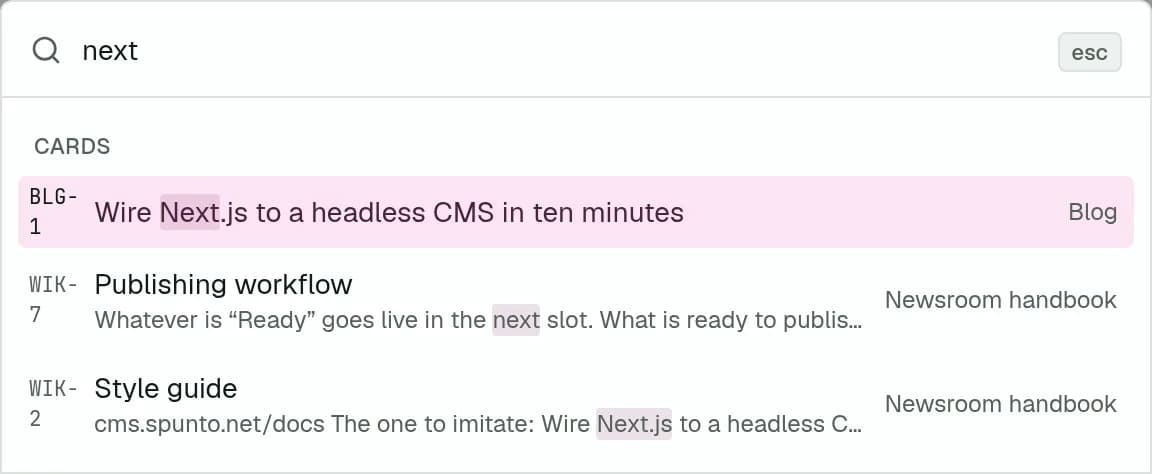
- 1
What you type
A key, a word from a title or from the content of a card, or the name of a list.
- 2
Found in a title
The key on the left, the list on the right. The word you typed is highlighted.
- 3
Found in the content
When the word is in the body of a card, the sentence that holds it is shown under the title.
Four things take you anywhere in a workspace: the search, your favorites, the sidebar, and the address of each card.
Find a card or a list
Press ⌘K (Ctrl K)
The search opens from any screen. You can also click Search… at the top of the sidebar. Before you type, it lists what you opened last under Recent.
Type what you remember, then open a result
A key such as BLG-1 brings that card first. A word brings the cards that have it in their title, then the cards that have it in their content, and the lists that have it in their name. Click a result, or move with the arrow keys and press Enter. Esc closes the search.
Good to know
The search reads titles, contents and list names. It does not read comments, and it skips archived cards.
Keep favorites within reach
A favorite is a shortcut in the sidebar. You can star three things:
- A card: click the star at the top of the card, or Add to favorites in its ⋯ menu.
- A list: click the star next to its title.
- A view: open the view, then click the star to the right of the tabs.
Your favorites sit in the Favorites section, above the lists. Drag them to reorder them. To remove one, click its star again, or Remove from favorites. Favorites are yours alone: starring a card changes nothing for the rest of the team.
Tidy the sidebar into groups
A group is a label that gathers lists in the sidebar. It changes nothing in the lists themselves.
Click Group at the bottom of the sidebar
Type a name, then press Enter.
Drag a list into the group
Pick up the list and move it. A line shows where it will land, and a label says it in words: Before “Changelog”, After “Changelog” or Into “Product”.
Let go
The list takes its new place for everyone. To change your mind while dragging, press Esc.
A group can hold lists and subgroups, and a subgroup holds lists only: there are two levels, not three. Hover a group to rename it, give it a subgroup or delete it. Deleting a group deletes nothing else: its lists move up one level.
See where a card lives
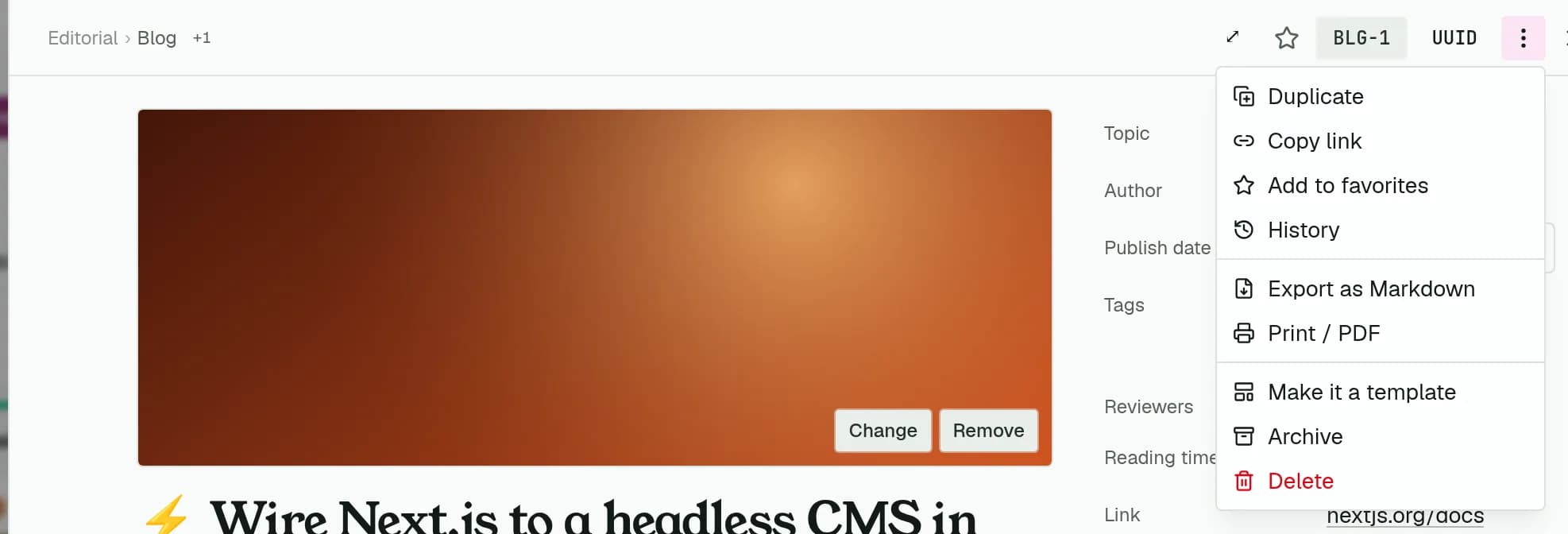
- 1
Breadcrumb
The groups, then the list of the card. +1 means the card is also in one other list: click it to see which.
- 2
Full page
Opens the card on the whole screen instead of the panel.
- 3
Copy link
Copies the address of the card, ready to paste in a message.
The breadcrumb reads from the outside in: the groups of the sidebar, the list, then the parent cards when the card is a sub-task. Click the list or a parent card to go there. Groups are not links, because a group has no page of its own.
Share the address of a card
Every card has its own address. When you open a card in the panel, the address bar of your browser already shows it.
- To share it, click the ⋯ menu at the top right of the card, then Copy link. The person who opens the link lands on the card as a full page.
- To close the panel, press Esc or use the Back button of your browser. The list behind has not moved.
- To copy the key instead, click it at the top of the card. Paste it in the search to come back.
Open the sidebar on a phone
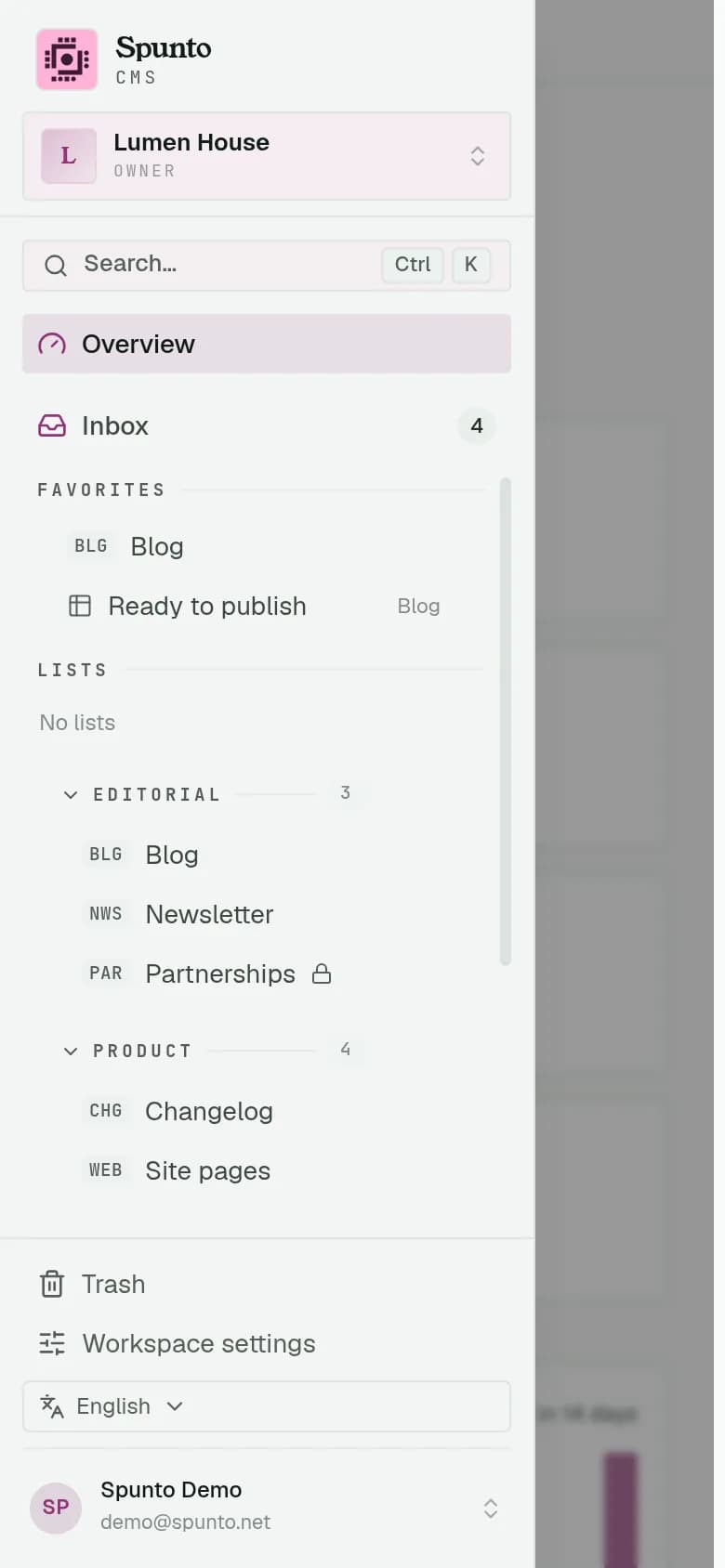
On a narrow screen, the sidebar is tucked away. Tap the button at the top left, Open navigation, to bring it out. Tap a list and the drawer closes by itself.