Board
Lay a list out in columns, one per status, and move a card forward by dragging it from one column to the next.
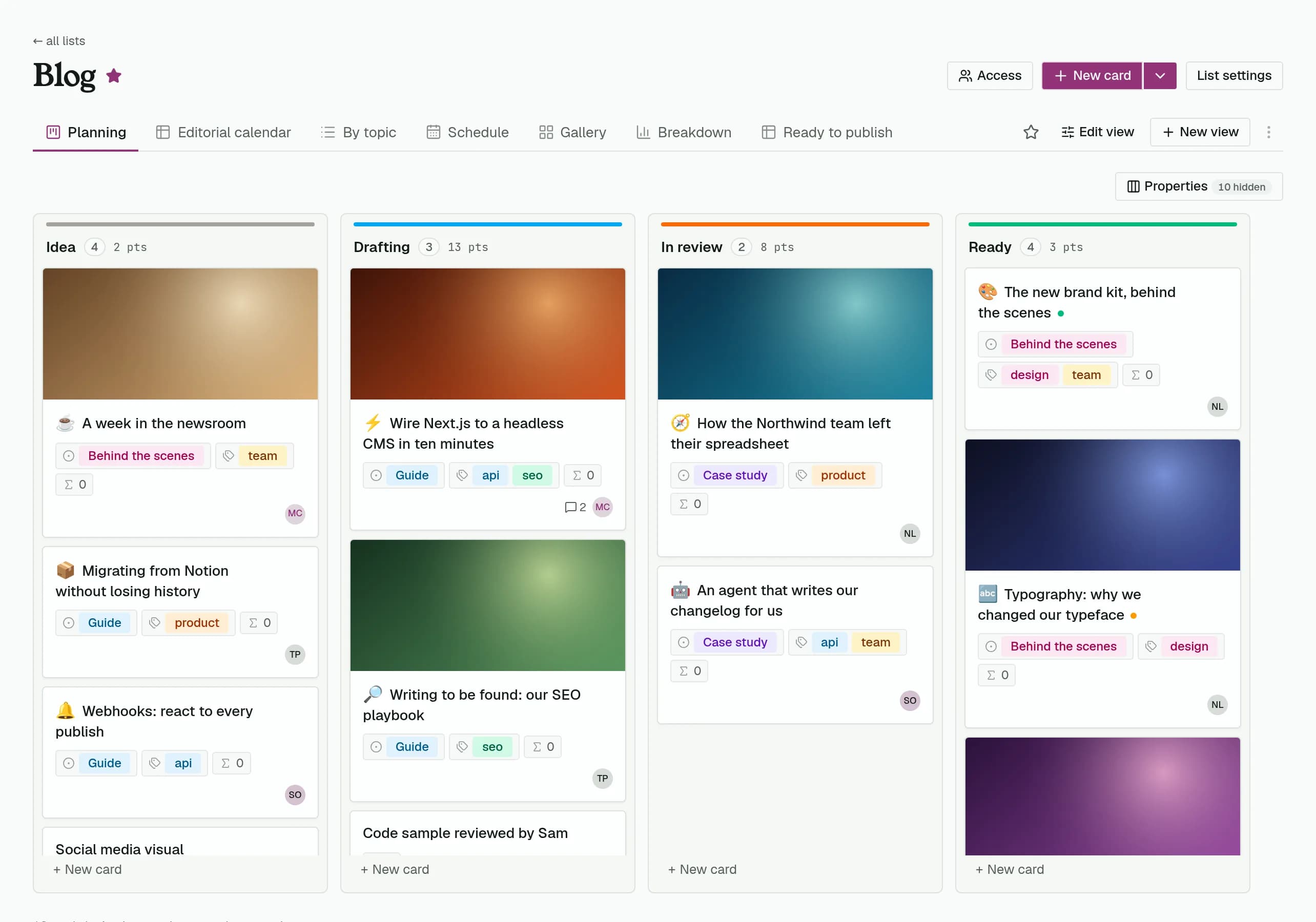
- 1
A column
One column per group, here one per status. Its header counts every card in the column and, when your workspace counts effort, the points they add up to. - 2
A card
The cover, the title and the properties this view shows. Click the title to open the card. - 3
New card
Creates a card straight into this column. - 4
Properties
Chooses what each card shows. - 5
Edit view
Sets what the columns are, and in which order they come.
A board is a view that splits a list into columns. Moving a card to another column changes the card itself, not only where it sits on screen.
Move a card to another column
Press on the card and move
Press anywhere on the card except its title. The cover is a good handle. The drag starts once the pointer has moved a few pixels, so a plain click still opens the card.
Read the ghost
A small copy of the card follows the pointer. Its second line says what releasing will do, for example Into “Drafting”. Over a place that takes no card, it reads Releasing here does nothing.
Release
The card takes the value of the column. On a board grouped by status, its status changes, and both column headers update.
To cancel, press Esc before you release.
Good to know
Dropping a card is an edit like any other. It appears in the card's history, and an automation that watches the status runs.
Reorder cards inside a column
On a view with no sort, cards keep the order you give them. Drag a card between two others: the ghost reads Move before BLG-4, or Move to the end.
On a sorted view, the sort decides. A card can still change column, but its place in the column follows the sort, not the spot where you released it. To order by hand, remove the sort in Edit view. See Filter, sort and group.
Careful
The manual order belongs to the list, not to a column. A card dropped at the top of a column also moves ahead of those cards in every other view in manual order.
Create a card in a column
Click New card under the column
The last row of every column is an empty one.
Type a title and press Enter
The field reads Title, then Enter. The card is created with the value of the column: typed under Drafting, it starts in Drafting.
Keep typing, or leave
The field stays open for the next card. Press Esc to close it.
Choose and order the columns
Click Edit view, then pick a property under Group by. A status, a select, a person or a checkbox gives columns you can drop into. Columns exist even when empty: every status of the list, every option of a select, every member. Cards with no value go to a No value column, or Unassigned for a person.
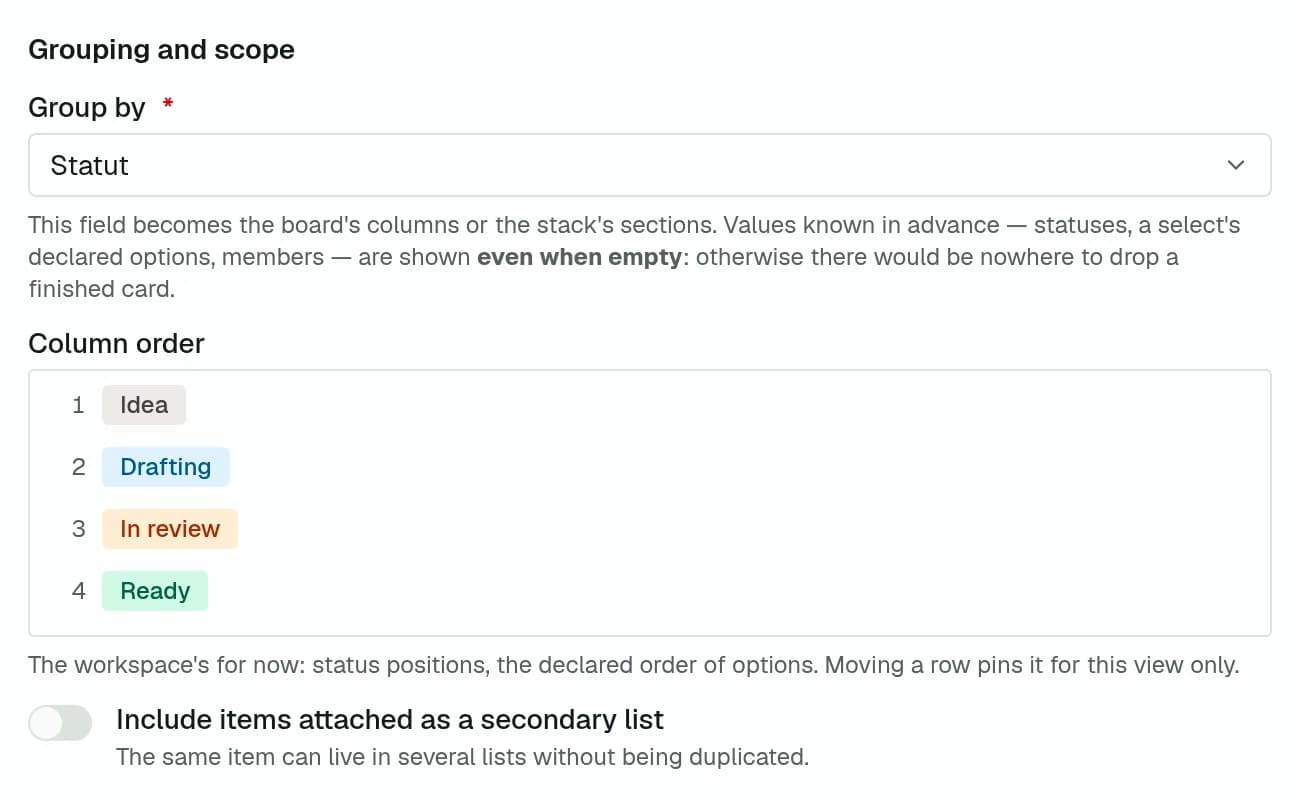
Under Column order, drag the rows, then click Save. The order is specific to this view. A status created later is added at the end, and reset to the workspace order drops your changes.
To fold a column away, hover its header and click Collapse column. Click the folded column to open it again.
Choose what cards show
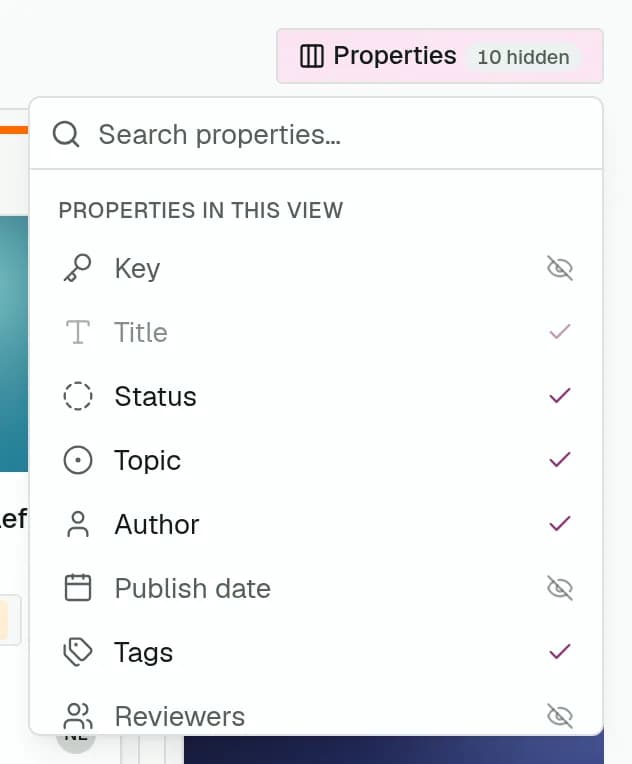
Click Properties, then click a property to show or hide it. The title always stays. A card only draws the properties that have a value, and never repeats the one the board is grouped by. A card with a cover shows it as a thumbnail.
If you can edit the list, the choice is saved with the view, for everyone. Show all and Reset layout sit at the bottom of the menu.