Install the app and set your preferences
Put Spunto CMS on your computer or your phone, know what it does without a connection, and choose your language and time zone.
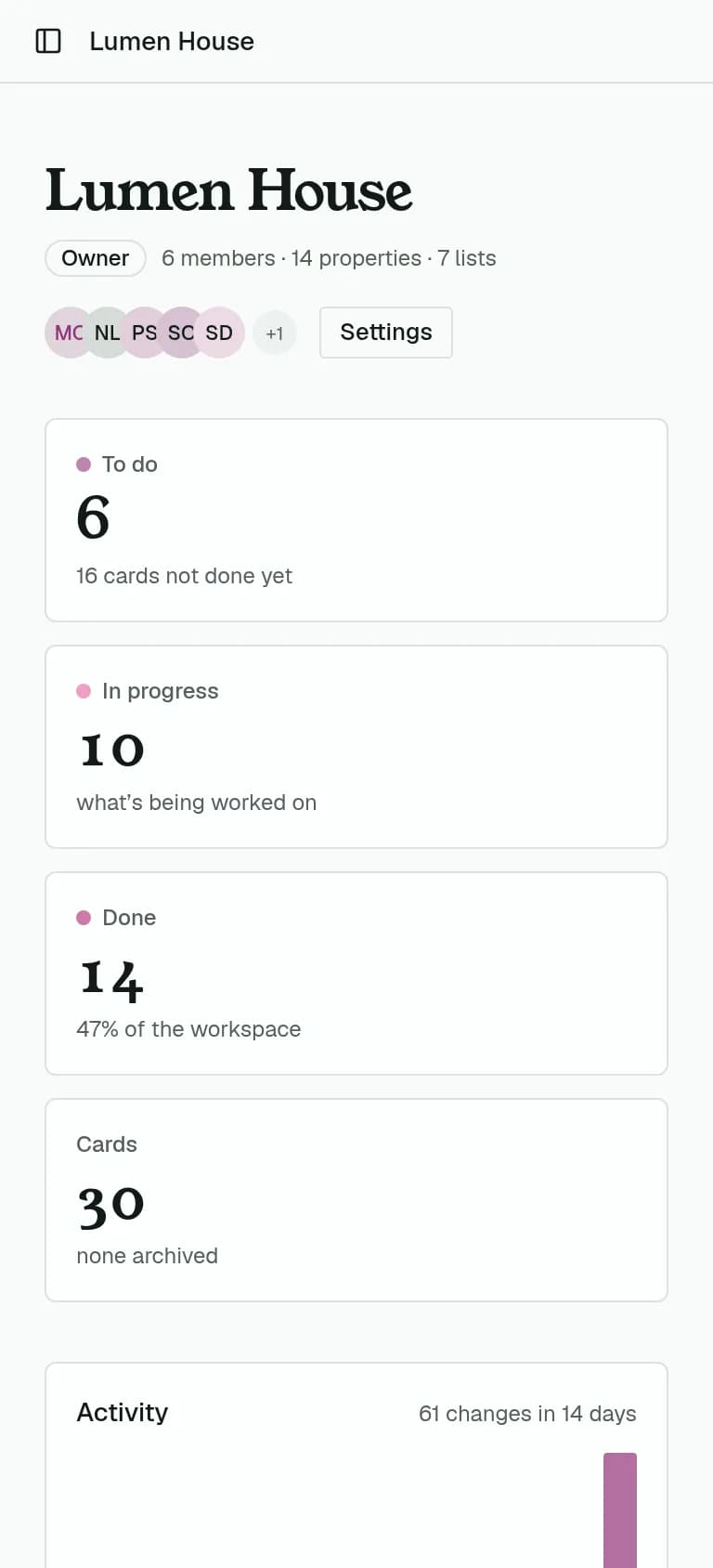
Spunto CMS runs in your browser, and you can install it from there: it then has its own icon and its own window, with no address bar. There is nothing to download from a store.
Install the app on a computer
Open Spunto CMS in Chrome or Edge
Sign in as usual.
Click the install button of the browser
It sits at the right end of the address bar. The browser asks you to confirm. In Safari on a Mac, open the File menu and choose Add to Dock instead.
Open the app from its icon
The app opens in its own window, on the screen that lists your workspaces.
Good to know
The install button belongs to your browser, not to Spunto CMS: you won't find it inside the app, and its name changes from one browser to the next.
Install the app on a phone
- On Android, open Spunto CMS in Chrome, open the menu of the browser, then tap the entry that installs the app or adds it to the home screen.
- On an iPhone or an iPad, open Spunto CMS in Safari, tap the Share button, then Add to Home Screen.
The icon lands on your home screen. The app fills the screen, and the sidebar opens from the button at the top left.
Know what works offline
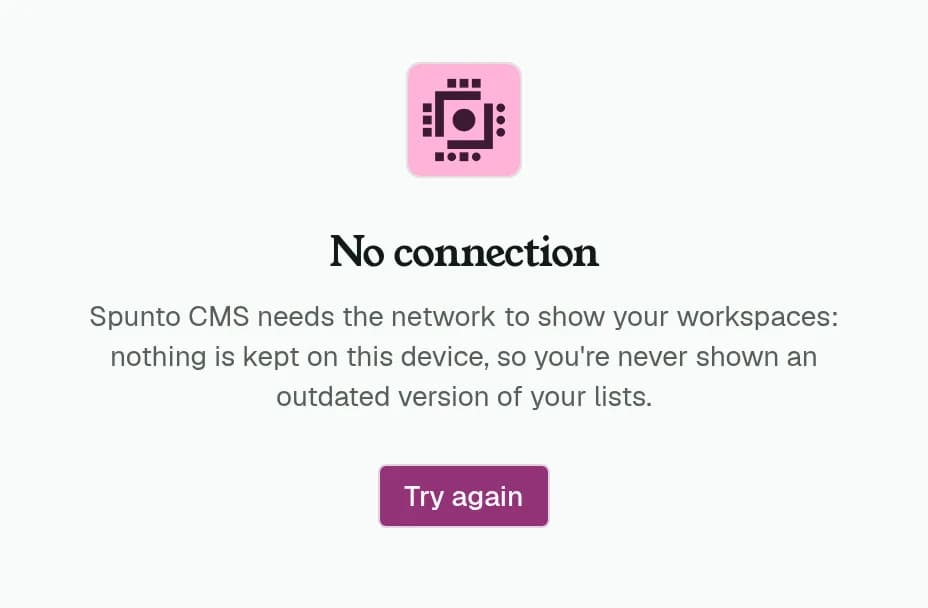
Nothing works offline, and that is on purpose. Spunto CMS keeps none of your lists or cards on your device, so it never shows you an outdated version of them.
Without a connection, you see the No connection page. Click Try again once the network is back: the app reopens the screen you asked for.
Careful
A card saves itself while you type, and it needs the network to do so. If the connection drops while you write, wait until the bottom of the card says Up to date before you close it.
Change the language
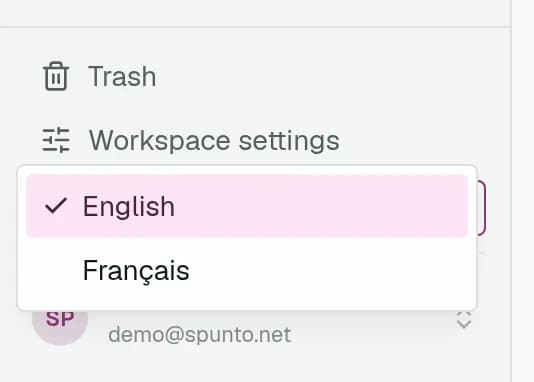
The app speaks English and French.
Click the language at the bottom of the sidebar
The selector shows the current language. It sits under Workspace settings, above your name.
Choose English or Français
The whole app switches at once. The choice is kept in this browser: it changes nothing for your teammates.
You find the same selector on the sign-in screen and at the top of the screen that lists your workspaces. Only the app is translated. The names of your lists, your statuses and your cards stay as your team wrote them.
Set your time zone and your photo
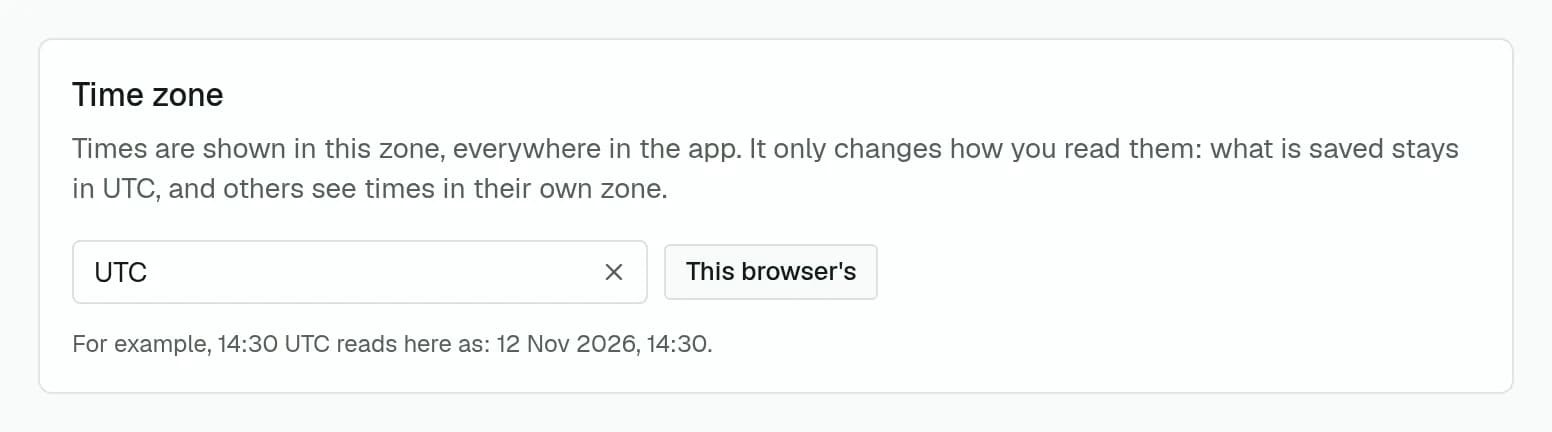
- Time zone: open Workspace settings, then Account. Choose a zone, or This browser's to follow your device. It only changes how you read times, everywhere in the app. Your teammates keep reading them in their own zone.
- Photo: open Workspace settings, then Members, and click Add my photo. A photo belongs to one workspace: you can have a different one in each. If you sign in with Google, your Google photo is used to begin with.
- Signing out: click your name at the very bottom of the sidebar, then Sign out. In the same menu, My account takes you back to the screen that lists your workspaces.