Tour of the workspace
Find your way around a workspace, from the sidebar and the overview to a list, a card and the settings.
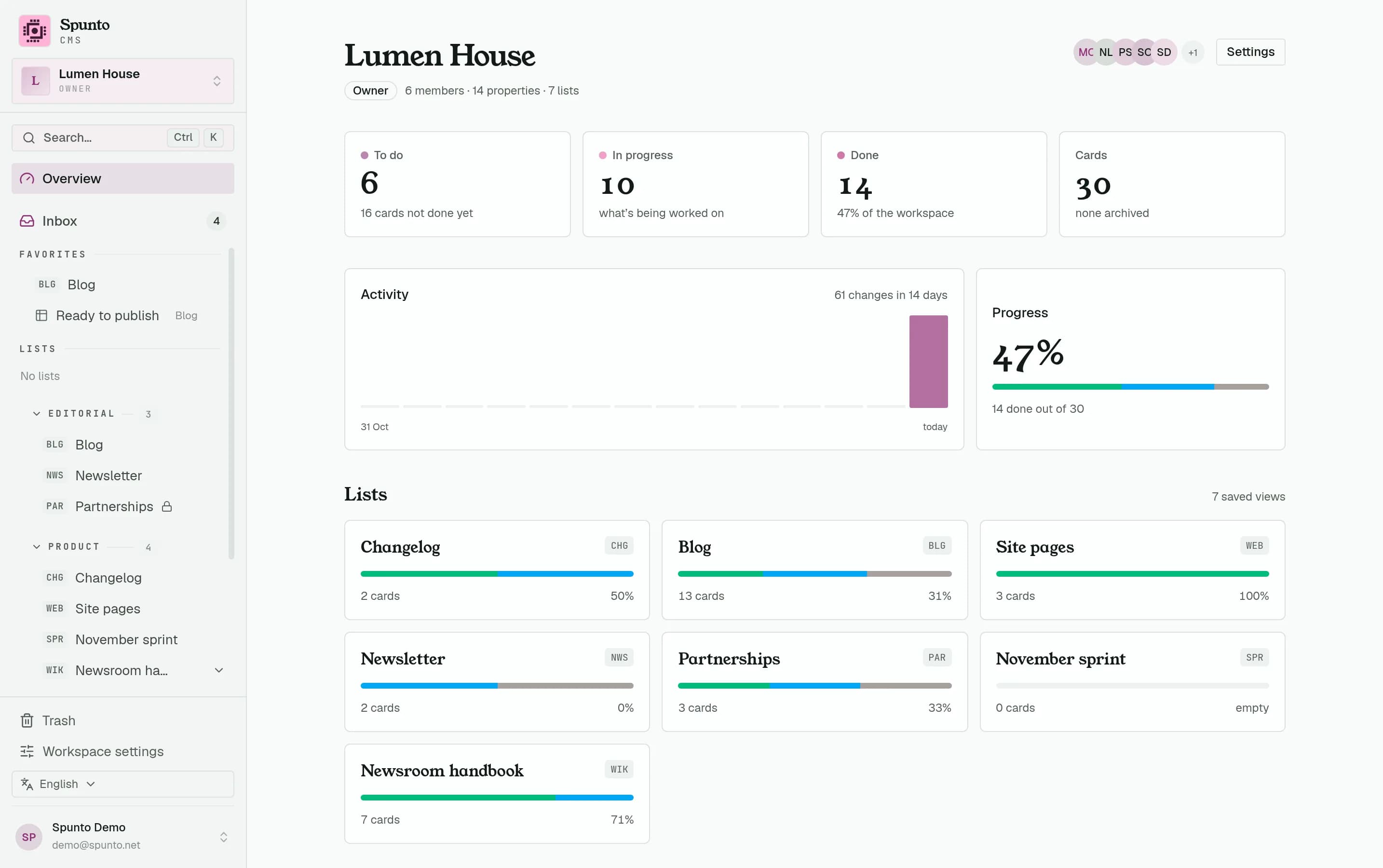
- 1
Workspace switcher
The workspace you are in, and your role there. Click it to go to another one.
- 2
Search
Finds a card or a list anywhere in the workspace. CtrlK opens it from any screen.
- 3
Overview and Inbox
The overview says where the workspace stands. The inbox gathers what concerns you.
- 4
Favorites and lists
What you starred comes first. Below, every list of the workspace, tidied into groups.
A workspace holds the lists of one team. The sidebar stays on screen wherever you go, and the rest of the screen shows what you opened.
Visit the four screens
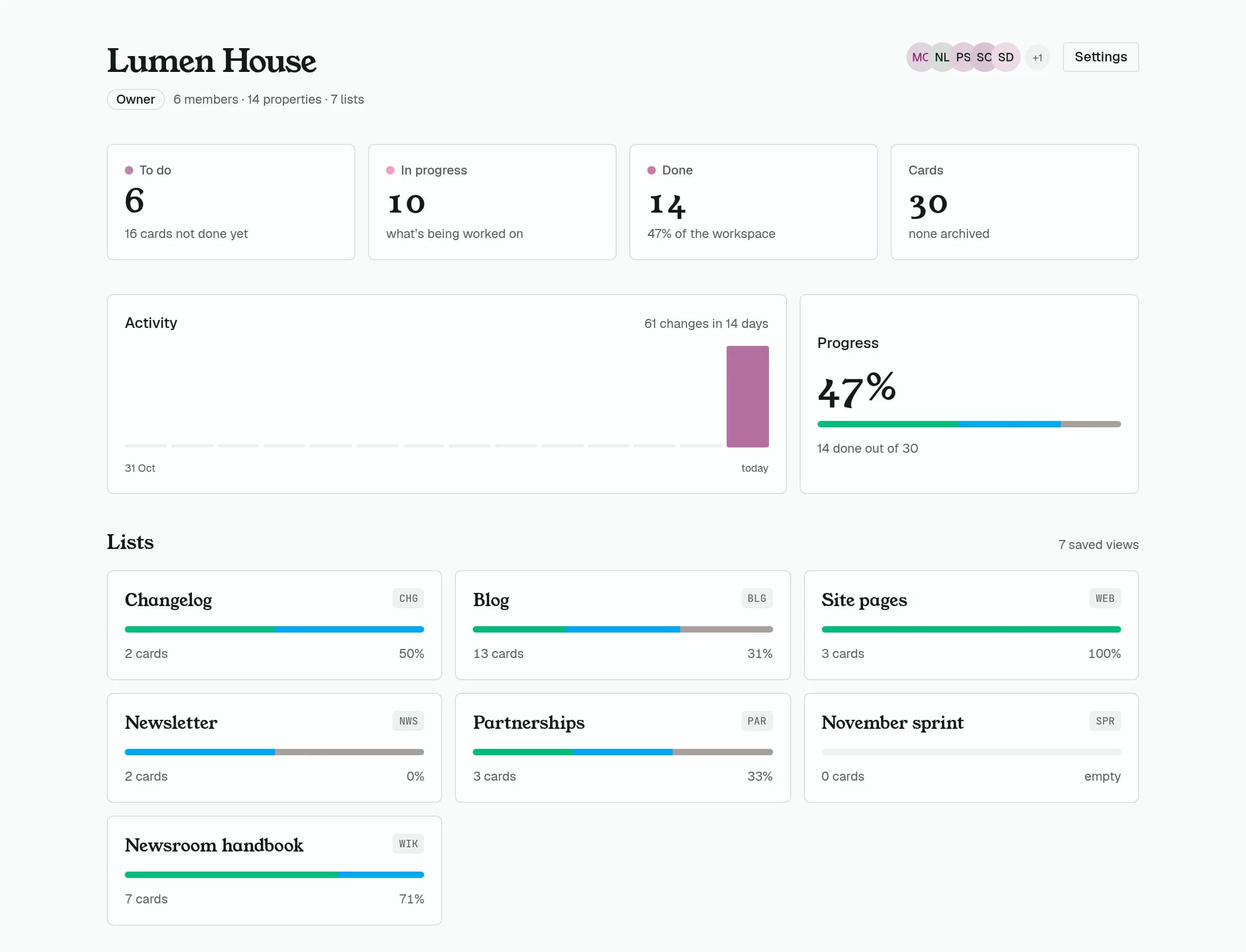
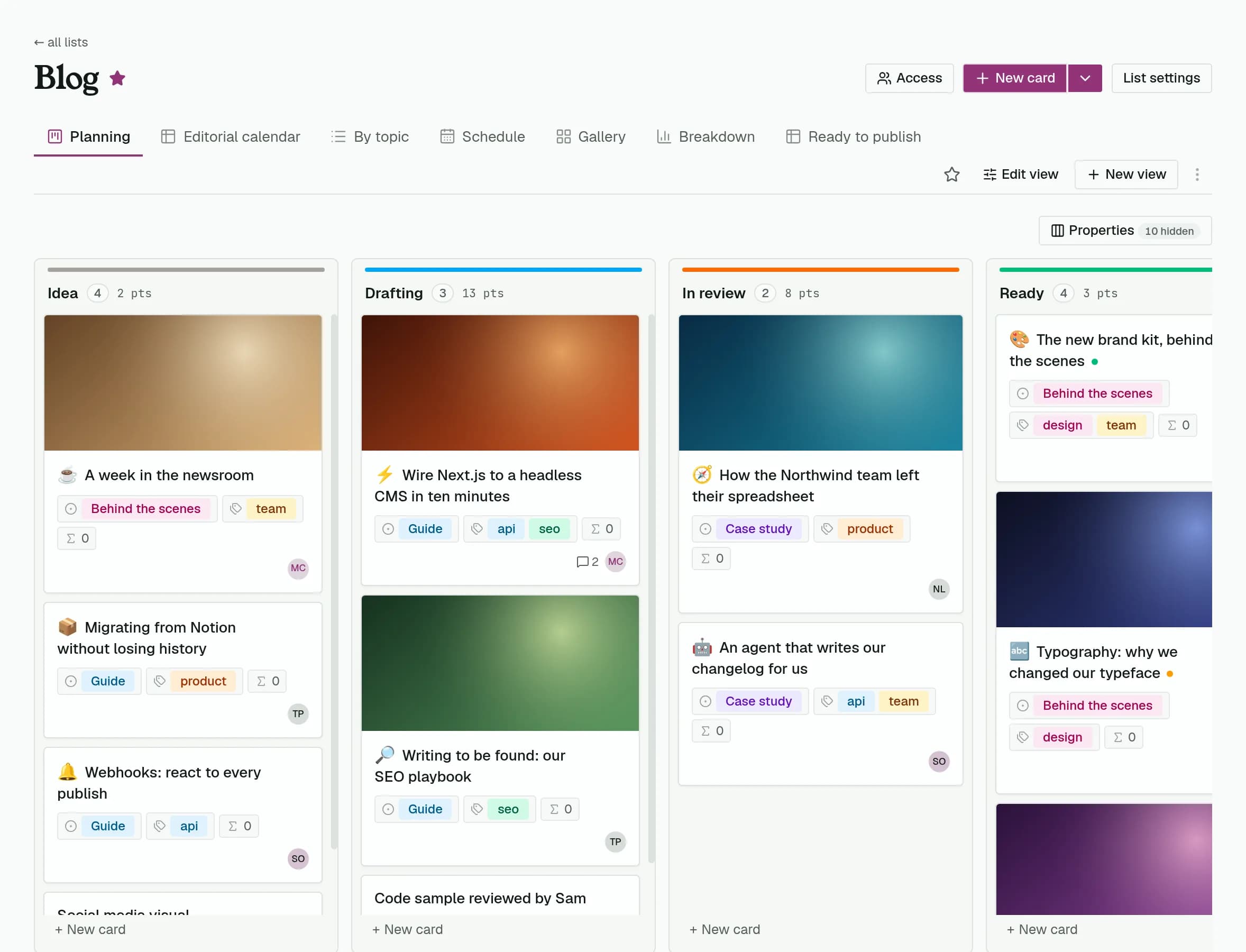
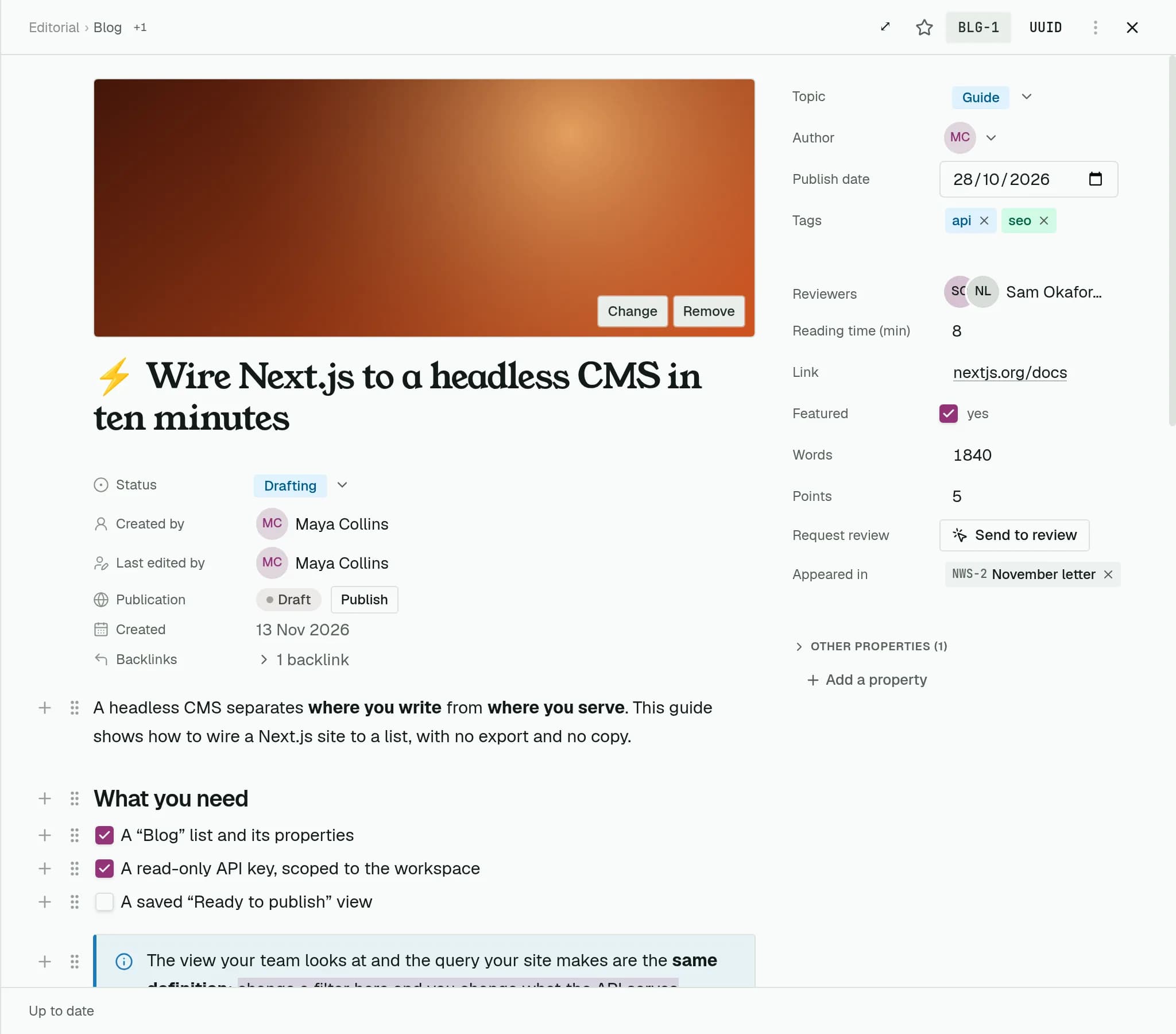
Where the whole workspace stands: counters, activity and progress, then one tile per list.
A list shows its cards through views. Each tab is a view: a board, a table, a calendar, a chart.
A card is a document: a title, a status, a body you write in, and properties on the right.
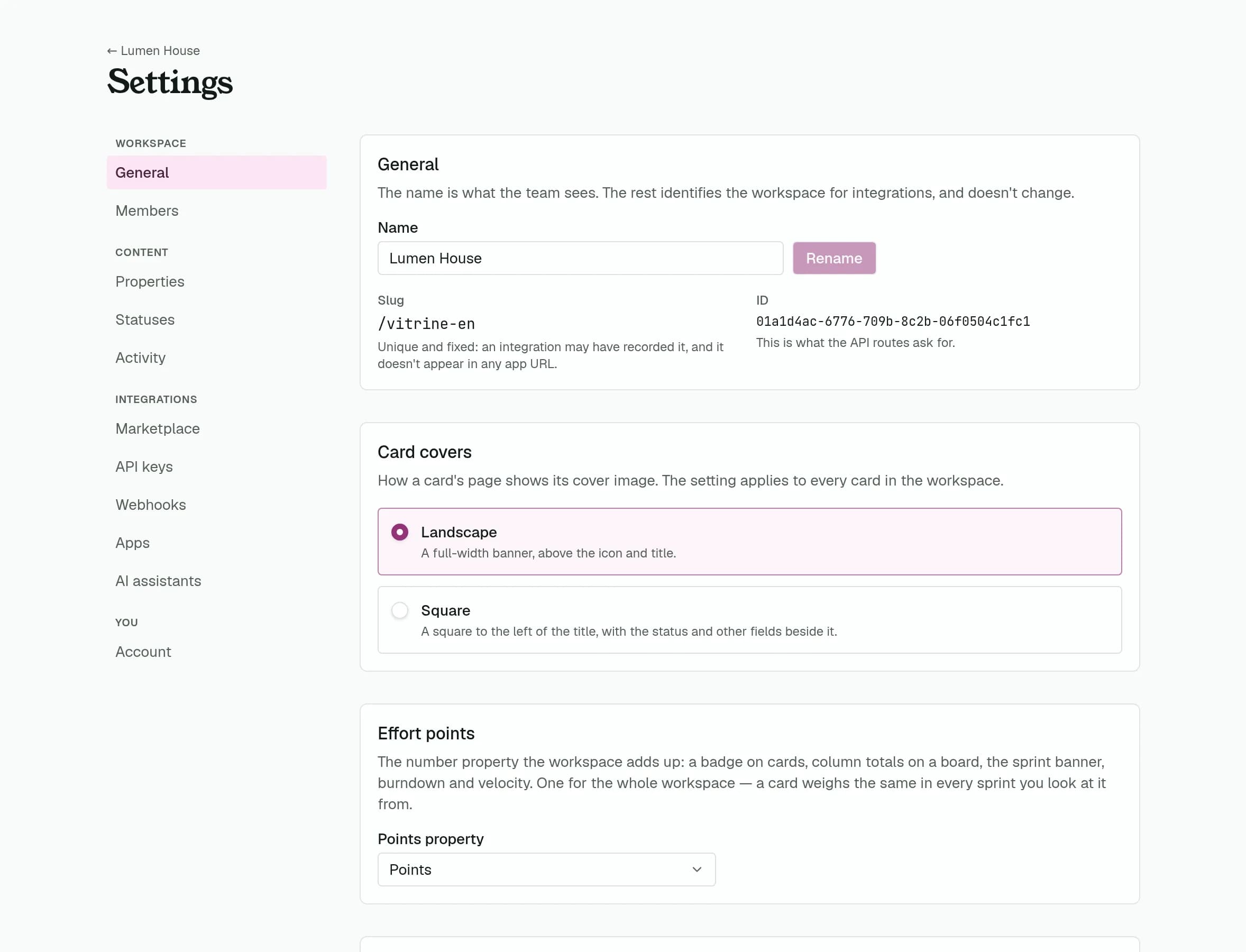
Everything you configure, one section at a time: members, properties, statuses, integrations.
Move around with the sidebar
- The workspace name, at the top, opens the list of your workspaces. All workspaces takes you back to the screen where you choose one.
- Search… finds a card by its key, its title or its content.
- Overview brings you back to the home of the workspace.
- Inbox shows your notifications. The number next to it counts the unread ones.
- Favorites lists the cards, lists and views you starred. The section only appears once you have a favorite.
- Lists shows every list, on its own or inside a group. Click a list to open it.
- Trash keeps what was deleted for 30 days.
- Workspace settings opens the settings.
Good to know
On a narrow screen, the sidebar is tucked away. The button at the top left opens it as a drawer.
Check where the workspace stands
Click Overview. The page reads from top to bottom:
- To do, In progress and Done count the cards of every list, by status category. Cards is the total.
- Activity draws the changes of the last 14 days, one bar per day.
- Progress is the share of cards that are done.
- Lists shows each list with its number of cards and its own progress. Click a tile to open the list.
- Recent activity shows the latest changes. Full log → opens the activity log of the workspace.
Open a list, then a card
Click a list in the sidebar
The list opens on its first view. The tabs above the cards are its other views.
Click a card
On a board, click the card. In a table, hover the row and click Open. The card opens in a panel on the right, and the list stays behind it.
Close the panel
Click Close or press Esc. There is nothing to save: a card saves itself as you type.
Open the settings
Click Workspace settings at the bottom of the sidebar, or Settings on the overview. The menu on the left is sorted into four families: Workspace, Content, Integrations and You. Each section has its own address, so you can share a link to it.