History and versions
See who changed what on a card, compare the versions of its content, restore one, and follow the activity of the workspace.
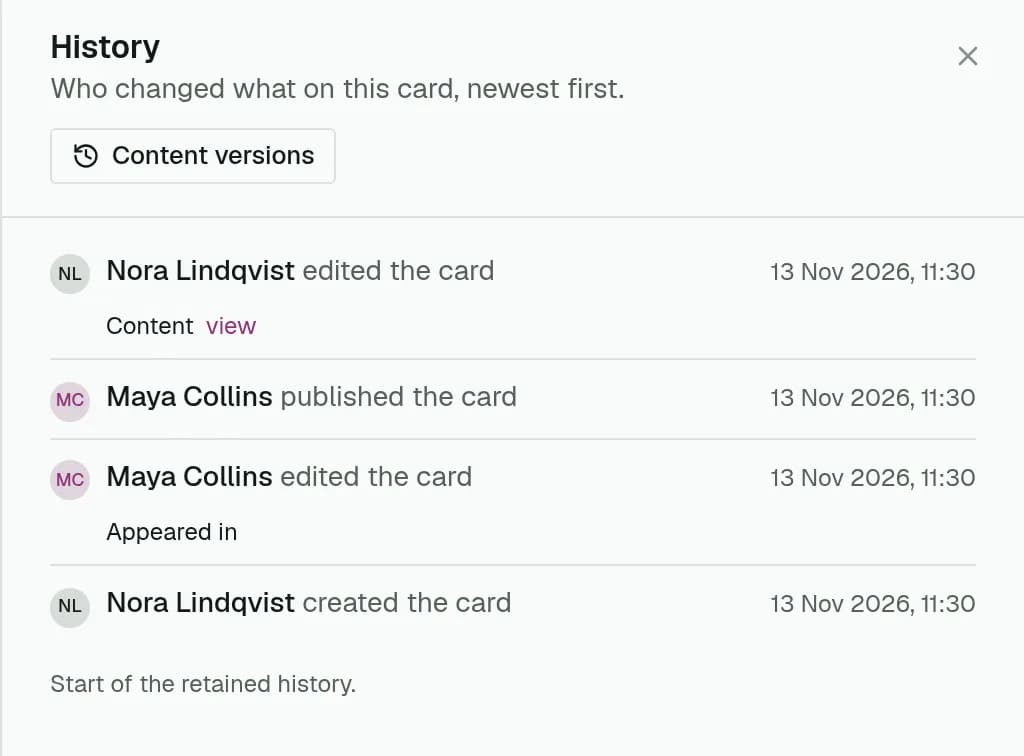
- 1
Content versions
Opens the versions of the title, the icon and the body.
- 2
An entry
Who did what, and when. The newest entry is at the top.
- 3
What changed
The fields this edit touched. On Content, view opens the version from that moment.
- 4
Publication
Publishing and unpublishing show in the history too.
Every card keeps two records. The history says who changed what. The versions keep the content itself, so you can read an earlier state and go back to it.
Open the history of a card
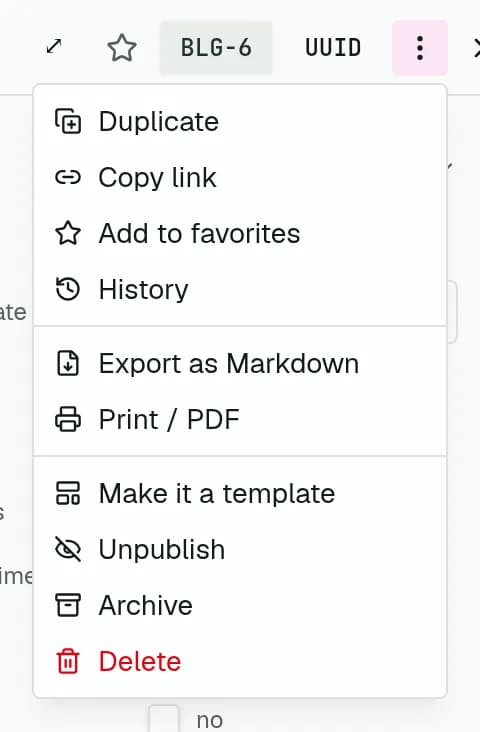
Open the card
In the panel or as a full page, both work.
Click ⋯ at the top right
It is the Card actions menu.
Choose History
A sheet opens on the right. A viewer can open it too.
Read who changed what
Each entry names a person, an action and a date: created, edited, moved, published, added to a list.
- Under an edit, the history lists the fields that changed. When the values are short enough to read, it shows the old one and the new one.
- Content means the body changed. Click view to open the version from that moment.
- Older loads the entries before. The list ends with Start of the retained history.
Good to know
On an old card, the history may not go back to its creation: the oldest entries are cleared over time. Versions are not. They stay as long as the card exists.
Compare versions of the content
In the history, click Content versions.
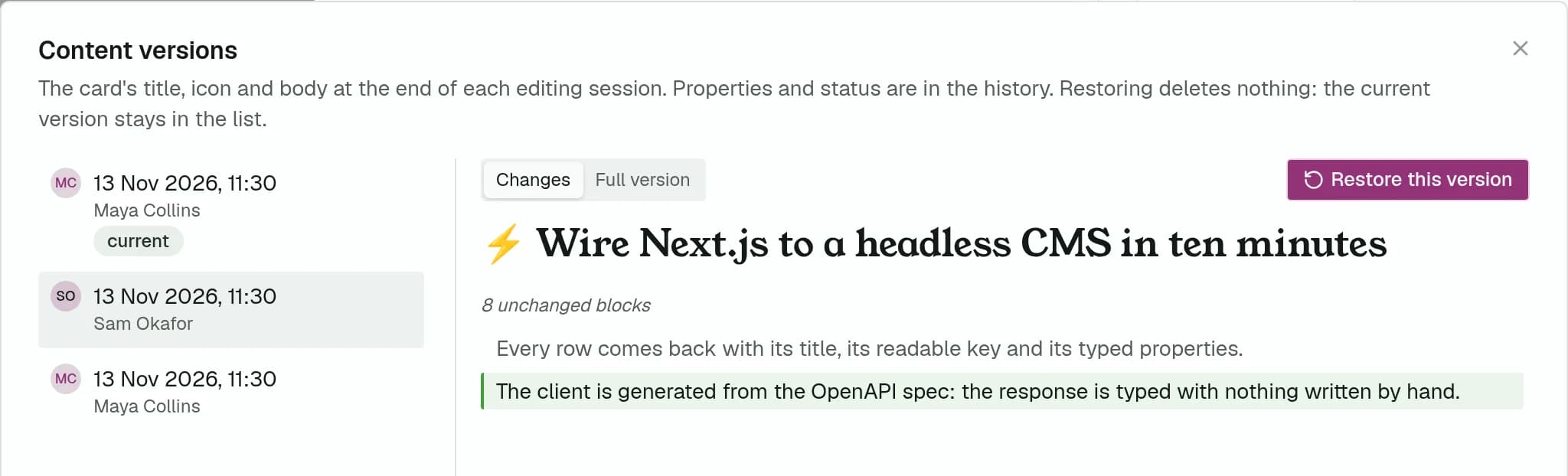
- 1
Versions
One line per editing session, with its date and author. current marks what the card says now.
- 2
Changes or Full version
See what this version changed from the one before, or read it whole.
- 3
The content
Added blocks are green, removed ones red and struck through. Unchanged blocks fold into a count, such as 8 unchanged blocks.
- 4
Restore this version
Puts this content back on the card.
A version is the state of the card at the end of one editing session. Edits by the same person less than 10 minutes apart belong to the same session, so an afternoon of typing does not make a hundred versions.
- A version keeps the title, the icon and the body. Properties and status are in the history, not in versions.
- A change that leaves the content as it was makes no version.
- Badges tell versions apart: current, published, restore and import.
Publishing closes the session. What you published gets its own version, with the published badge, even if you keep typing right after.
Restore a version
- Open Content versions and click the version you want in the list.
- Check it with Changes or Full version.
- Click Restore this version.
Restoring is an edit like any other. The card takes the old content, and a new version appears at the top of the list with the restore badge. Nothing is erased: the content you replaced stays in the list, and you can restore it in turn.
Careful
Restore this version acts at once, without asking for confirmation. It replaces the title, the icon and the body of the card for everyone.
Follow the activity of the workspace
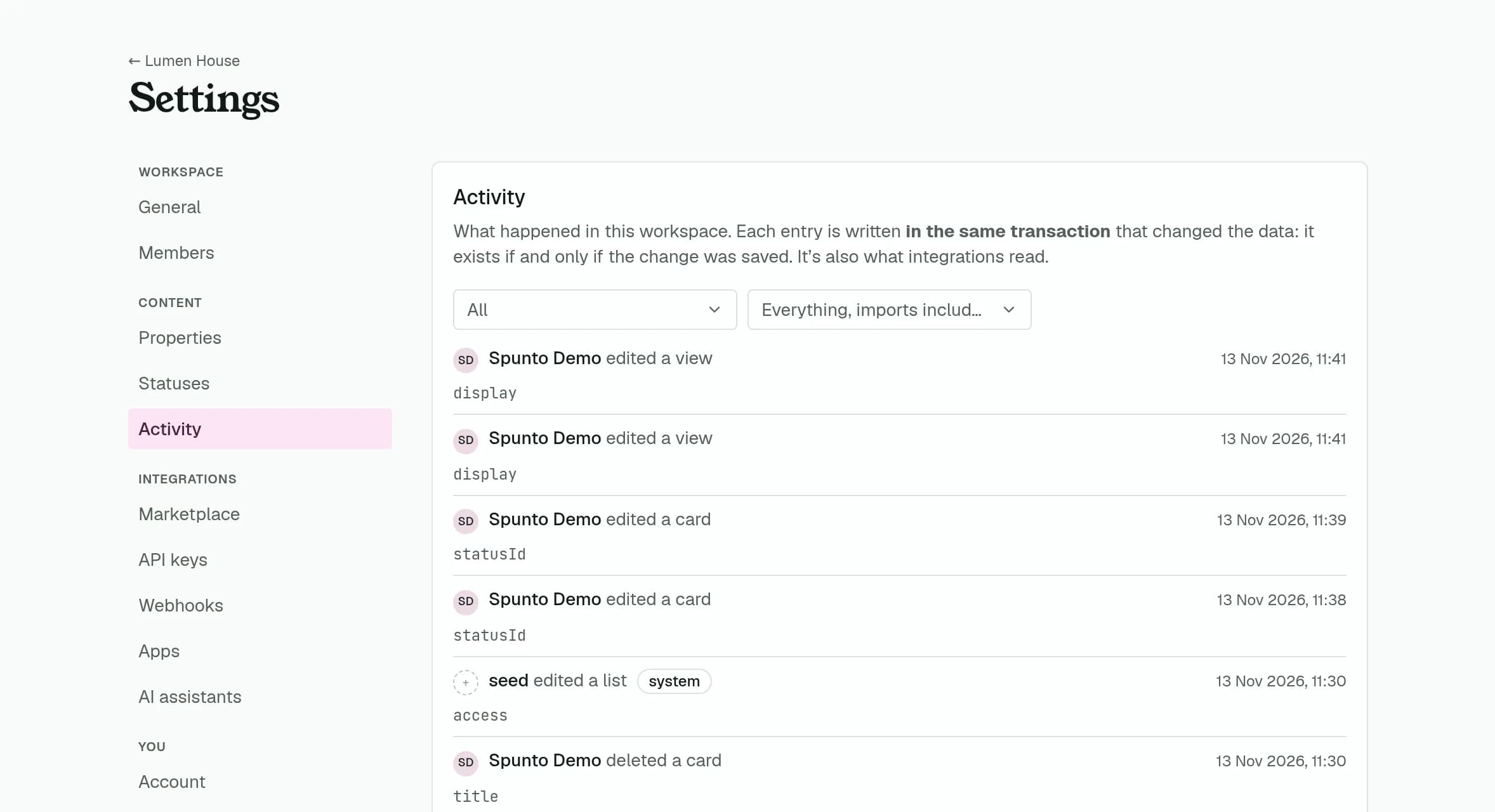
The same record exists for the whole workspace: cards, lists, properties, statuses and views.
- In the sidebar, click Workspace settings, then Activity. Every role can open it.
- Use the first filter to keep one kind of entry, such as Cards edited.
- Use the second to set imports aside: Activity only hides them, Imports only shows nothing else.
The workspace overview also shows the latest entries under Recent activity. Full log → leads to the same page.