Export
Take a card out as a Markdown file or a PDF, and a whole view out as a CSV file that opens in any spreadsheet.
Exports are files you download: one card at a time as a document, or the cards of a view as a table. Anyone who can see a card can export it, viewers included.
Export a card as Markdown
Open the card
Click the card in any view. The export is the same from the side panel and from the full page.
Open its menu
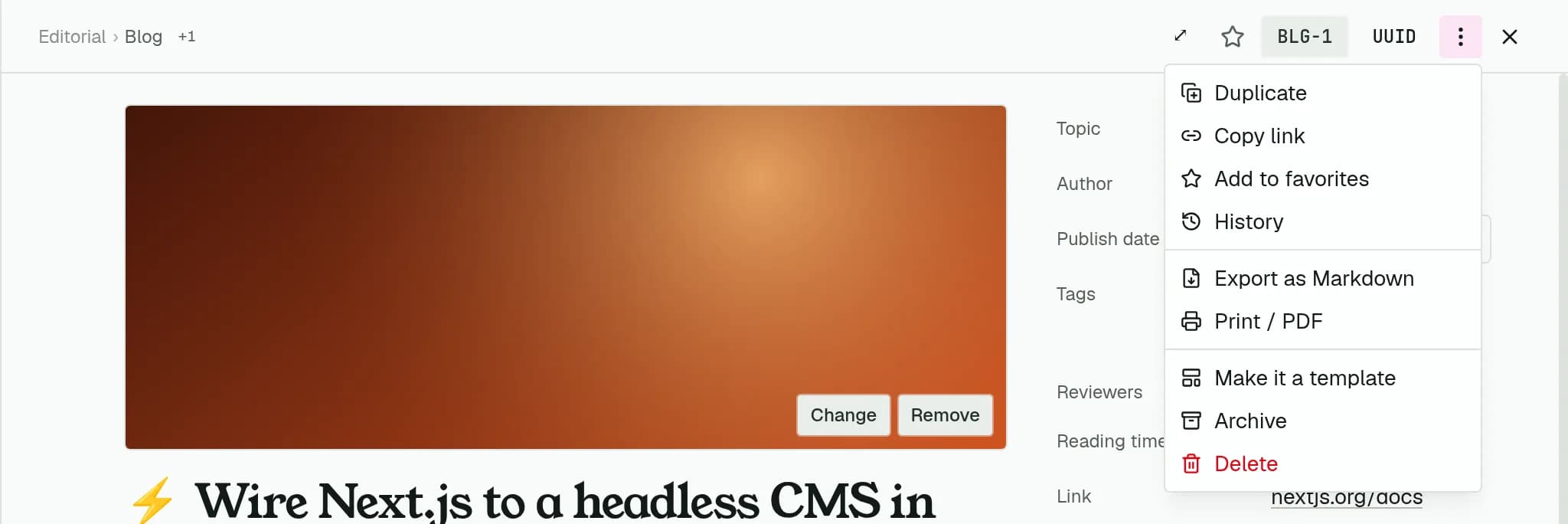
Click ⋮ at the top right of the card.
Choose Export as Markdown
Your browser downloads a file named after the card's key and title. It starts with a header — key, status, dates, the card's address, and every property that has a value — followed by the body.
In the header, values are written the way you read them in the app: a person is a name, a linked card is its key, a checkbox is Yes or No.
Good to know
The file holds what is on screen, including what you typed a second ago. Images and attachments become links to the app: they only open for someone signed in as a member of the workspace.
Save a card as a PDF
Open the card's menu
Click ⋮ at the top right of the card, then Print / PDF.
Choose where it goes
Your browser's print dialog opens with the card alone: key, status, title, properties and body, without the app around it. Pick a printer, or your browser's option to save as a PDF.
Export a view as CSV
Set the view
Open the view, and filter and sort it until it shows what you want in the file. In a table, hide the columns you don't need.
Open the view's menu
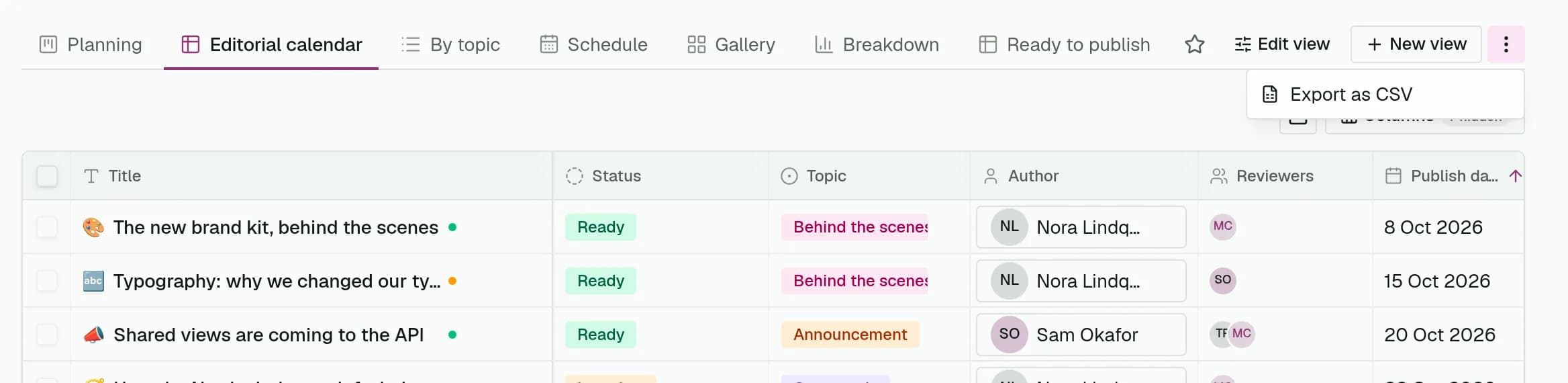
Click ⋮, to the right of New view.
Choose Export as CSV
The file holds the cards of the view, in the view's order, with the columns shown in the table — hidden ones are left out. It opens in Excel, Numbers, LibreOffice and Google Sheets, accents included.
A board, a stack or a calendar exports as a flat table too. A calendar exports the whole view, not only the month on screen.
Careful
A view of more than 5,000 cards is not exported: a message asks you to filter it first. Split it with a filter — by status or by date, for instance — and export each part.