Marketplace
Browse the apps that plug your workspace into Slack, Google Drive and GitHub, install one, and take its access back when you no longer need it.
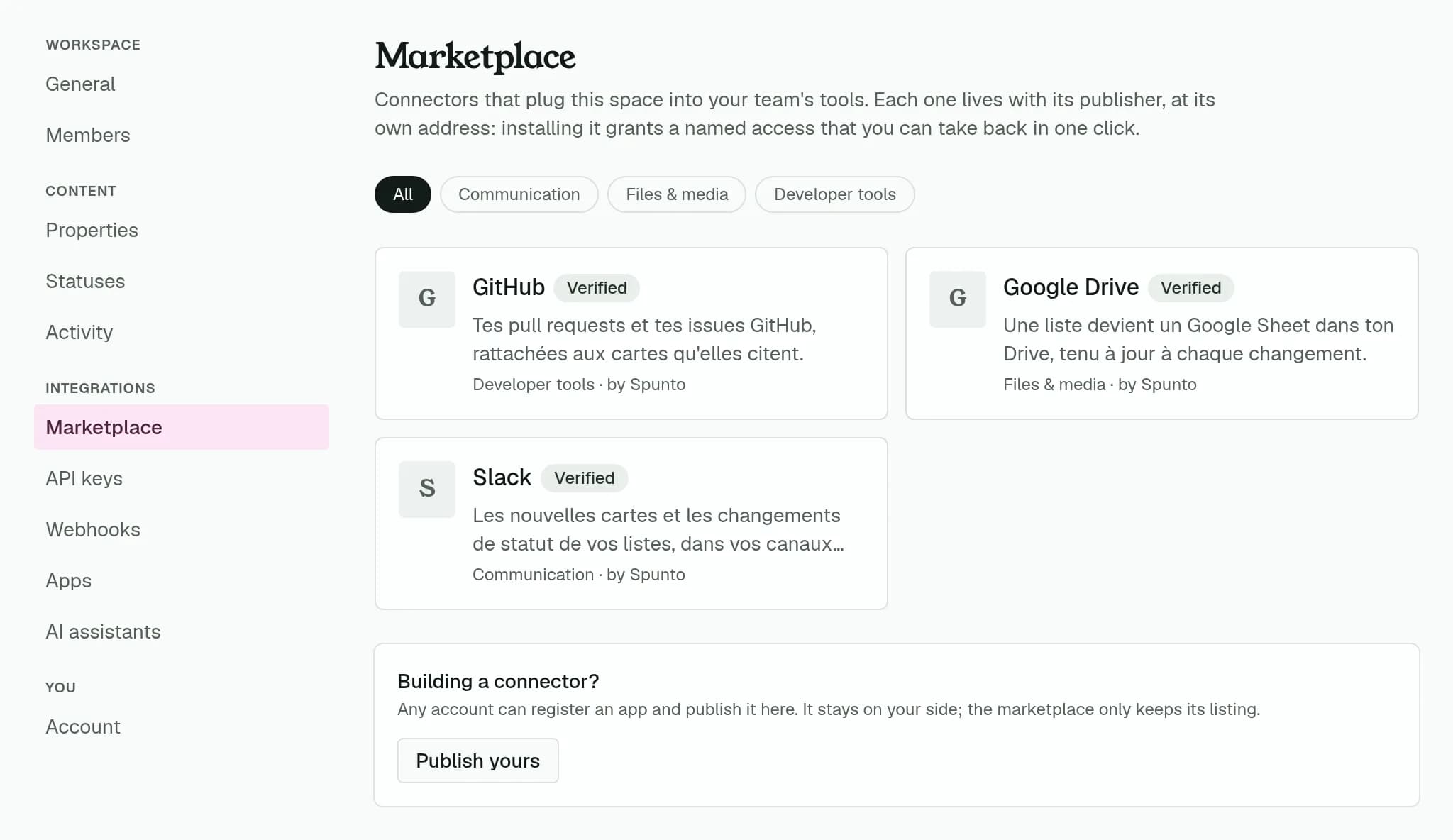
- 1
In the workspace settings
Open Workspace settings in the sidebar, then Marketplace. Every role can look. - 2
Categories
Filter the grid. Only categories that hold at least one app are shown. - 3
An app
Its name, what it does in one sentence, its category and its publisher. Click to open its listing. - 4
Verified
The operator of your instance has checked who publishes this app.
An app is a service run by its publisher, at its own address. Installing it gives it a named access to one workspace — an access you can remove in one click.
Browse the apps
Open the marketplace
In the sidebar, click Workspace settings, then Marketplace under Integrations.
Pick a category
Click Communication, Files & media or Developer tools to narrow the grid. All brings every app back.
Open a listing
Click an app to read what it does and what it will ask for.
Read a listing

- 1
What it does
Written by the publisher, in the publisher's language. - 2
What it will ask for
The most it can request. You can grant less, and it can't ask for more later without a new consent. - 3
Publisher
Who runs the app, with a link to their website. - 4
Where you are heading
The address Install sends you to. It should be the publisher's. - 5
Install
Leaves Spunto CMS for the app's own site.
Install an app
Only an owner or an admin can install an app. For everyone else the button is greyed out.
Click Install
You leave for the app's site, which starts the installation and sends you straight back to Spunto CMS.
Choose the workspace and the role
A consent screen asks Which workspace and With which role, and lists What it will be able to do. An app that only reads needs nothing more than viewer.
Allow or deny
Click Allow followed by the app's name to grant the access, or Deny to stop here. You then return to the app to finish its own setup — picking a Slack channel, for instance.
Once installed, the app carries an Installed badge in the grid and its button reads Open followed by its name.
Good to know
The role you pick is fixed at that moment. It doesn't follow yours if yours changes, and the app keeps working if you leave the workspace.
What the three connectors do
- Slack posts a message in the channel you choose when a card is created, changes status or is done, for the lists you choose. A bulk edit makes one message, not a hundred. It only reads.
- Google Drive turns a list into a Google Sheet in your Drive and rewrites it when the list changes. It only reads, and only touches the files it created.
- GitHub links pull requests and issues to your cards — see GitHub.
Remove an installed app
Open Apps
In Workspace settings, click Apps. The section is shown to owners and admins. Each app is listed with its role, its permissions, who installed it and when it was last used.
Click Uninstall
The access ends immediately, with no confirmation step. Other workspaces where the app is installed are not affected, and what the app wrote in your cards stays.
FAQ
Keep going
Sprints
Give a list a first and a last day, fill it with cards from your other lists, follow the burndown, then move what isn't done to the next sprint in one click.
GitHub
Link pull requests and commits to the cards they mention, move statuses along with the code, and bring a repository's issues into a list.