Card templates
Start new cards from a ready-made body, properties and subtasks, with the date and the author filled in for you.
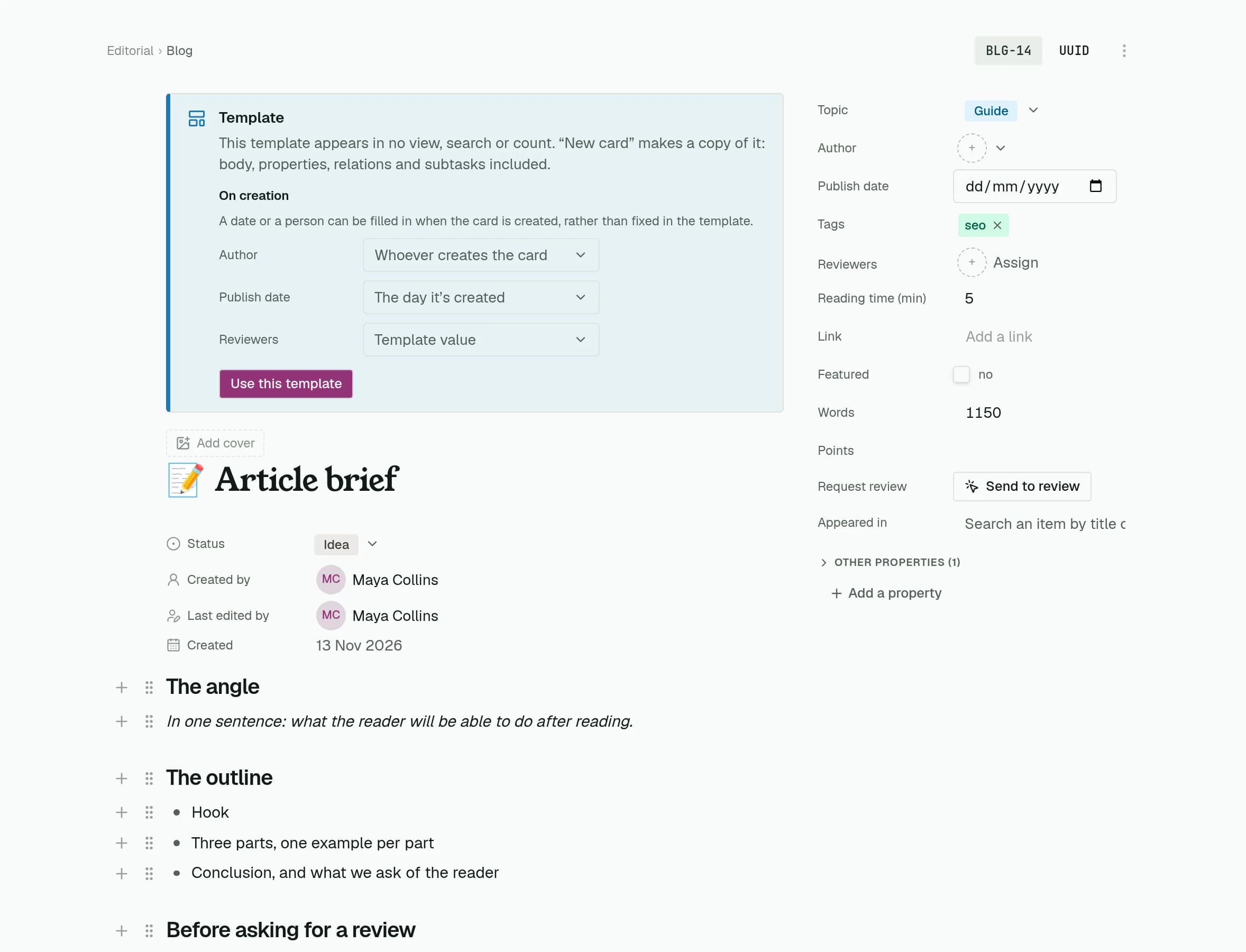
- 2
On creation
What gets filled in at the moment a card is created: today's date, or the person creating it.
- 3
Use this template
Creates a card from the template and opens it.
- 4
Body
The headings and checklists every new card starts with.
- 5
Properties
Values set here are copied as they are.
A card template is a card of a list, set aside to be copied. Each list has its own templates.
Create a card from a template
Open the list
Templates belong to one list. In the showcase workspace, the Blog list has one: Article brief.
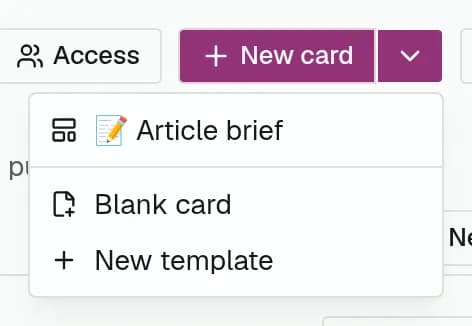
Open the menu next to New card
Click the arrow to the right of New card. Its label is Create from a template.
Pick a template
The new card opens, named after the template: give it its own title. It lands at the end of the list, with a new key and you as its author. Blank card creates an empty card instead.
What a template carries
A card created from a template copies:
- the title, the icon and the cover;
- the body, as written;
- the status and the property values, relations included;
- the subtasks that are not archived;
- the other lists the template is attached to.
Comments and history are not copied. Later changes to the template do not reach the cards already created from it.
Create or edit a template
You have two ways to create one:
- In the New card menu, click New template. An empty template opens, named New template.
- On an existing card, open the ⋯ menu and click Make it a template. The card leaves the views of its list.
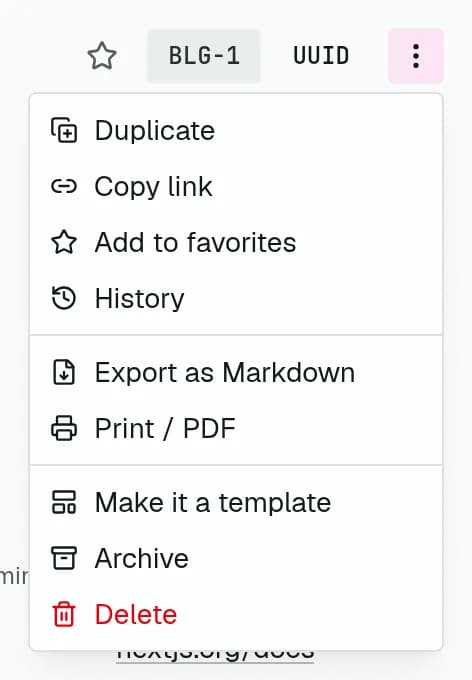
A template is edited like any card: write its body, set its properties, add its subtasks. To find it again, open List settings, go to Card templates and click Open.
To make a template an ordinary card again, open its ⋯ menu and click Turn back into a card.
Good to know
Make it a template only shows on a card that has no parent. A subtask becomes part of a template with its parent card.
Fill in the date and the author automatically
Under On creation, the banner lists the date and person properties of the list. For each one, choose:
- Template value — the new card gets what the template says, even if that is nothing.
- The day it's created — for a date. The new card gets the date of the day you create it.
- Whoever creates the card — for a person. The new card gets you.
In Article brief, the author is whoever creates the card and the publish date is the day it's created. A change here is saved right away.
Set a default template
Open List settings and, under Card templates, choose a Default template.
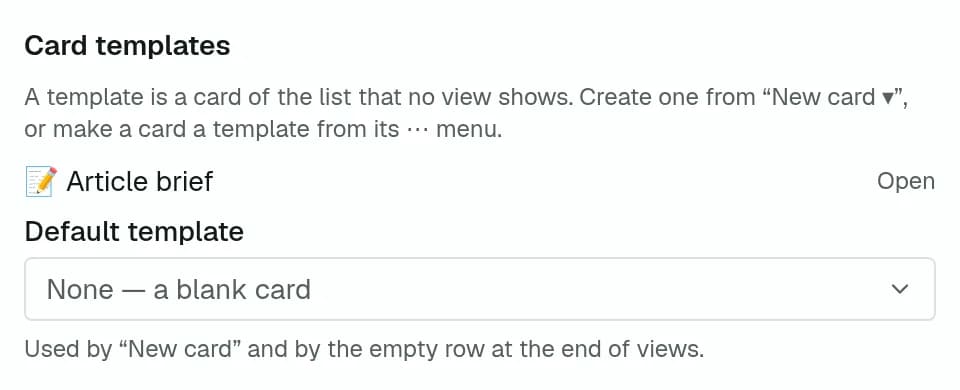
From then on, New card and the empty row at the end of each view create a card from that template. Blank card stays in the menu. Choose None — a blank card to go back.