Views
A view is a saved way of looking at a list's cards. Create one, change its layout, rename it, add it to your favorites, and know what a list shows when it has none.
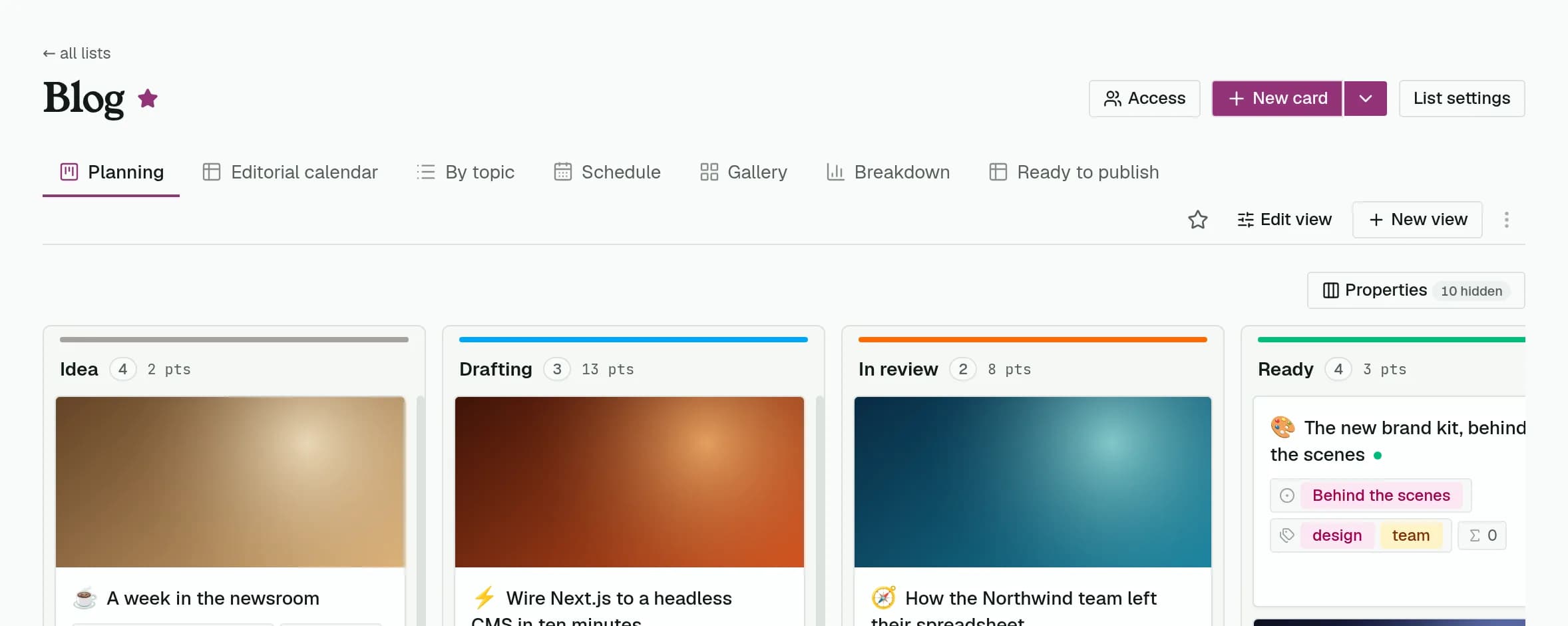
- 1
One tab per view
Each tab is a saved view of the same list. The icon tells its layout. Click a tab to switch. - 2
Favorite
Adds the view you are looking at to your favorites. - 3
Edit view
Opens the settings of the current view: name, type, filters, sort, grouping. - 4
New view
Adds one more view to this list.
A view is a saved way of looking at the cards of a list. It keeps two things: which cards it selects (filters, sort, grouping) and how you look at them (layout, columns).
The layouts
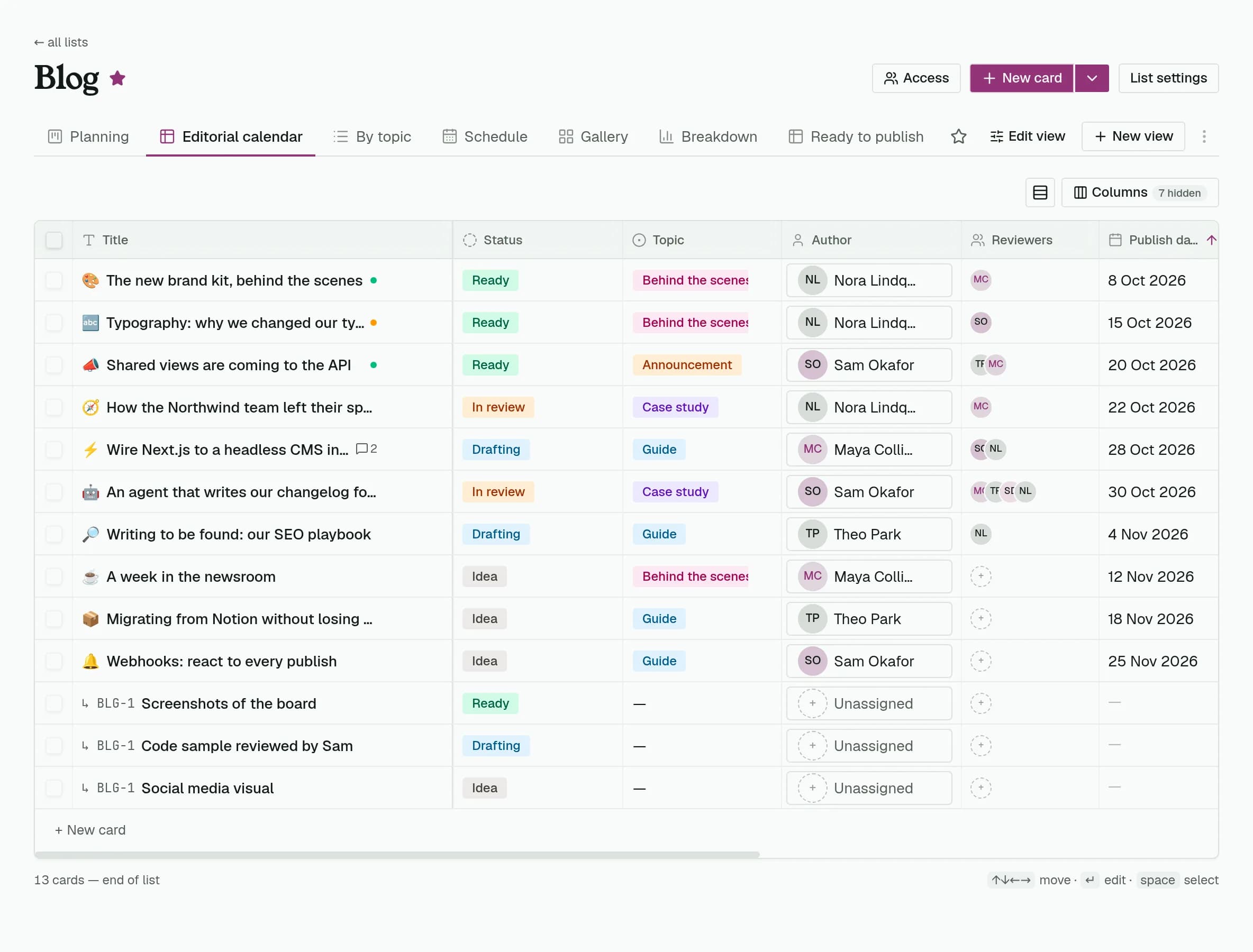
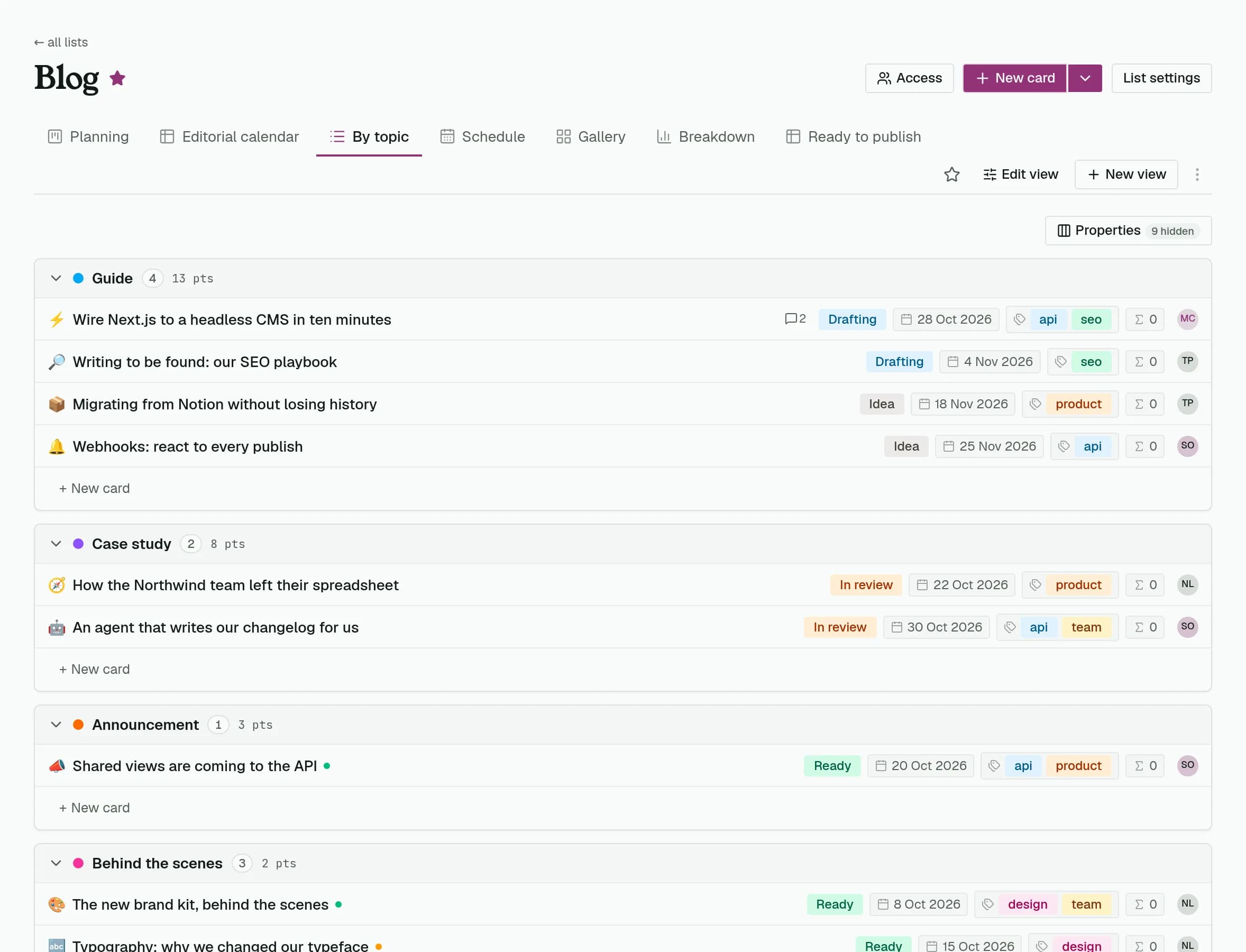
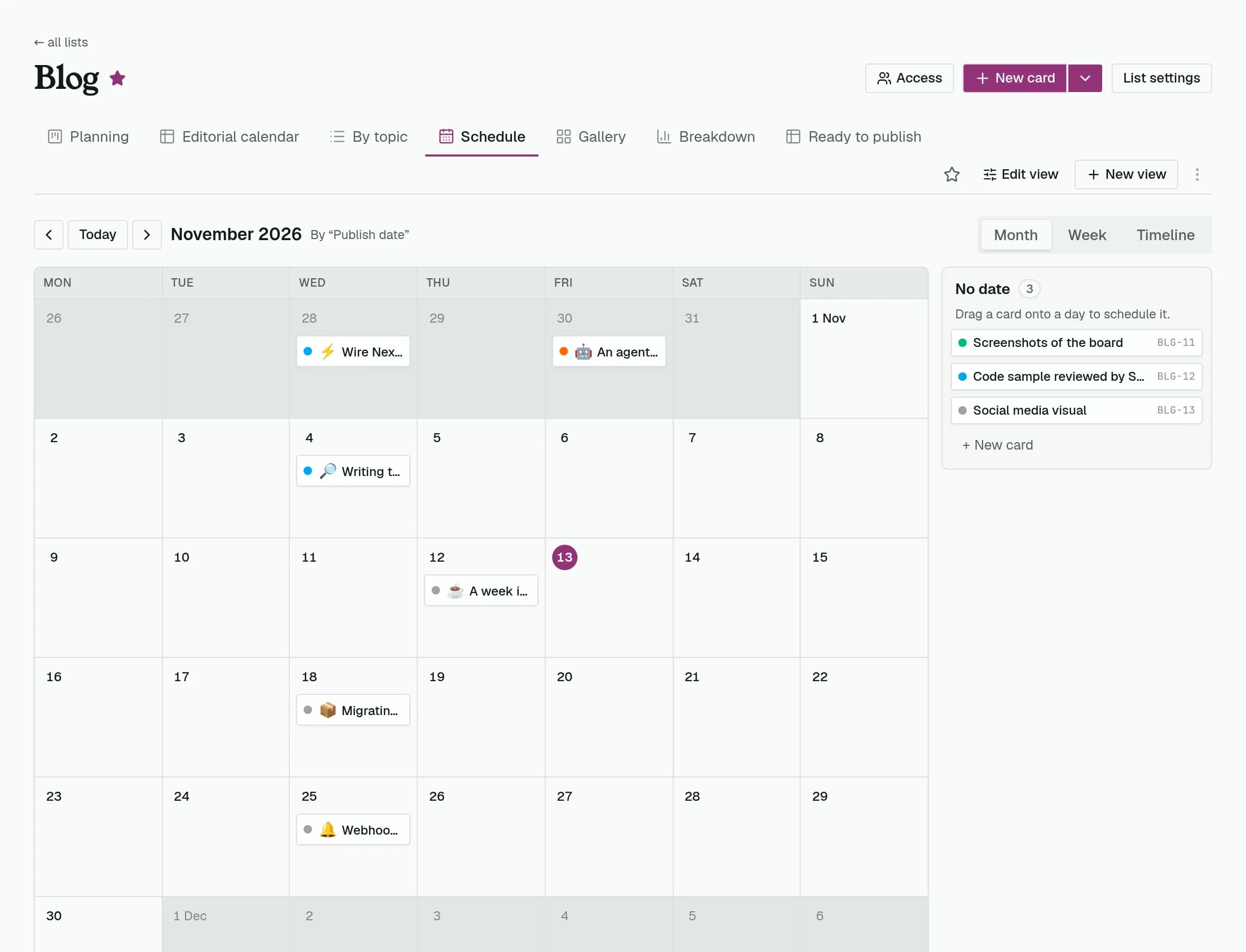
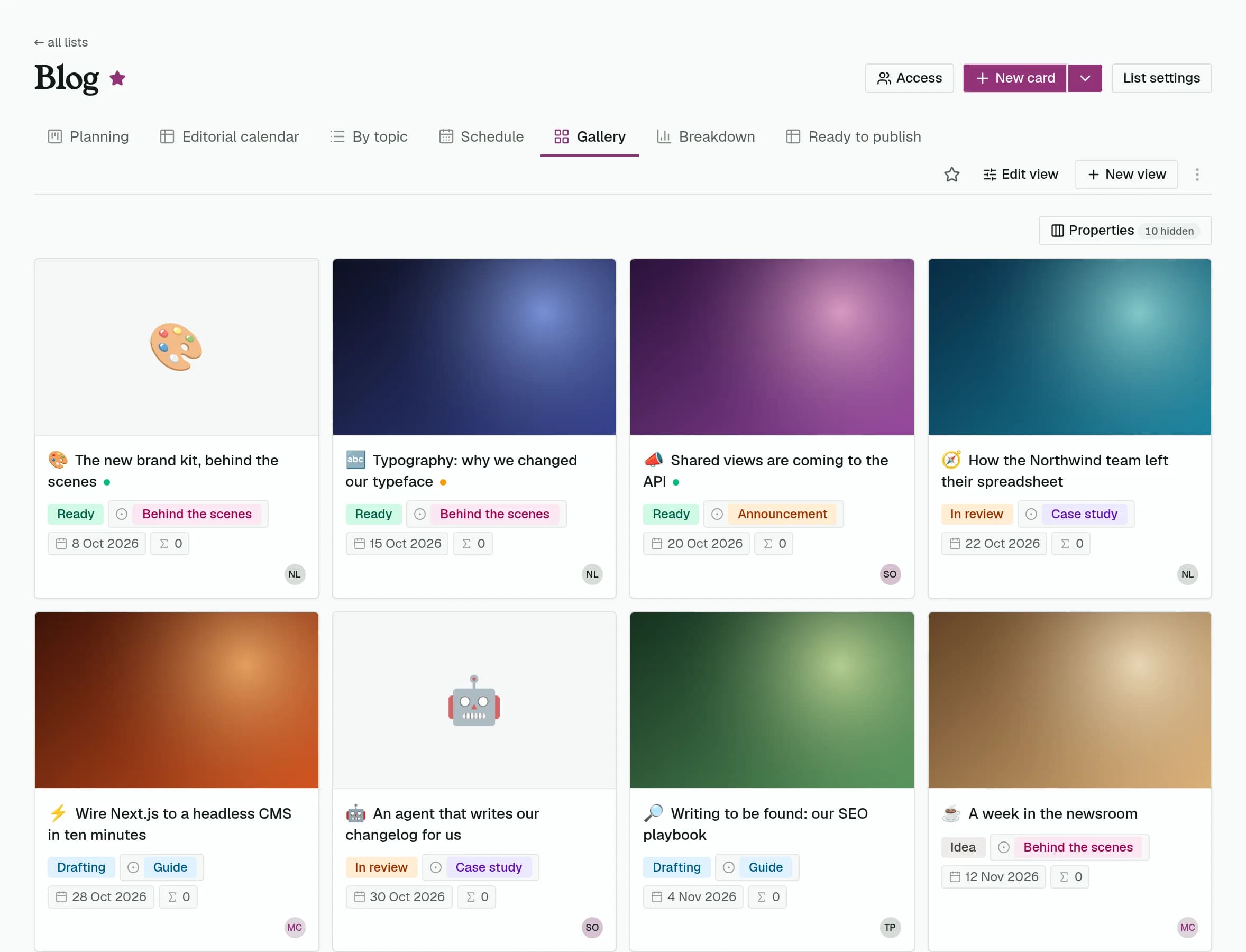
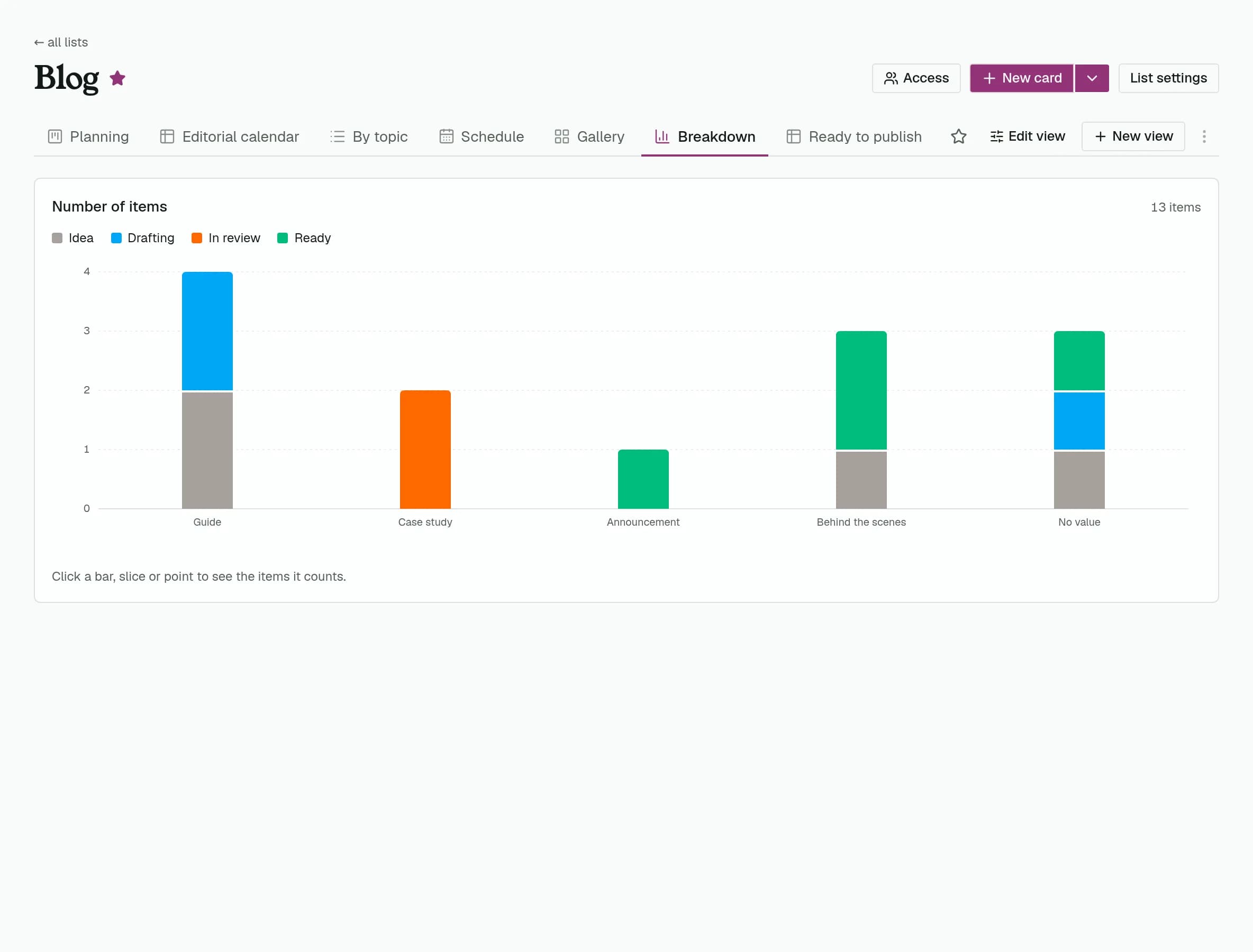
The same list can be read as a table, a board, a stack, a gallery, a calendar or a chart. Here is the Blog list under six of its views.
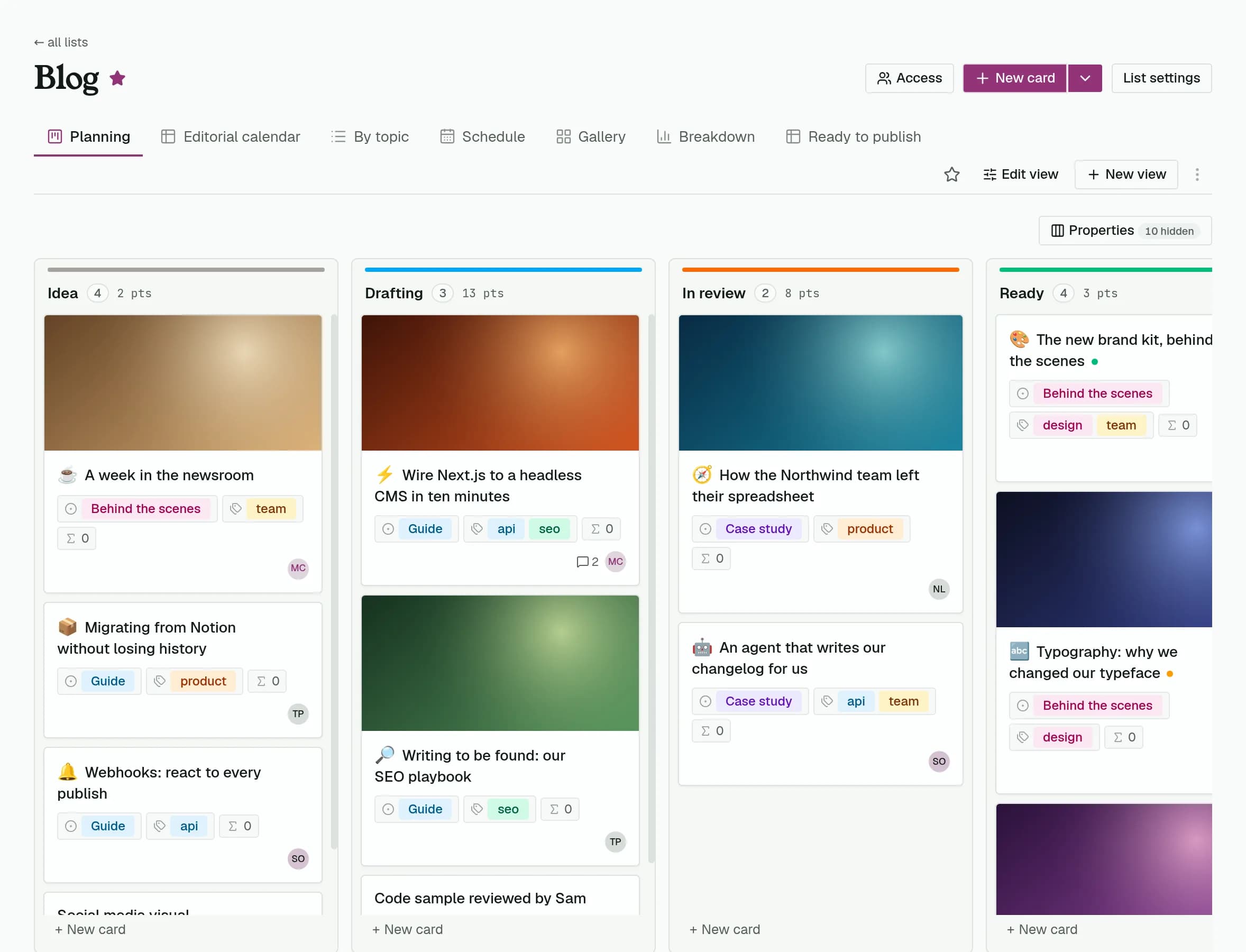
One column per value. You move a card by dragging it. See Board.
A grid: one row per card, one column per property, edited in the cell. See Table.
One collapsible section per value. See List and gallery.
Cards laid out on their date, by month or by week, or as bars on a timeline. See Calendar and timeline.
A grid of cards with their image. See List and gallery.
Bars, a pie or a line that count the cards of the view. See Chart.
Good to know
Changing the layout never brings a card in or out. A view with the same filters shows the same cards as a table, a board or a calendar.
Create a view
Click New view
The button sits at the right of the tabs.
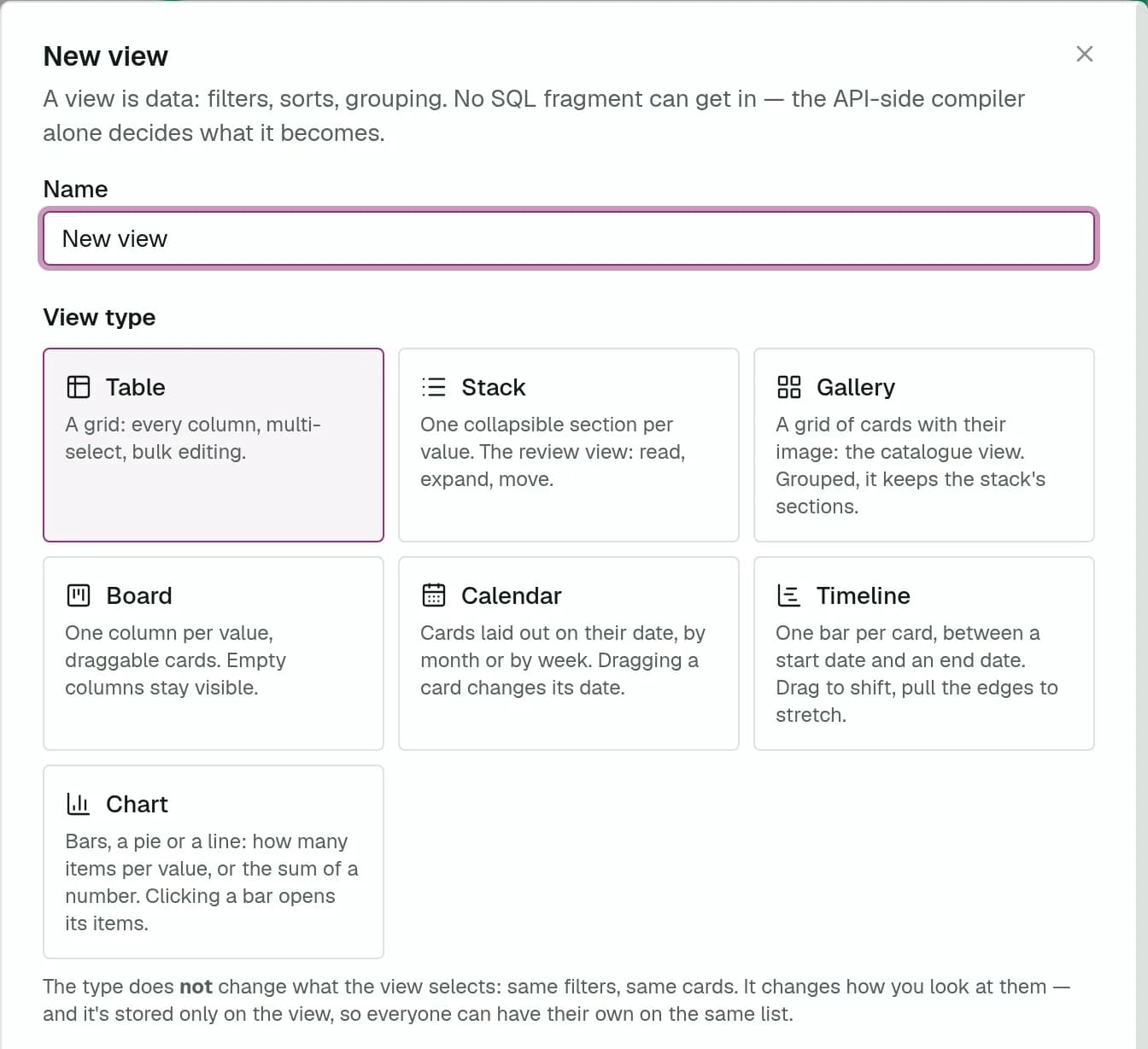
Name it and pick a view type
Fill in Name, then choose under View type: Table, Stack, Gallery, Board, Calendar, Timeline or Chart.
Choose what it shows
Set Filters, Sort and Grouping and scope, or leave them empty to show every card. A board or a stack needs a Group by field: it becomes the columns or the sections. See Filter, sort and group.
Click Save
The view gets its own tab and opens.
Edit, rename or delete a view
Open the view, then click Edit view. The dialog is the same as for a new view.
- Change its settings or its type: adjust them, then click Save.
- Rename it: type the new name in Name, then click Save.
- Leave without changing anything: click Cancel or press Esc.
- Delete it: click Delete view, at the bottom left.
Careful
Delete view acts at once, without asking you to confirm. The cards stay in the list: only this way of looking at them goes away.
Add a view to your favorites
Open the view and click the star at the right of the tabs. The view joins Favorites in the sidebar, one click away from anywhere in the workspace. Click the star again to remove it.
A list with no saved view
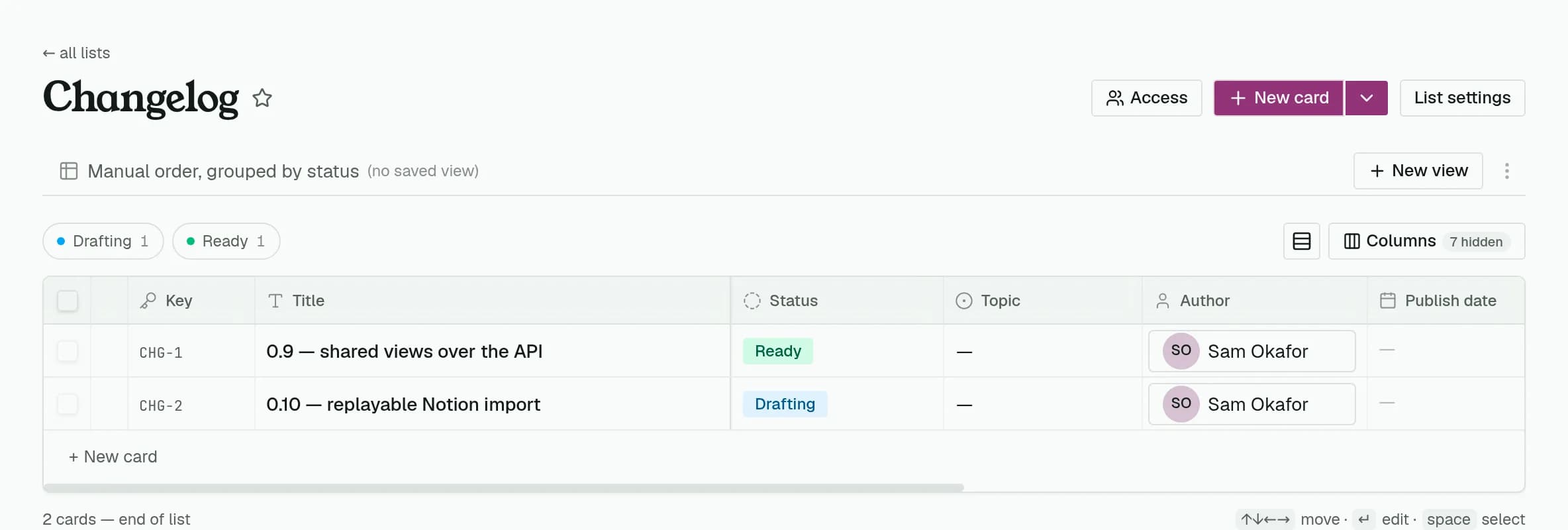
A list doesn't need a view to be useful. Until you create one, it shows all its cards in a table, in manual order and grouped by status, including the cards attached from other lists. The tab reads Manual order, grouped by status (no saved view), and there is nothing to edit yet: only New view.
FAQ
Keep going
Trash
Deleted cards and lists wait in the trash for 30 days. Restore them as they were, or erase them for good.
Filter, sort and group
Choose which cards a view shows, in what order and under which headings. Filter by status, property, person, date or linked card, sort, group, and include cards attached from other lists.