Lists
Create a list, read the keys it gives its cards, choose what it shows, and arrange your lists in the sidebar.

- 1
Favorites
The lists, views and cards you starred. Only you see them.
- 2
A group
A label that tidies the sidebar. It holds lists and subgroups.
- 3
A list
Its key prefix, then its name. Click it to open the list.
- 4
List and Group
Create a list or a group from the bottom of the tree.
- 5
List settings
The name, key prefix, group, presentation and properties of the open list.
A list holds cards of one kind: blog posts, partners, the tasks of a sprint. Every card is born in a list, and that list gives the card its key and its statuses.
Create a list
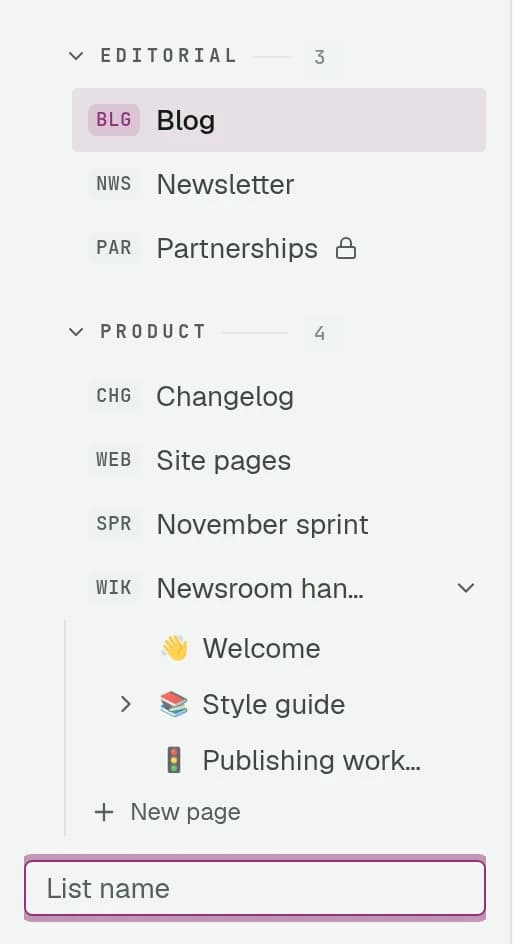
Click List at the bottom of the sidebar
A field opens in place, under your groups.
Type a name, then press Enter
The list appears under Lists, outside any group. Esc cancels. Clicking elsewhere with a name typed also creates the list.
Open the list and trim it
A new list starts with every property and every status of the workspace. Keep the ones this list needs: properties in List settings, statuses in the workspace settings.
Read a card key
Each list has a key prefix, shown before its name in the sidebar. The Blog list uses BLG, so its cards are BLG-1, BLG-2, and so on. The key is what you quote in a message or type in the search.
- The prefix comes from the first three letters of the name. You can change it in List settings, up to ten characters.
- A number is never reused, even after its card is deleted.
- A card shown in another list keeps the key of its home list.
Careful
Changing the prefix renames every card of the list: BLG-12 becomes ART-12. Numbers stay. Keys already quoted in messages or documents no longer match.
Change the list settings
Open the list, then click List settings, at the top right. The button is shown to members who can edit the workspace, not to guests.
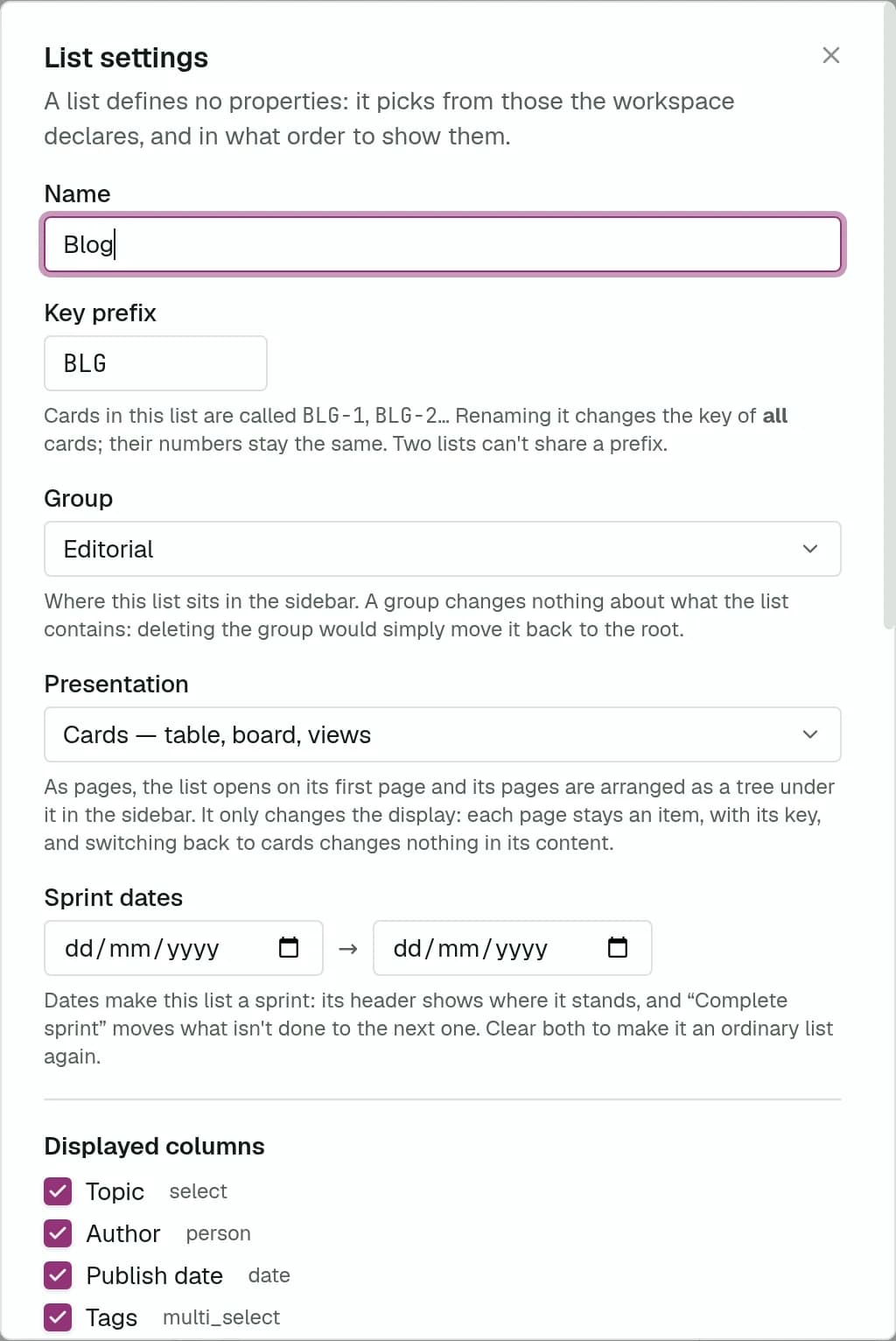
- Name and Key prefix identify the list and its cards.
- Group places the list in a sidebar group, or None — at the root.
- Presentation switches between Cards — table, board, views and Pages — a wiki, as a tree in the sidebar. See Pages.
- Sprint dates turn the list into a sprint. See Sprints.
- Displayed columns lists the workspace properties. Tick the ones this list uses; the order you tick them in is the order of the columns. See Properties.
Click Save to apply. Statuses are not chosen here: each list picks its own in the workspace settings.
Group lists in the sidebar
Groups tidy the sidebar on two levels: a group holds lists and subgroups, a subgroup holds lists only.
- Click Group at the bottom of the sidebar, type a name, press Enter.
- To nest a group, hover its name and click Add a subgroup.
- To fill a group, drag a list onto it, or pick the group in List settings.
The same hover shows Rename group and the delete button. Deleting a group deletes nothing else: its lists and subgroups move up one level.
Reorder lists
Hover a list in the sidebar and drag it by the handle on its left. A label follows the pointer and says what releasing will do: Before “Blog”, Into “Product”, At the top level. Press Esc to cancel.
From the keyboard, focus a list, then press Alt↑ or Alt↓ to move it, and Alt← to take it out of its group. The order is the same for everyone in the workspace.
Add a list to your favorites
Click the star next to the list title. The list joins Favorites, at the top of your sidebar. Click the star again to remove it. Favorites are personal: every member, read-only members included, keeps their own.
Delete a list
Open List settings, scroll to Delete list, click Delete this list, then confirm. Only owners and admins see this section.
The list goes to the trash with the cards it is home to, and stays restorable for 30 days. Cards that were only attached to it stay in their home list.