Calendar and timeline
Lay cards out on their date, by month, by week or as bars on a timeline, and change a date by dragging the card to another day.
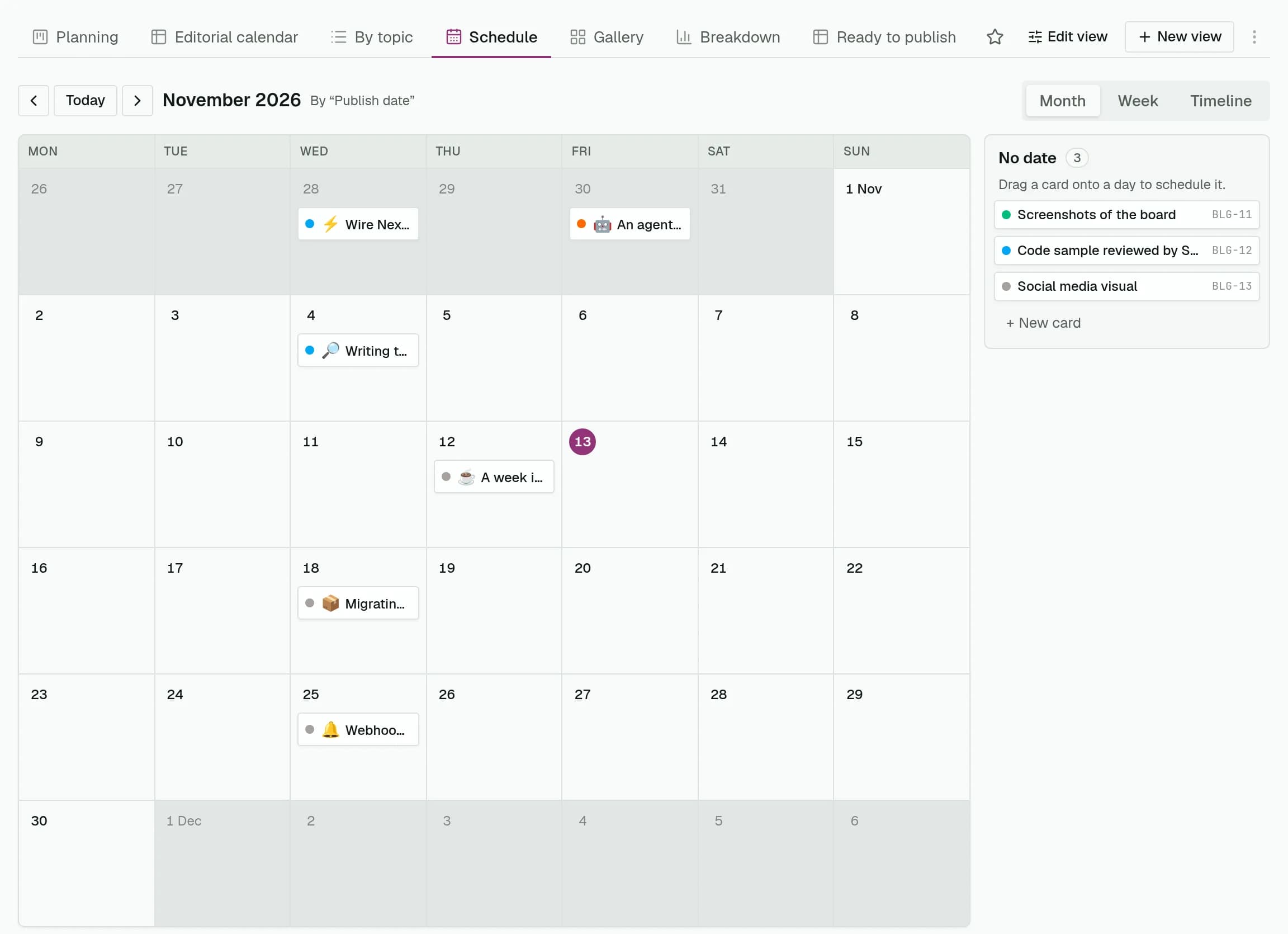
- 2
The date in use
The property that places the cards, here Publish date. - 3
Layout
Month, Week or Timeline: three ways to look at the same cards. - 4
A card
It sits on its day, with the color of its status. Click it to open the card. - 5
No date
The cards of the view that have no date yet wait here.
A calendar is a view that places each card on a date property. Moving a card to another day changes that date on the card.
Move a card to another day
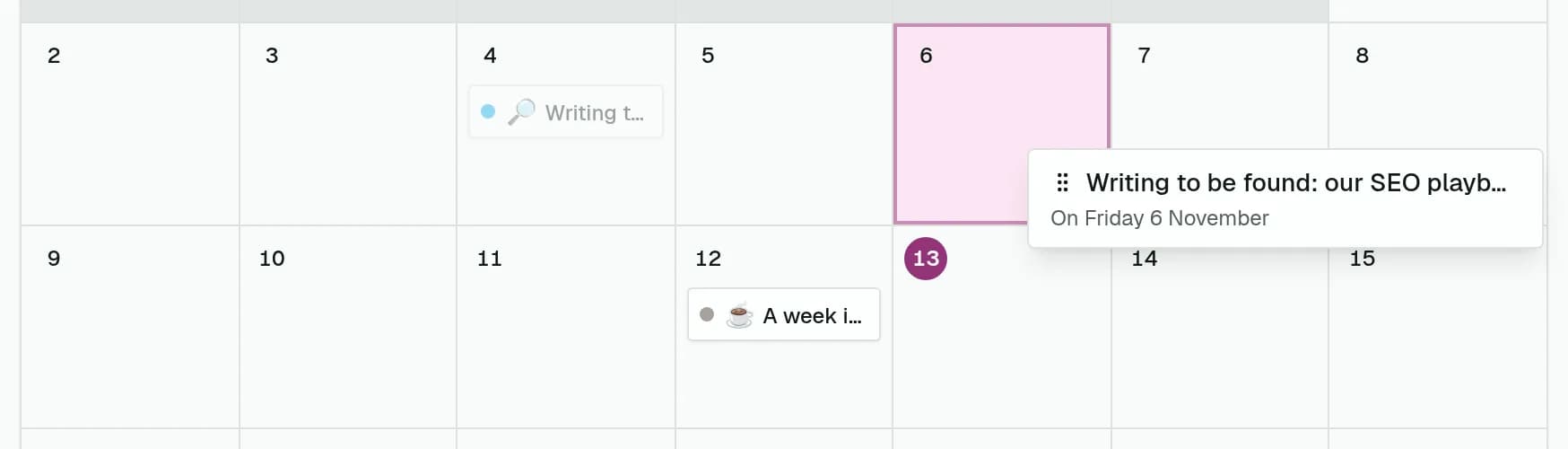
Press on the card and drag it
The drag starts once the pointer has moved a few pixels, so a plain click still opens the card.
Read the ghost
A small copy of the card follows the pointer and names the day it will go to, for example On Friday 6 November.
Release on the day
The date of the card changes. A card that carries a time keeps it, and a card that runs over several days keeps its length.
To cancel, press Esc before you release.
Schedule a card that has no date
The No date panel lists the cards of the view whose date is empty. Drag one onto a day to schedule it. The other way round, drag a card from the grid onto the panel: the ghost reads Remove the date, and the card goes back to the panel.
To create a card on a given day, click the empty space of that day, type a title and press Enter. The card is created with that date.
Choose the date the calendar uses
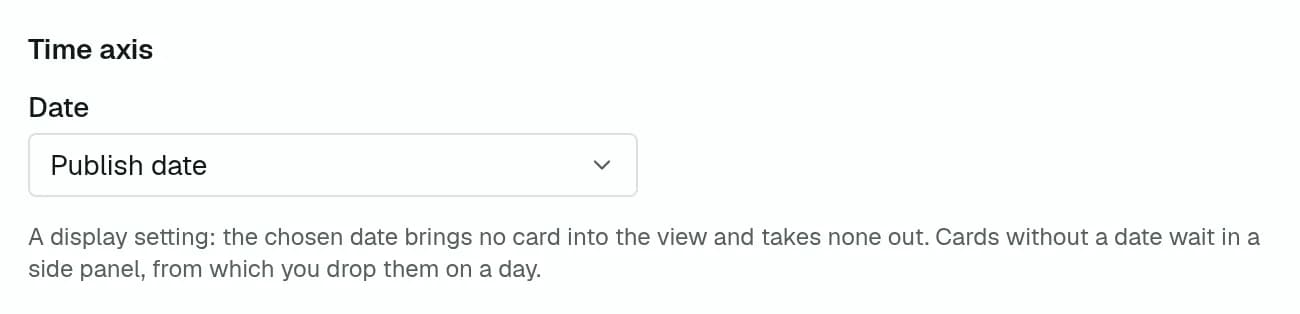
Click Edit view. Under Time axis, pick a date property in Date, then click Save. Choosing a date brings no card into the view and takes none out: it only decides where cards are drawn.
To show cards that last several days, turn on End date in the settings of the date property. A card then holds a start and an end, and the month draws a bar across the days instead of a chip. See Properties.
Switch to the week or the timeline
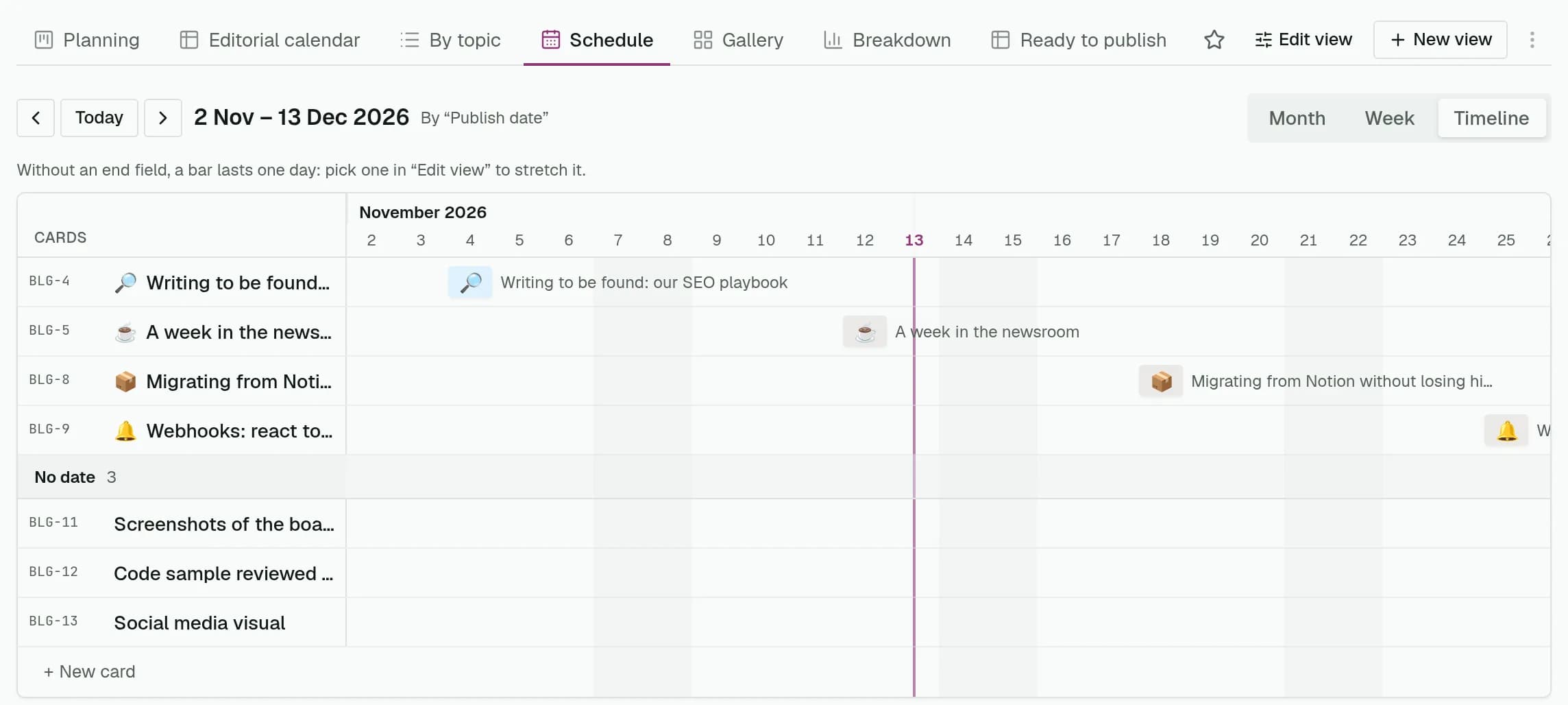
Click Week or Timeline next to the month. If you can edit the list, the layout is saved with the view.
- Week shows seven days. When the date property carries a time, the week becomes an hour grid: drag a card up or down to change its time.
- Timeline shows six weeks, with one row per card and one bar per date. Drag a bar to shift it, or pull one of its edges to stretch it.
Good to know
Without an end, a bar on the timeline lasts one day and can't be stretched. Turn on End date on the date property. Or use a second date property: in Edit view, pick Timeline as the view type, and Time axis then offers a Start and an End.